A shorter checkout
A shorter, easier checkout: fewer fields for virtual products, quantities on the checkout, and the cart and checkout on one page.
Hide fields for virtual products
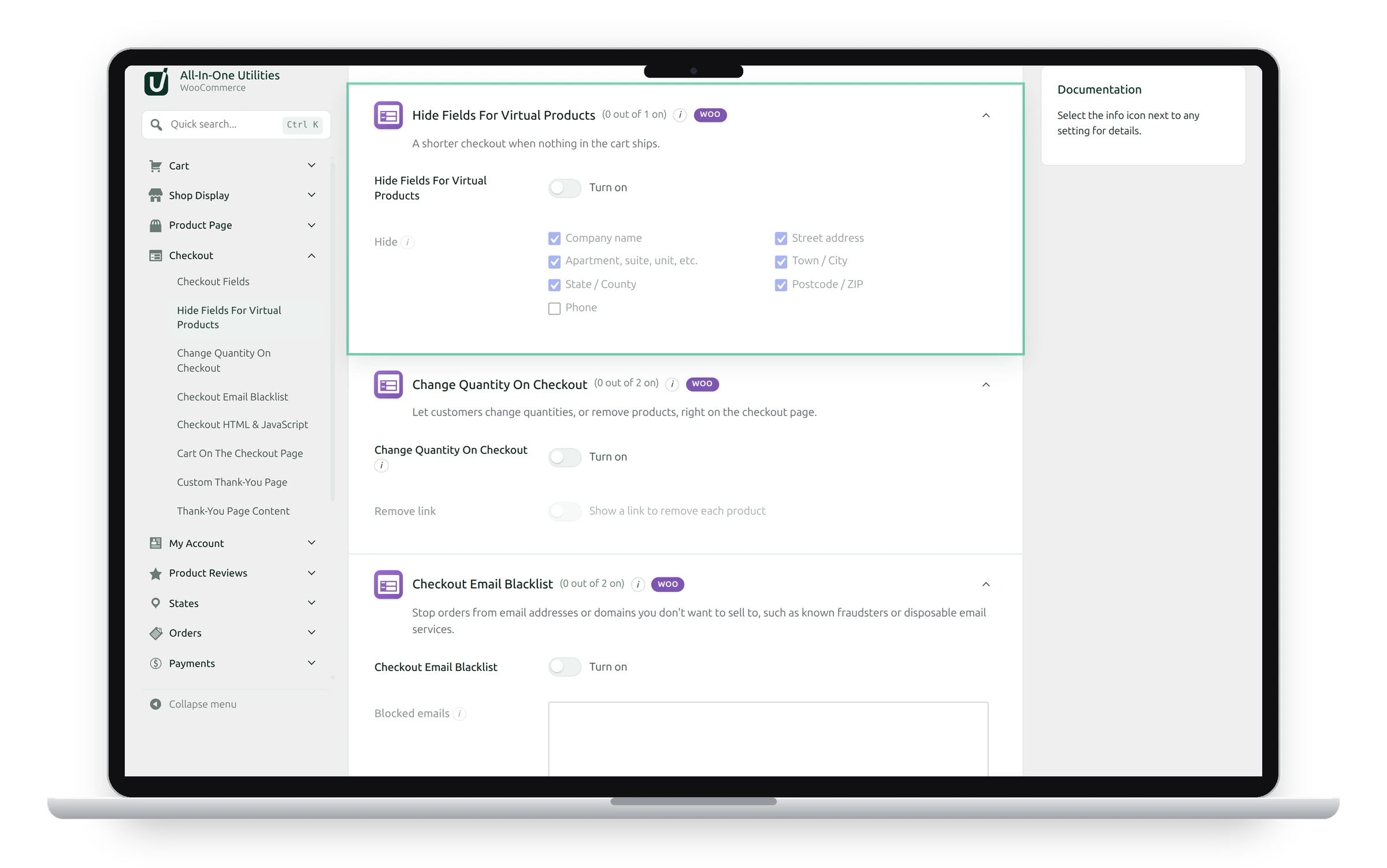
When nothing in the cart ships, hide the fields you don’t need: company name, street address, apartment, town, state, postcode or phone. Only when every product is virtual. The country is always kept, because WooCommerce needs it to work out tax.
Card checks
Some payment providers need a full billing address to check cards. If payments start failing, show the address again.
Change quantity on checkout
Let customers change quantities, or remove products, right on the checkout page: a − / + stepper under each product in the Checkout block’s order summary, or a quantity box in the classic order review. Tick Remove link to show a link that removes each product.
Products sold individually keep a quantity of 1. Quantity rules from the Cart tab still apply.
Cart on the checkout page
One page instead of two: the cart at the top of the classic checkout (
The Checkout block’s order summary already lists the products; use Change quantity on checkout there.
See also Checkout fields and Checkout email blacklist.
Get the add-on: compare the plans for All-in-One Utilities Woo Add-on, then pick the one that fits your sites.
Payments are encrypted and processed securely by Stripe. We never see or store your card number.