SVG is the best format for logos and icons: one small file that stays sharp at any size. WordPress blocks SVG uploads by default, because an SVG file can contain code as well as a picture. SVG Uploads allows them for the roles you choose, and cleans every file before it’s stored.
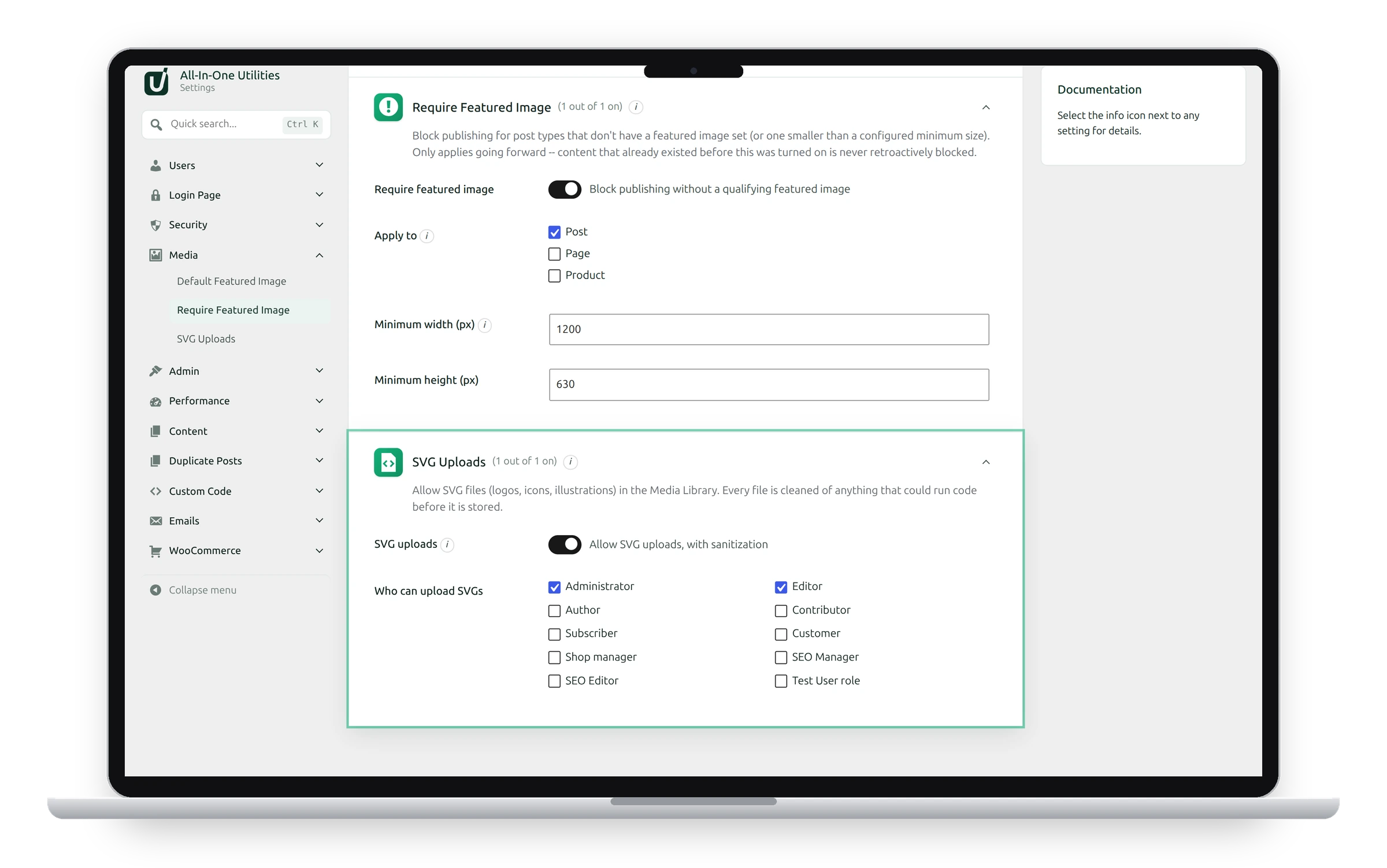
Settings
- SVG uploads: allows SVG files in the Media Library, with sanitization.
- Who can upload SVGs: the roles allowed to upload them. Only Administrator is ticked by default.
How files are cleaned
Each uploaded SVG is rebuilt from a list of known-safe drawing elements. Scripts, event handlers, embedded web pages and links to other sites are removed. Files that can’t be read as SVG, compressed .svgz files, and files that declare XML entities are refused.
Uploaded SVGs get their real width and height, so they display properly in the Media Library, as featured images, and in image blocks.
Upload an SVG
- Switch on SVG uploads, tick the roles, and click Save changes.
- Go to Media → Add Media File and upload the
.svgfile, or use any image block’s Upload button.
Only allow roles you trust
Cleaning removes the known dangers, but an SVG is still a document from whoever uploaded it. Keep this to administrators and editors you trust.
See also Default Featured Image and Require Featured Image.
Get the plugin: All-in-One Utilities is free, so you can add it to any site. Then, when you need more, its premium add-ons add extra features.