Many plugins, shortcodes and settings ask for an ID: “enter the page ID”, “exclude post 123”. WordPress hides IDs in the address bar of the edit screen. Show IDs puts them in a column on every list, so you can read them at a glance.
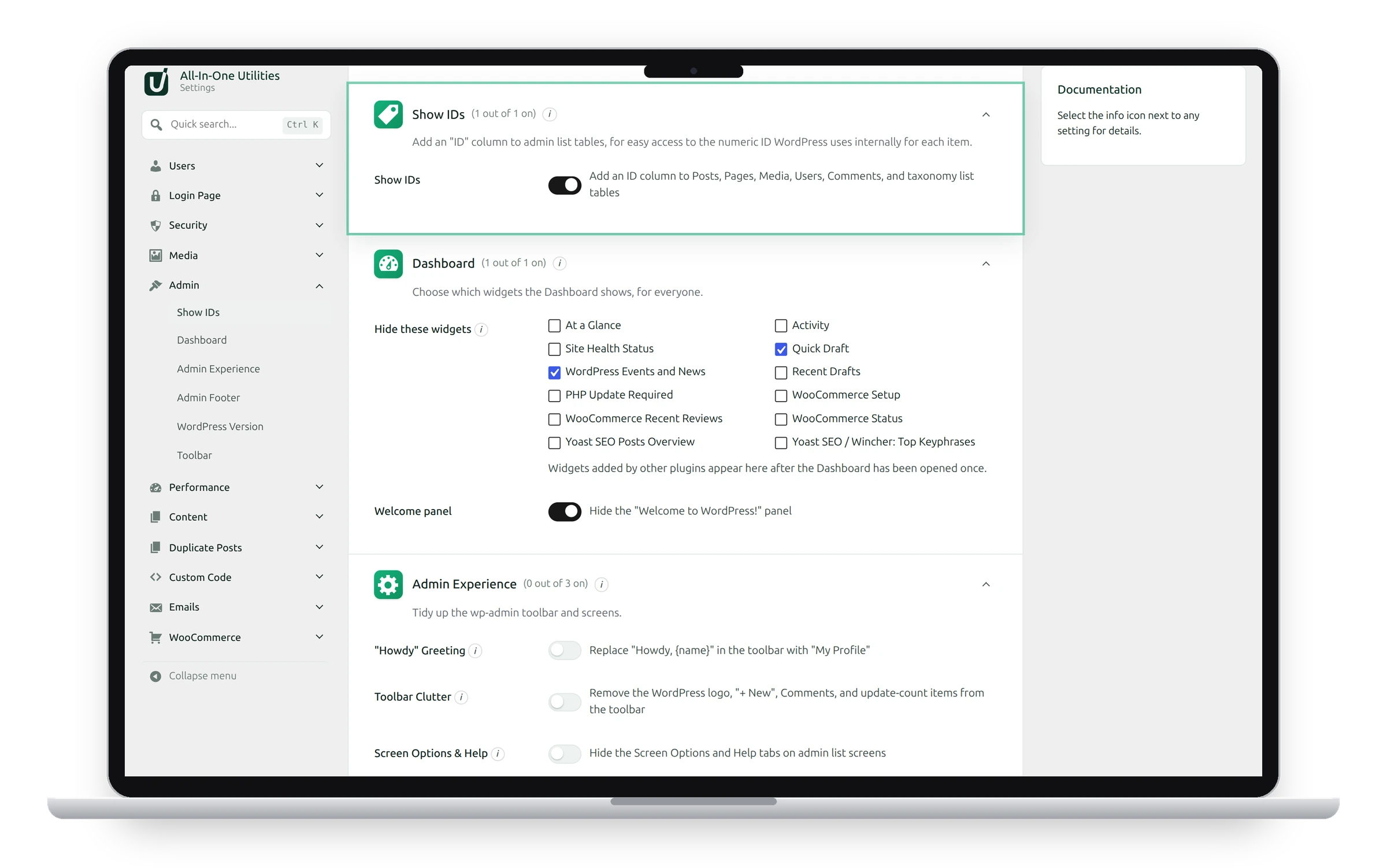
Settings
- Show IDs: adds an ID column to the Posts, Pages, Media, Users and Comments lists, and to category, tag and other taxonomy lists.
Use it
- Switch on Show IDs and click Save changes.
- Open any list, such as Posts → All Posts. The ID is in its own column.
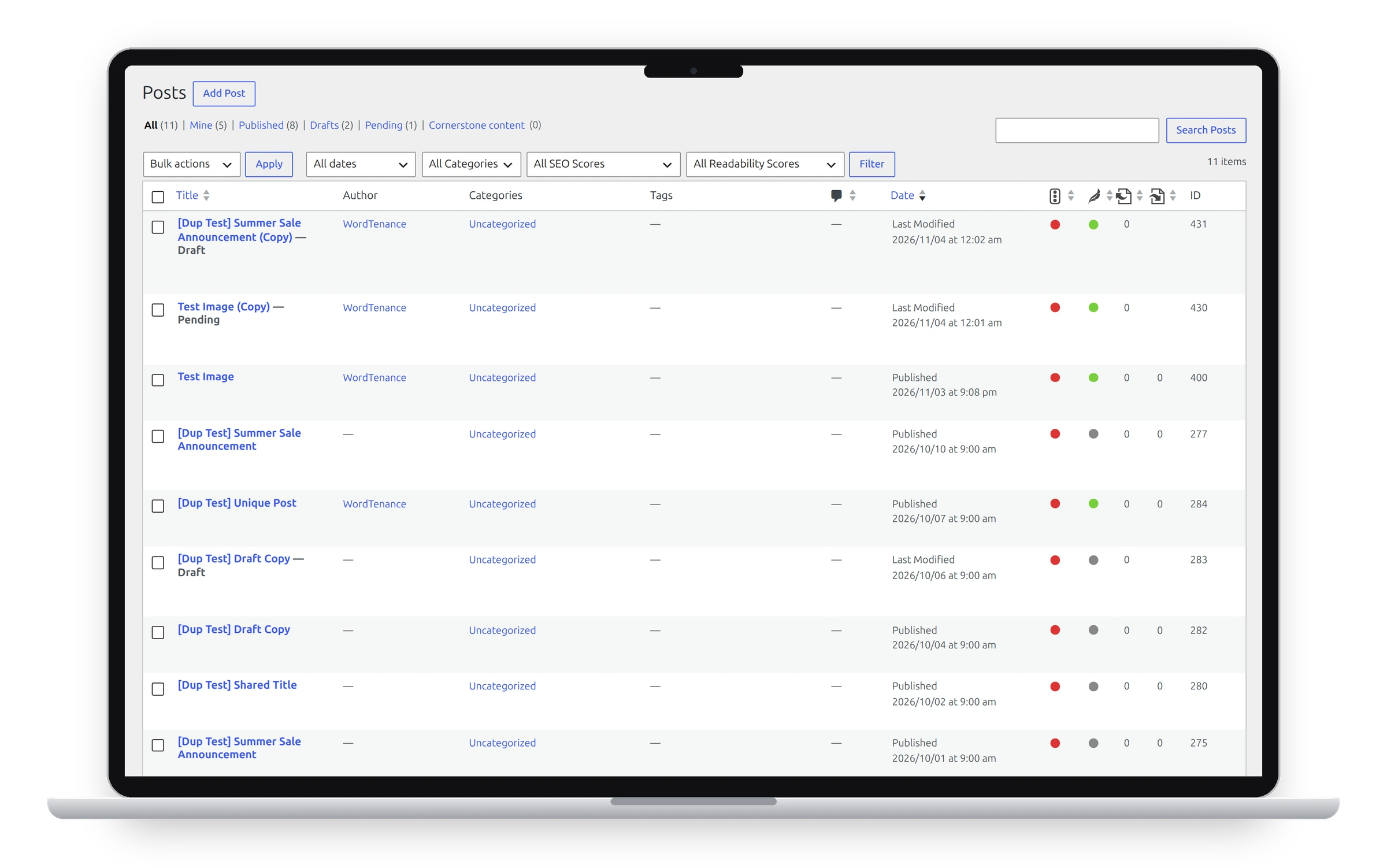
Hide the column on one screen
Like any column, you can hide ID on a single screen from Screen Options at the top right, without switching the feature off.
See also Users Screen and Dashboard widgets.
Get the plugin: All-in-One Utilities is free, so you can add it to any site. Then, when you need more, its premium add-ons add extra features.