WordPress doesn’t let anyone change a username once the account exists, not even an administrator. Username Updater adds that ability to the Users screen, so you can fix a typo, replace an email-style username, or rename an account without deleting and recreating it.

Settings
- Enable Username Updater: adds an Update username link to every user in Users → All Users, and an Update Username screen under Users.
- Notify user by email: ticks the “notify the user” box on the update form by default. You can still untick it each time.
Change a username
- Switch on Enable Username Updater and click Save changes.
- Go to Users → All Users, hover over the user and click Update username. Or open Users → Update Username and search for the user by name, username or email address.
- Type the New username. Tick Notify user to email them about the change.
- Click Update Username.
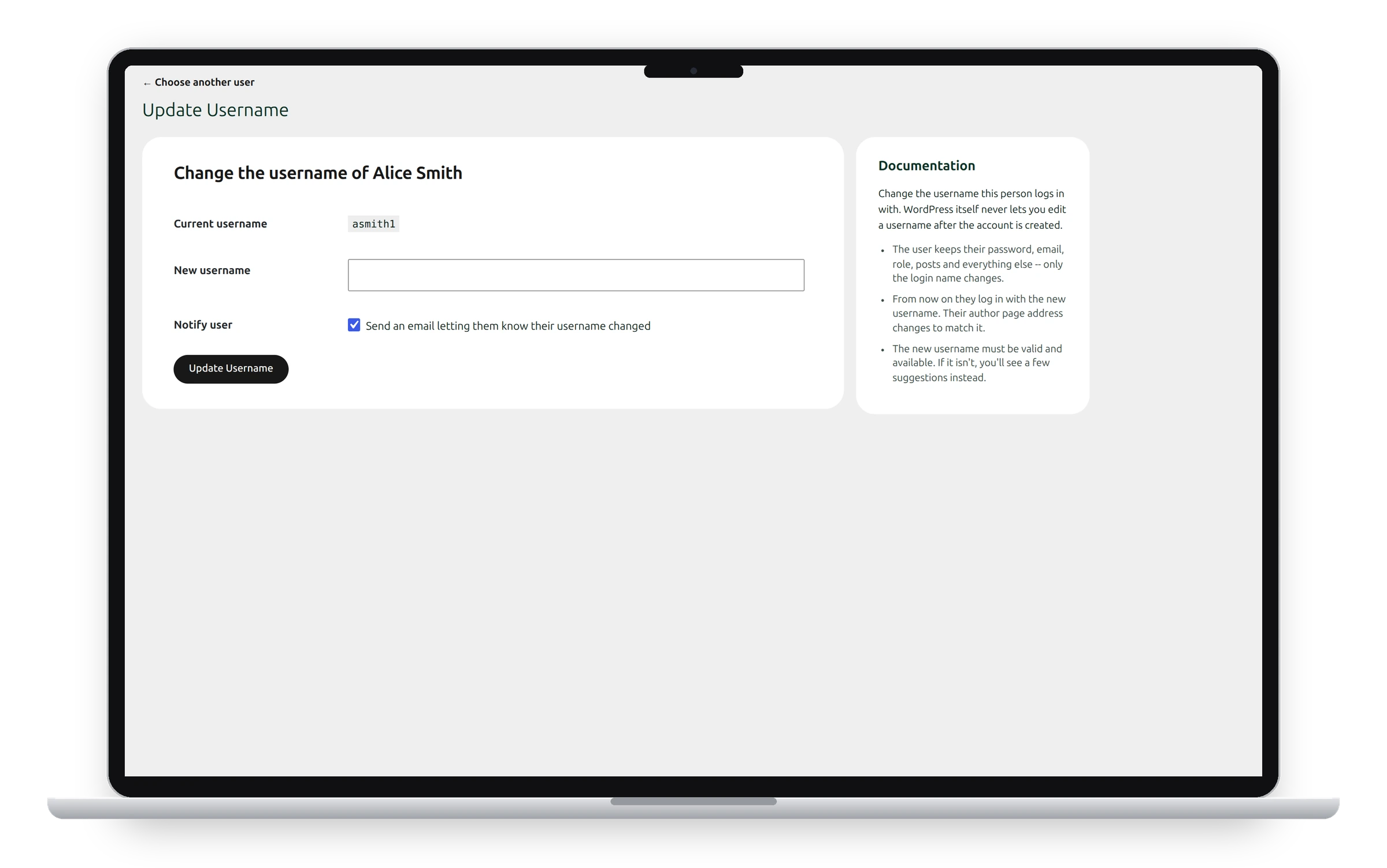
The change applies immediately. From now on the user logs in with the new username, and their author page address changes to match it. Their email address, password and content stay exactly as they were.
Rules for the new username
The new username must be at least 3 characters, use only the characters WordPress allows in usernames, and not already belong to someone else. Names WordPress reserves are refused too.
Tell the user
The user logs in with the new username from now on, so let them know, or tick Notify user by email. Their email address still works for logging in, as before.
The notification email
The email sent to the user is Username Updated, under Settings → Emails → User Emails, where you can change its wording.
Who can use it
Only users who are allowed to edit a given user see Update username for that user. In practice that means administrators.
See also Users Screen and User Emails.
Get the plugin: All-in-One Utilities is free, so you can add it to any site. Then, when you need more, its premium add-ons add extra features.