Set a minimum or maximum order amount, and store-wide quantity rules for products.
Order amount
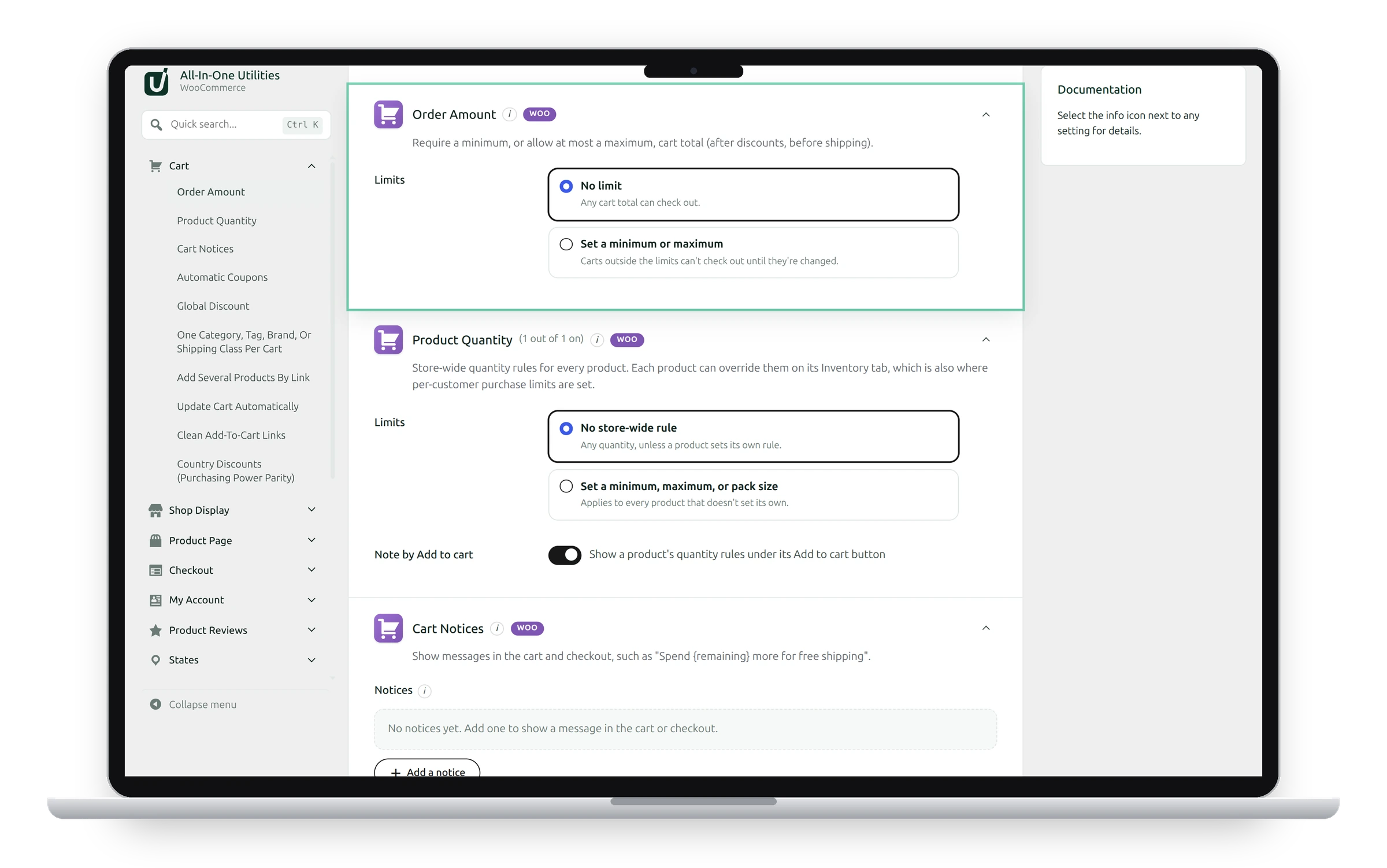
Require a minimum, or allow at most a maximum, cart total. The total is counted after discounts and before shipping.
- Limits: choose a minimum, a maximum, or both.
- Minimum order and its Message: 0 means no minimum. The message can use
{minimum},{remaining}and{total}, such as “Add {remaining} more to reach our {minimum} minimum.” - Maximum order and its Message: 0 means no maximum. The message can use
{maximum},{over}and{total}. - Note by Add to cart: a short note under the Add to cart button on product pages when both limits are set, using
{minimum}and{maximum}. With one limit, it reads “Minimum order $50.” or “Maximum order $500.”. Leave it empty for no note.
The message shows on the cart and checkout, classic and block, and the order can’t be placed until the cart is within the limits.
Product quantity
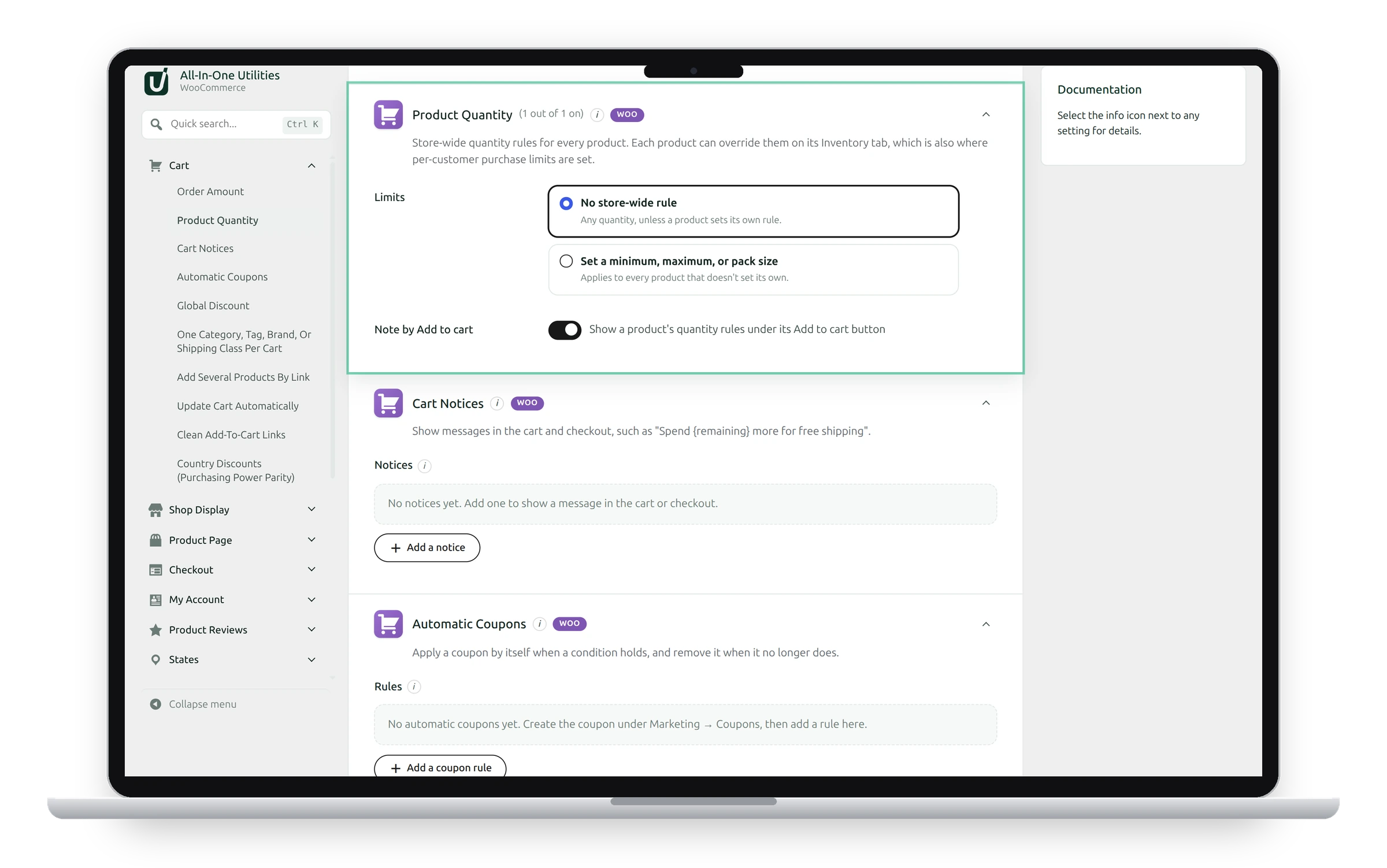
Store-wide quantity rules for every product:
- Minimum quantity and Maximum quantity per order: 0 means no limit.
- Sold in multiples of: such as 6 for a six-pack. Variations of one product add up. 0 means any amount.
- Note by Add to cart: shows a product’s quantity rules under its Add to cart button.
Each product can override these on its Inventory tab. That’s also where you set a per-customer purchase limit, such as one per customer for a limited edition.
See also Cart notices and automatic coupons and Global and country discounts.
Get the add-on: compare the plans for All-in-One Utilities Woo Add-on, then pick the one that fits your sites.