Ask for more when customers register, and add separate login and registration pages.
Registration fields
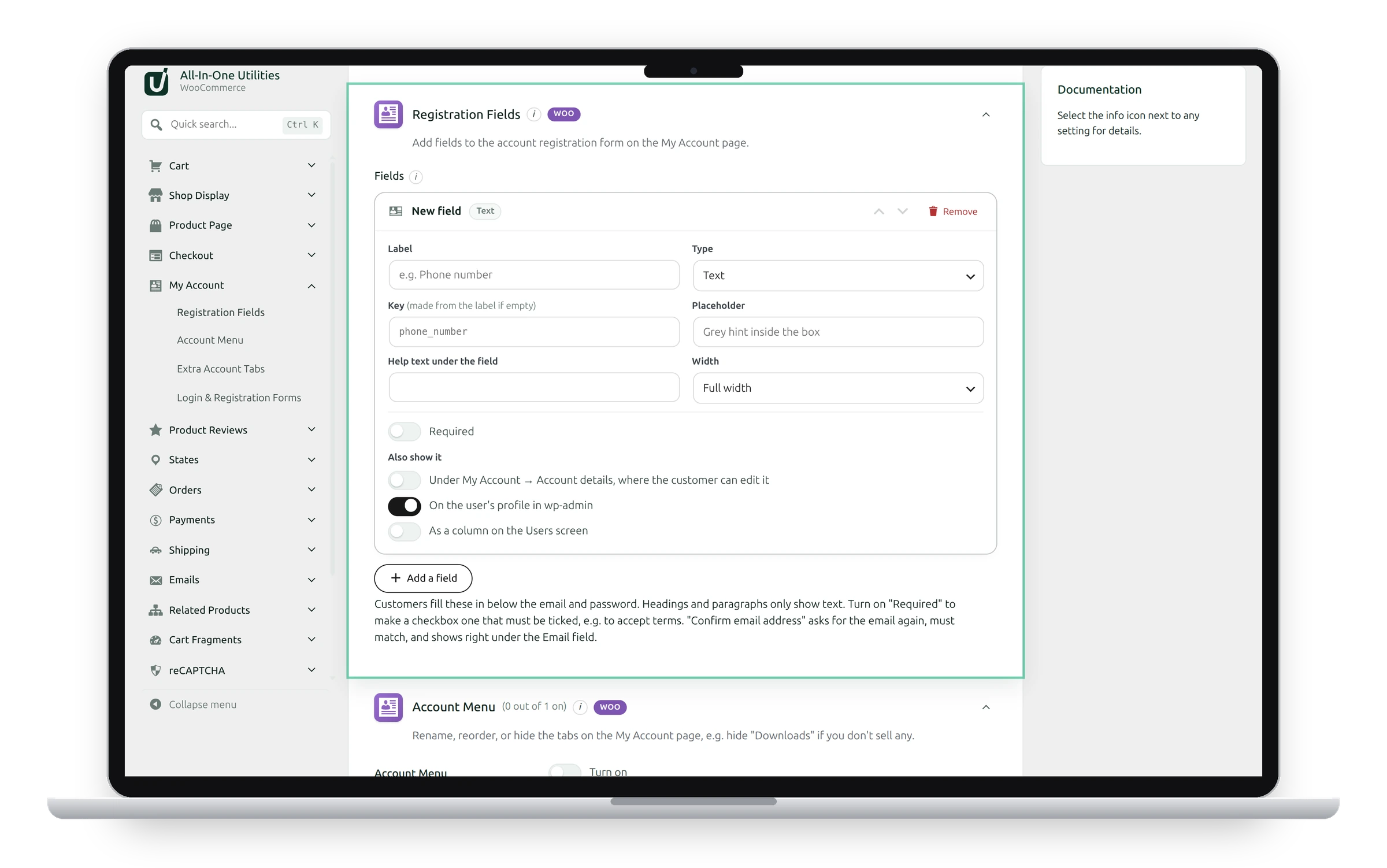
Add fields to the Register form on the My Account page, in the order shown. Answers are saved to the customer’s account. For each field, you can also show it on the account details page (so customers can change it), on the user’s profile in wp-admin, and as a column on the Users screen.
Fill in WooCommerce's own details
Use a key such as billing_phone, billing_company, first_name or last_name to fill in WooCommerce’s own customer details, which then appear at checkout. Other keys are saved as the customer’s own data.
Changing a field’s key later disconnects the answers already saved under the old key. Removing a field keeps saved answers.
Login and registration forms
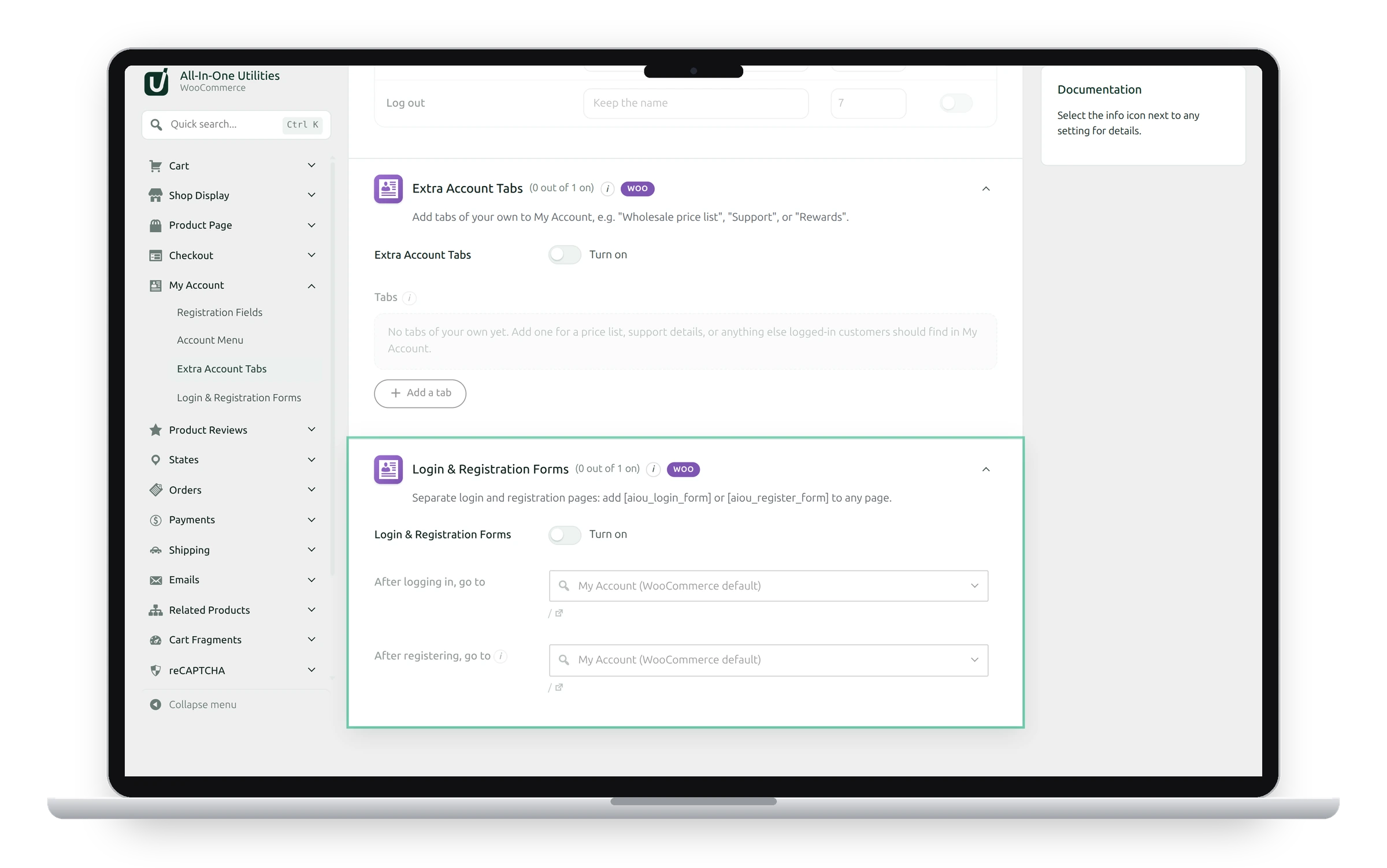
Make separate login and registration pages: add [aiou_login_form] or [aiou_register_form] to any page.
- After logging in, go to: a page to send customers to after logging in.
- After registering, go to: a page for new customers, such as a welcome page.
The forms use WooCommerce’s own login and registration, so your WooCommerce account settings, Registration Fields and reCAPTCHA all apply. Logged-in visitors see a link to their account instead. The redirects apply to every WooCommerce login and registration form, including the My Account page’s.
See also My Account menu and tabs and reCAPTCHA.
Get the add-on: compare the plans for All-in-One Utilities Woo Add-on, then pick the one that fits your sites.