Change the Add to cart wording, hide prices from some visitors, and change how prices are shown.
Add to cart text

Change the button text for Simple products, Variable products (“Select options” on shop pages), Grouped products (“View products”), External/affiliate products and Out-of-stock products. Leave a box empty to keep WooCommerce’s wording. A single product can override it on its General tab.
Hide prices and Add to cart
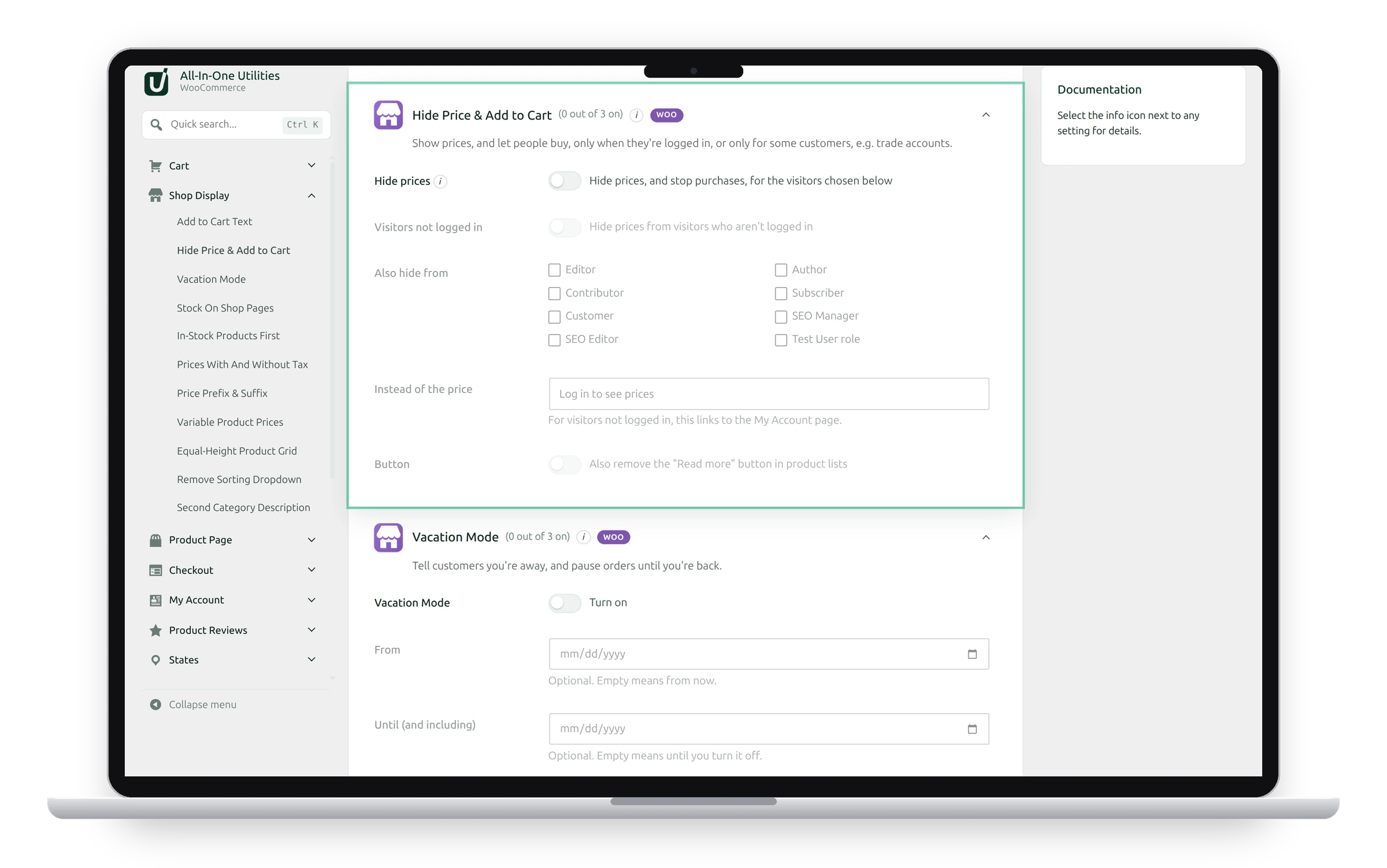
Show prices, and let people buy, only when they’re logged in, or only for some customers such as trade accounts.
- Visitors not logged in: hide prices from them.
- Also hide from: roles to hide prices from, too.
- Instead of the price: your message. For visitors not logged in, it links to the My Account page.
- Button: also removes the Read more button in product lists.
Those visitors can’t add products to the cart, and the Store API that product blocks use gives them no prices. Administrators and shop managers always see prices.
Price display

- Prices with and without tax: shows both, with your labels, for shops that sell to businesses and consumers. Needs taxes turned on under WooCommerce → Settings → General. The cart and checkout keep WooCommerce’s own tax display.
- Price prefix & suffix: words before or after every price, such as “From” or “per box”. The suffix comes after WooCommerce’s own tax suffix, if you use one.
- Variable product prices: replaces “10.00 – 30.00” with The lowest price or The highest price, with optional words before it (only when the prices differ). Product page shows the chosen variation’s price in place of the main price, on classic product pages.
See also Shop page layout and Vacation mode.
Get the add-on: compare the plans for All-in-One Utilities Woo Add-on, then pick the one that fits your sites.