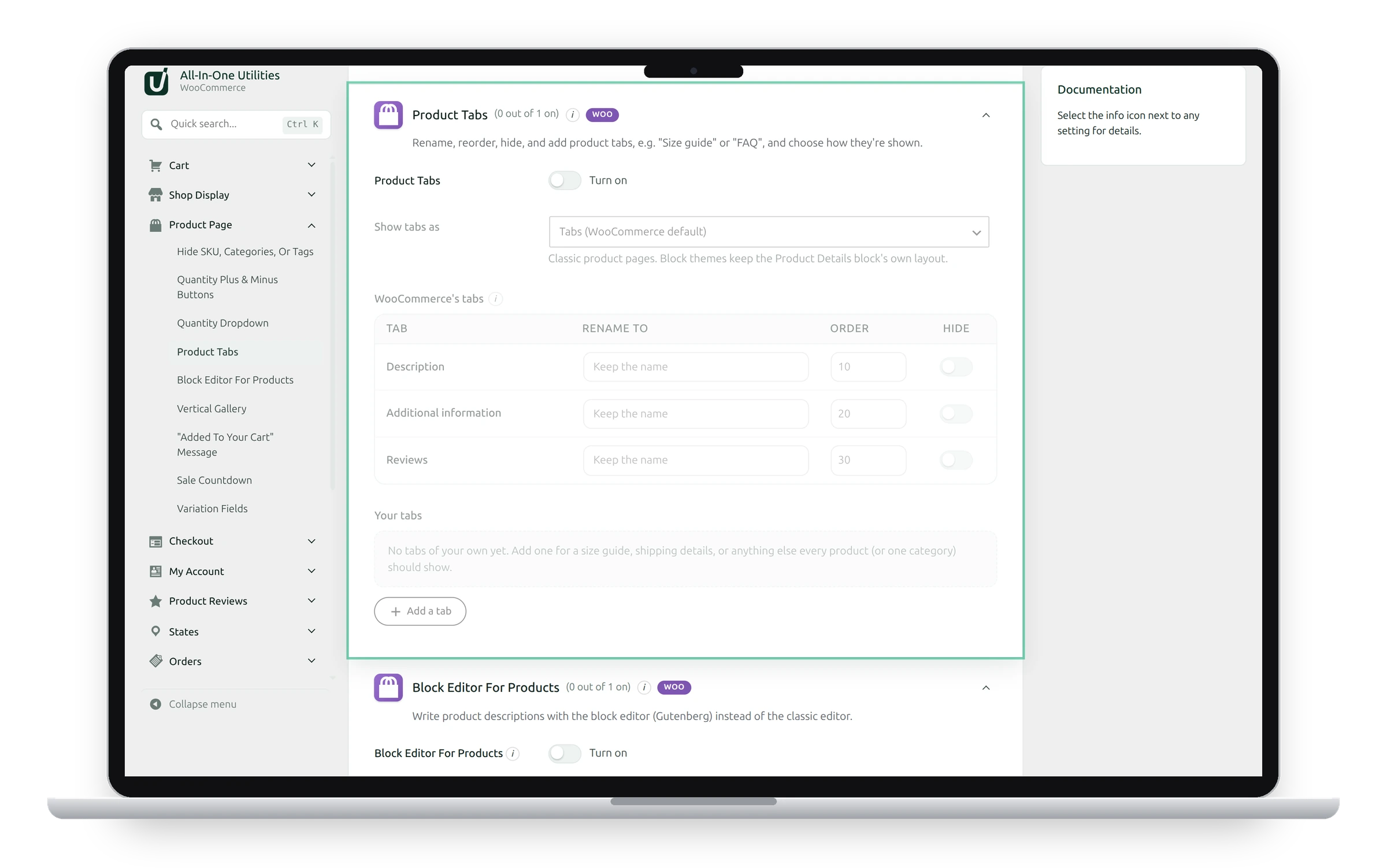
Product Tabs renames, reorders, hides and adds product tabs, such as “Size guide” or “FAQ”, and chooses how they’re shown.
How tabs are shown
Show tabs as: Tabs (WooCommerce default), Accordion (first one open), or One after another, with headings. This applies to classic product pages; block themes keep the Product Details block’s own layout.
WooCommerce’s tabs
For Description, Additional information and Reviews, change the name, the order, or hide the tab. Lower numbers come first: WooCommerce uses 10 for Description, 20 for Additional information and 30 for Reviews. In the Reviews name, {count} is the number of reviews.
Your own tabs
Add a row for each tab, with its name, order and content. For example, a “Shipping & returns” tab with order 25 sits between Additional information and Reviews on every product.
See also Product page extras and Variation fields.
Get the add-on: compare the plans for All-in-One Utilities Woo Add-on, then pick the one that fits your sites.