Temporary Access gives someone, such as a developer or support agent, a login link that stops working on its own. They log in without a password.
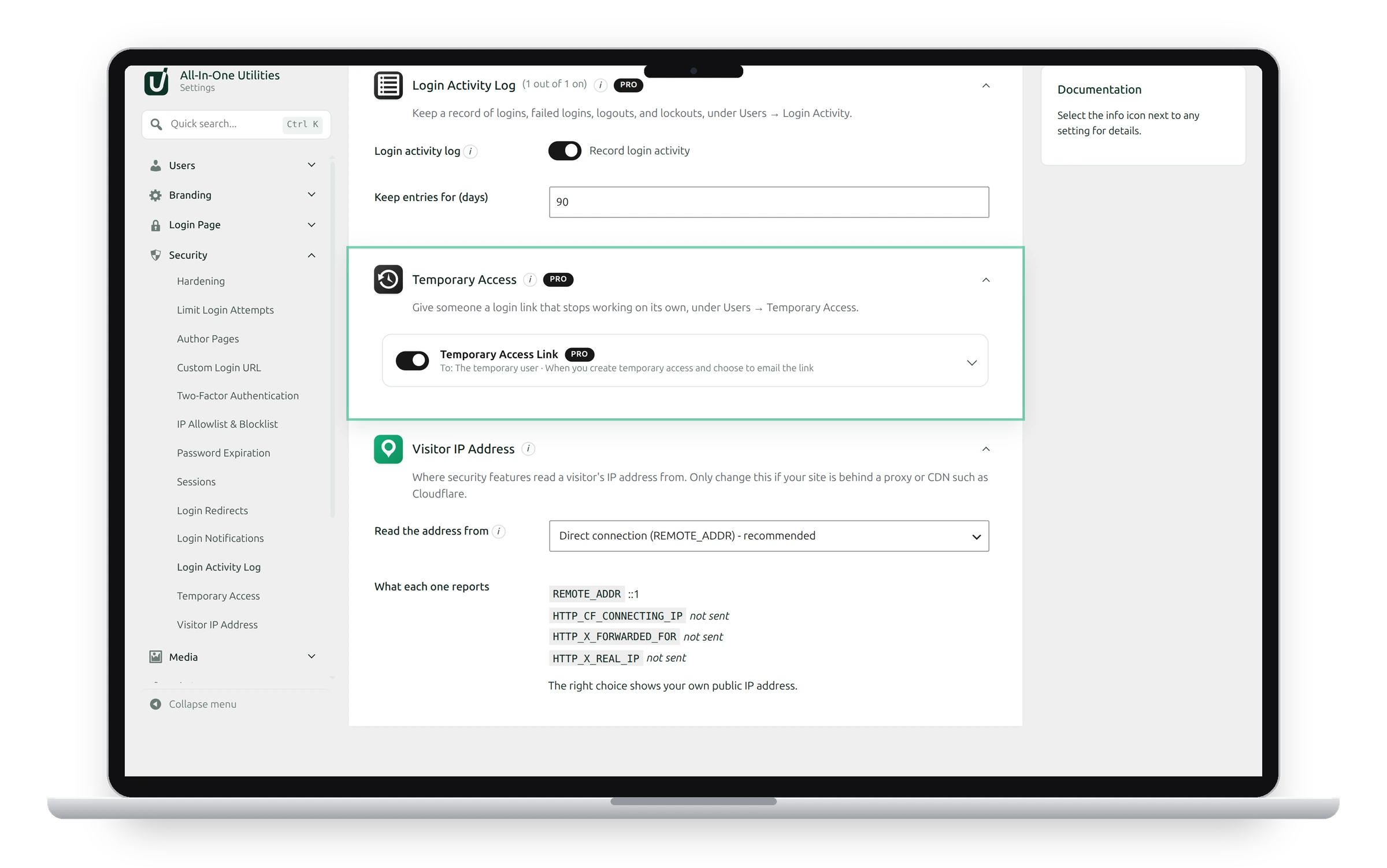
The Temporary Access Link email is what the person receives when you choose to email them the link. Open it to change its wording.
Give access
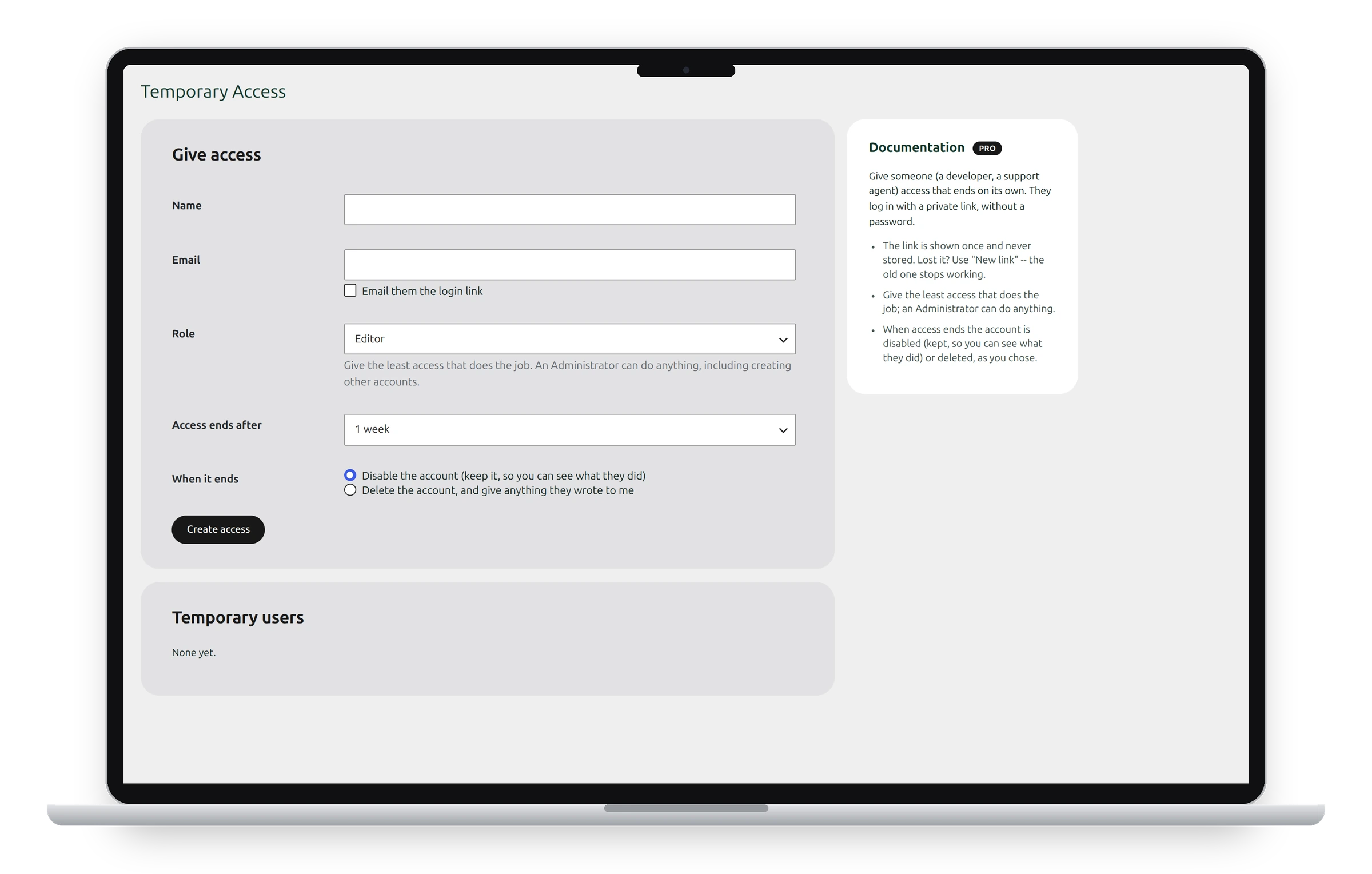
- Go to Users → Temporary Access.
- Type their Name and Email. Tick Email them the login link to send it straight away.
- Choose the Role. Give the least access that does the job; an Administrator can do anything, including creating other accounts.
- Choose when Access ends after: from 1 hour to 30 days.
- Choose When it ends: disable the account (kept, so you can see what they did) or delete it and give anything they wrote to you.
- Click Create access.
The link is shown once and never stored. Copy it now, or email it.
Manage temporary users
Temporary users lists everyone with access, who created it, and when it ends. For each one you can:
- New link: for a lost link; the old one stops working.
- +1 week: extend the access by a week.
- End now: end the access early, as chosen under When it ends.
- Delete: delete the account; anything they wrote is given to you.
Logins with a temporary link appear in the Login Activity Log.
See also Login activity log and Login notifications.
Get the add-on: compare the plans for All-in-One Utilities Pro, then pick the one that fits your sites.