A preset is a named set of settings that you apply in one click. Pro comes with three, and you can save the current settings as your own, for example to set up every client site the same way.
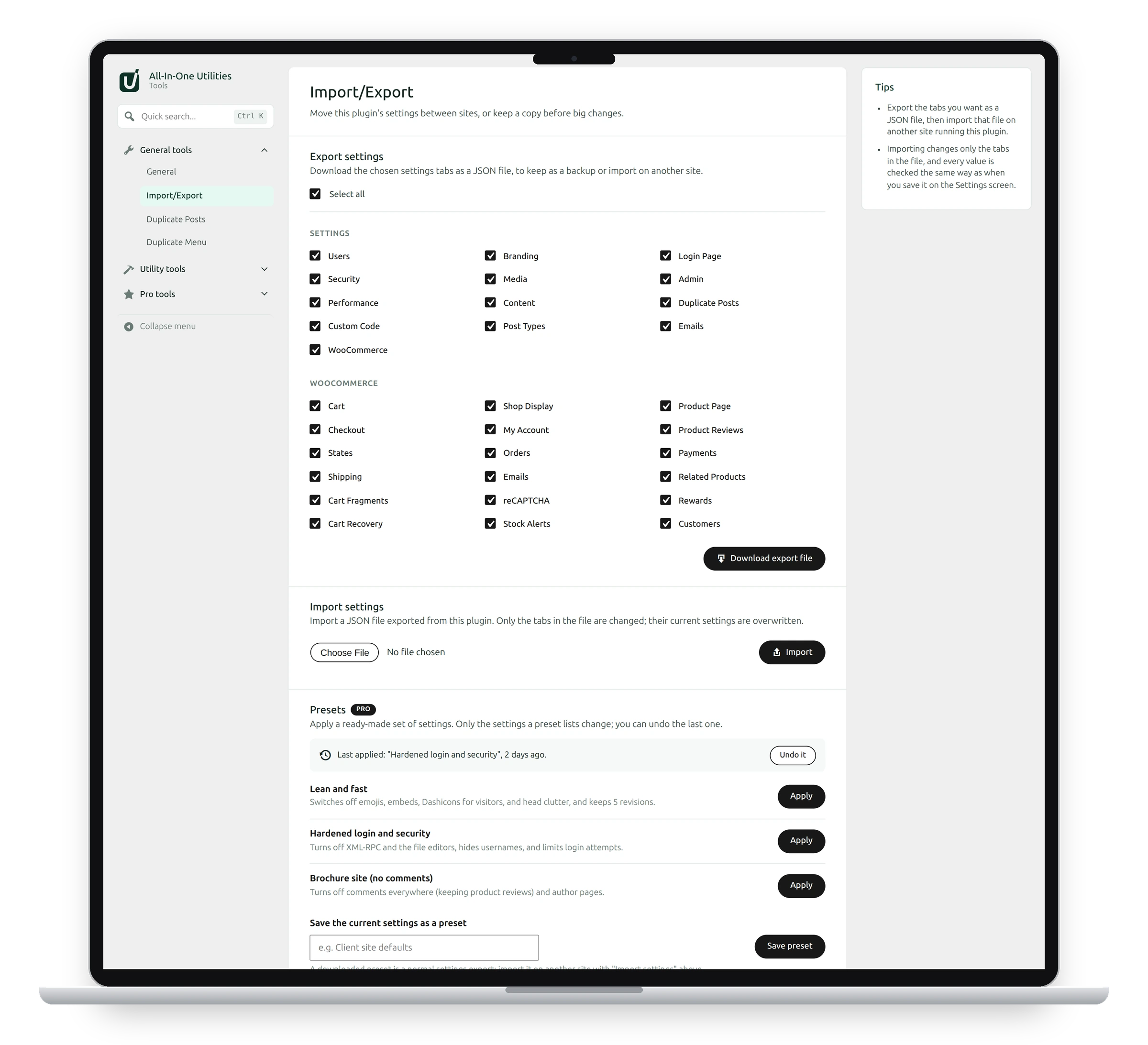
Ready-made presets
- Lean and fast: switches off emojis, embeds, Dashicons for visitors and head clutter, and keeps 5 revisions.
- Hardened login and security: turns off XML-RPC and the file editors, hides usernames and limits login attempts.
- Brochure site (no comments): turns off comments everywhere (keeping product reviews) and author pages.
Click Apply next to one. Only the settings the preset lists change. Everything else stays as it is.
Undo the last preset
The bar above the list shows the last preset applied and when. Click Undo it to put back the settings it changed.
Save your own preset
- Set everything up the way you want it.
- Under Save the current settings as a preset, type a name such as “Client site defaults”.
- Click Save preset.
Your presets appear in the list with their own Apply, Download and Delete buttons. A downloaded preset is a normal settings export, so another site imports it with Import settings at the top of the same screen.
Presets and exports
Export settings saves whole tabs as they are now. A preset can change only some settings, and the last one applied can be undone.
See also Installing Pro and activating your license.
Get the add-on: compare the plans for All-in-One Utilities Pro, then pick the one that fits your sites.