Media folders organize the Media Library, so you can find a logo or a product photo without scrolling through everything. Switch them on with Folders under Settings → Media → Media Tools.
Create folders
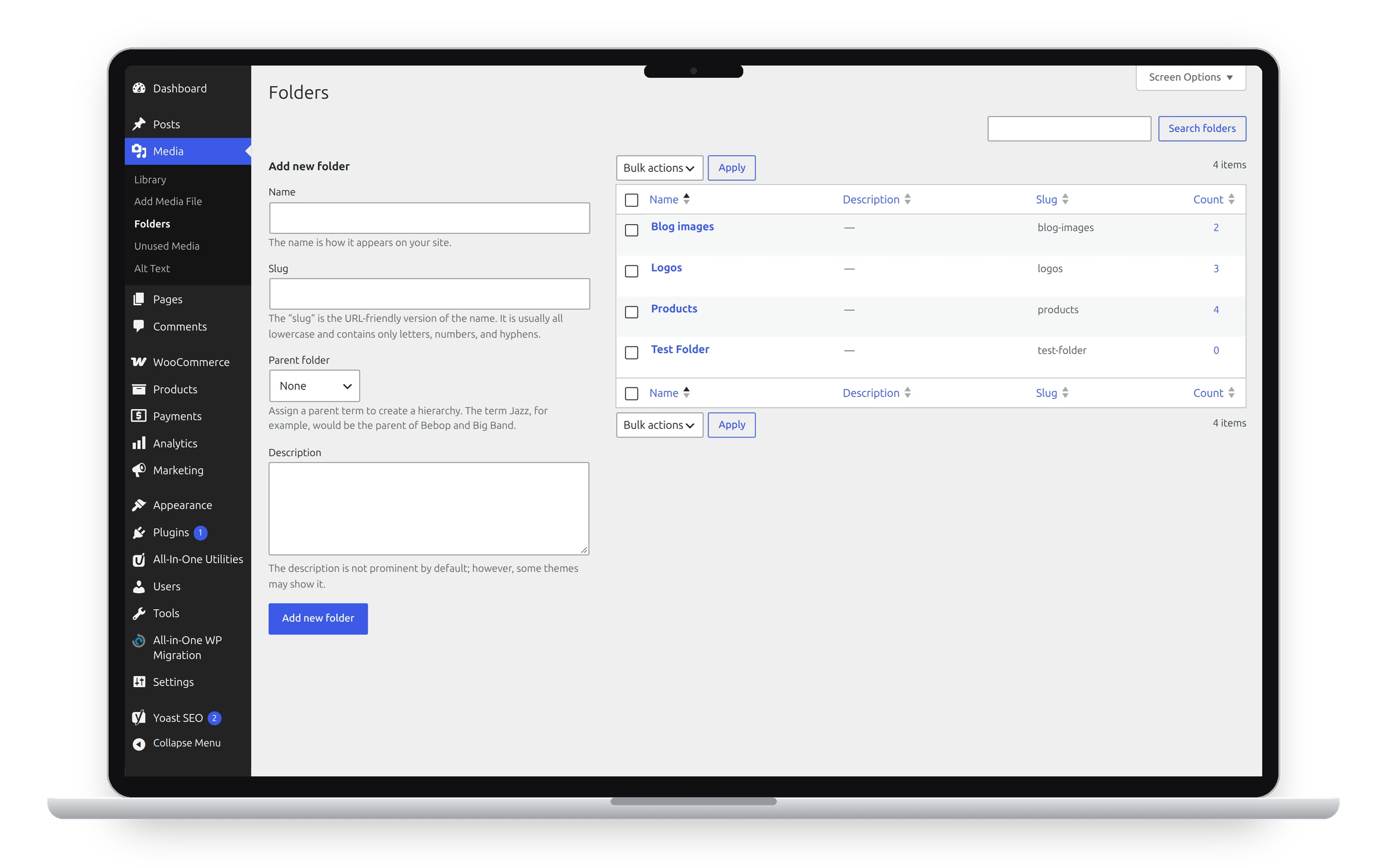
Go to Media → Folders. Type a Name, choose a Parent folder to put it inside another one, and click Add new folder. The list shows how many files each folder holds.
Put files in folders
- One file: open it in the Media Library and pick its folder in the details.
- Many files: in the list view, select them and use Bulk actions to move them to a folder.
Filter by folder
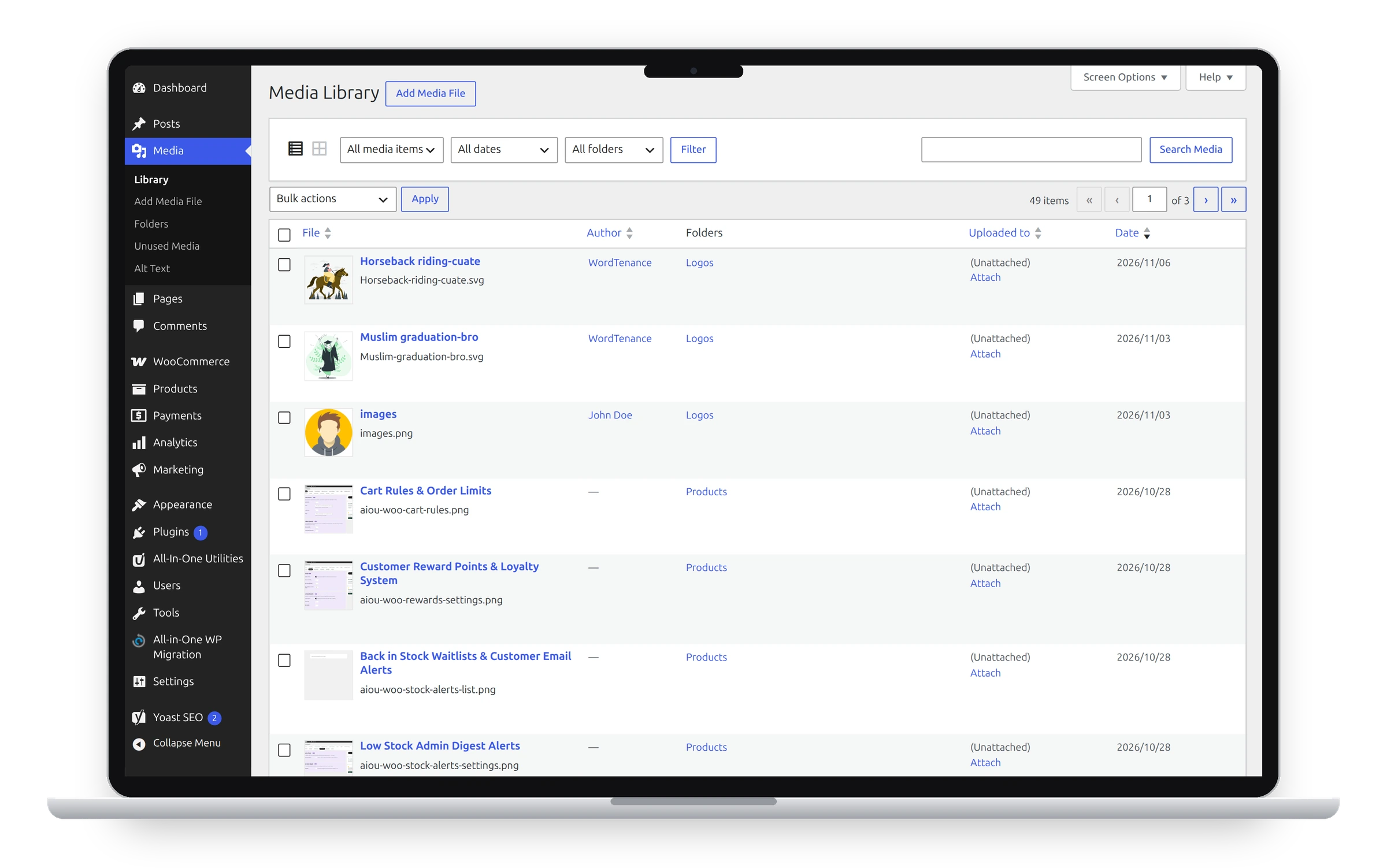
Both Media Library views, grid and list, get a folder filter. The list view also shows each file’s folder in a Folders column.
Folders are labels
Files stay where they are on disk, so moving them between folders never breaks a link. Switching folders off keeps them for later.
See also Replace, rename and bulk featured images and Filename cleanup.
Get the add-on: compare the plans for All-in-One Utilities Pro, then pick the one that fits your sites.