
To move social sharing buttons on a WooCommerce product page, remove the sharing template from its default hook and re-add it to a different action/priority — for example, shifting Jetpack’s sharing icons from below the long description up to just above the product tabs.
Why Reposition the Sharing Buttons
- Buttons buried at the bottom of a long description get far less visibility and fewer clicks
- Placing them near the top increases the chance a visitor shares before even reading further
- Aligning sharing icons with your theme’s layout looks more intentional than the default placement
Step 1: Remove and Re-Add the Sharing Template
/** Reposition social sharing above the product tabs — add to functions.php */
remove_action( 'woocommerce_single_product_summary', 'woocommerce_template_single_sharing', 50 );
add_action( 'woocommerce_after_single_product_summary', 'woocommerce_template_single_sharing', 5 );
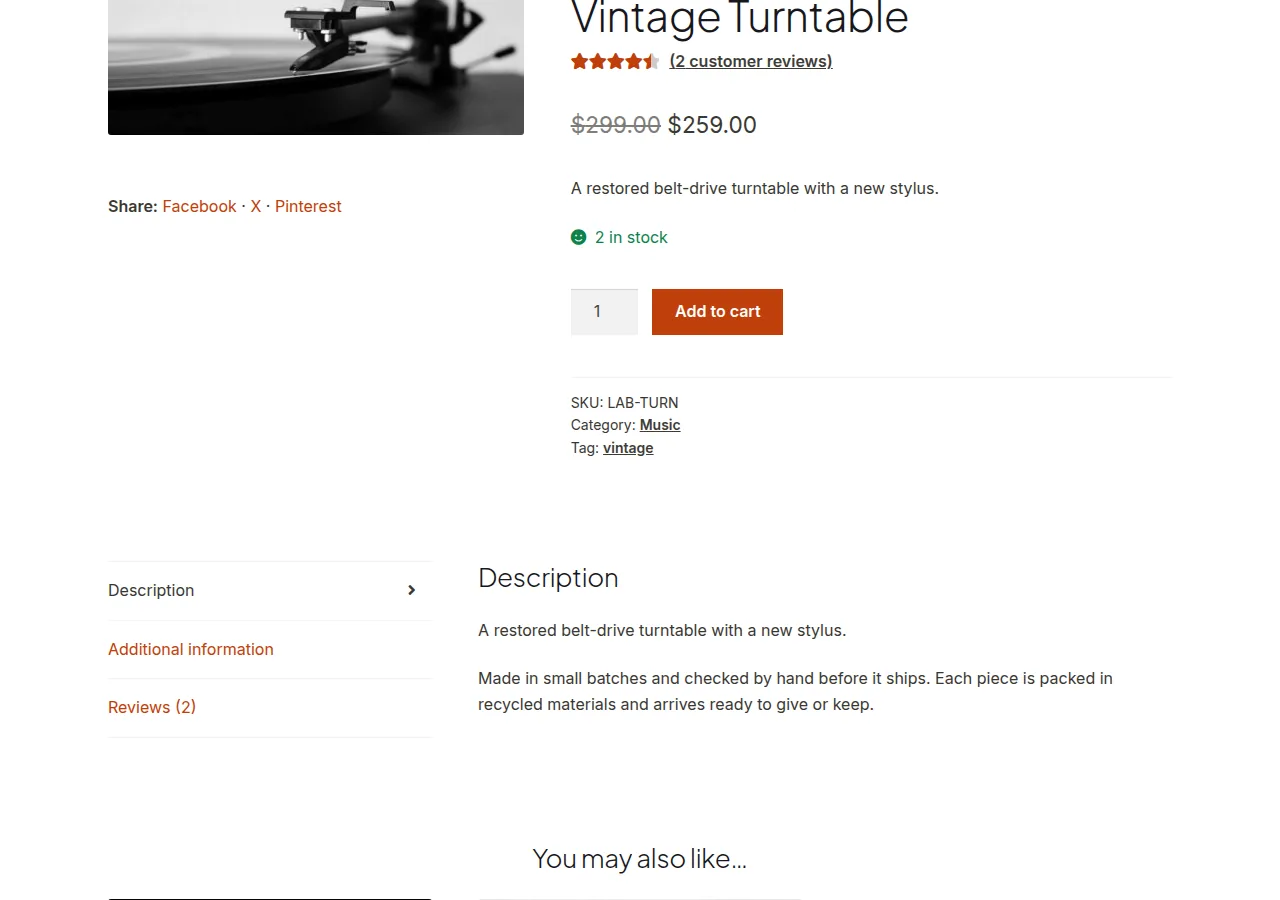
This pulls the sharing icons out of the summary column (below the short description) and places them right before the product tabs render, since woocommerce_after_single_product_summary fires immediately after the two-column layout and priority 5 runs ahead of the tabs (priority 10).
Positioning Sharing Buttons Below the Tabs Instead
If you’d rather have sharing icons appear after the tabs (e.g. right before related products), just raise the priority number so it runs later in the same hook:
remove_action( 'woocommerce_single_product_summary', 'woocommerce_template_single_sharing', 50 );
add_action( 'woocommerce_after_single_product_summary', 'woocommerce_template_single_sharing', 15 );
Troubleshooting
Sharing Buttons Appear Twice
Some themes (Divi is a commonly reported example) render their own sharing icons independently of the plugin’s default hook, in addition to the one this snippet re-adds. If you see duplicates after applying the code, temporarily switch to a default WooCommerce-compatible theme to confirm it’s a theme conflict, then locate and disable the theme’s own sharing output.
Buttons Disappear Entirely
Confirm the sharing plugin is still configured to display on “Products” under its own settings (e.g. Jetpack’s Sharing settings) — removing and re-adding the hook only repositions the output, it doesn’t enable sharing on a post type where it was never turned on.
Frequently Asked Questions
Does this work with any sharing plugin, not just Jetpack?
The exact function name to remove/re-add depends on the plugin — Jetpack uses woocommerce_template_single_sharing, while other plugins register their own callback name, which you can usually find in the plugin’s source or documentation.
Can I move sharing buttons into the image gallery area instead?
Yes, hook into woocommerce_product_thumbnails instead of the summary hooks, though you’ll likely need extra CSS to position the icons neatly over or beside the gallery.
Why use remove_action before add_action instead of just changing the priority?
WordPress hooks require the exact original priority to successfully remove a callback — you can’t “edit” a hook’s priority directly, so removing it from its old position and re-adding it at a new one is the standard technique.
Conclusion
Once you know the sharing template’s original hook and priority, you can move social sharing buttons on a WooCommerce product page in two lines of code. If you ever see the icons twice, that’s a theme conflict to chase down, not a mistake in the snippet itself.
See also How to Fix Jetpack Sharing Buttons Not Showing on WooCommerce Products. Then read How to Add, Remove, or Move Content on the WooCommerce Single Product Page.
Prefer no code? All-in-One Utilities Woo Add-on adds over 50 WooCommerce features, so you can switch them on without code.