
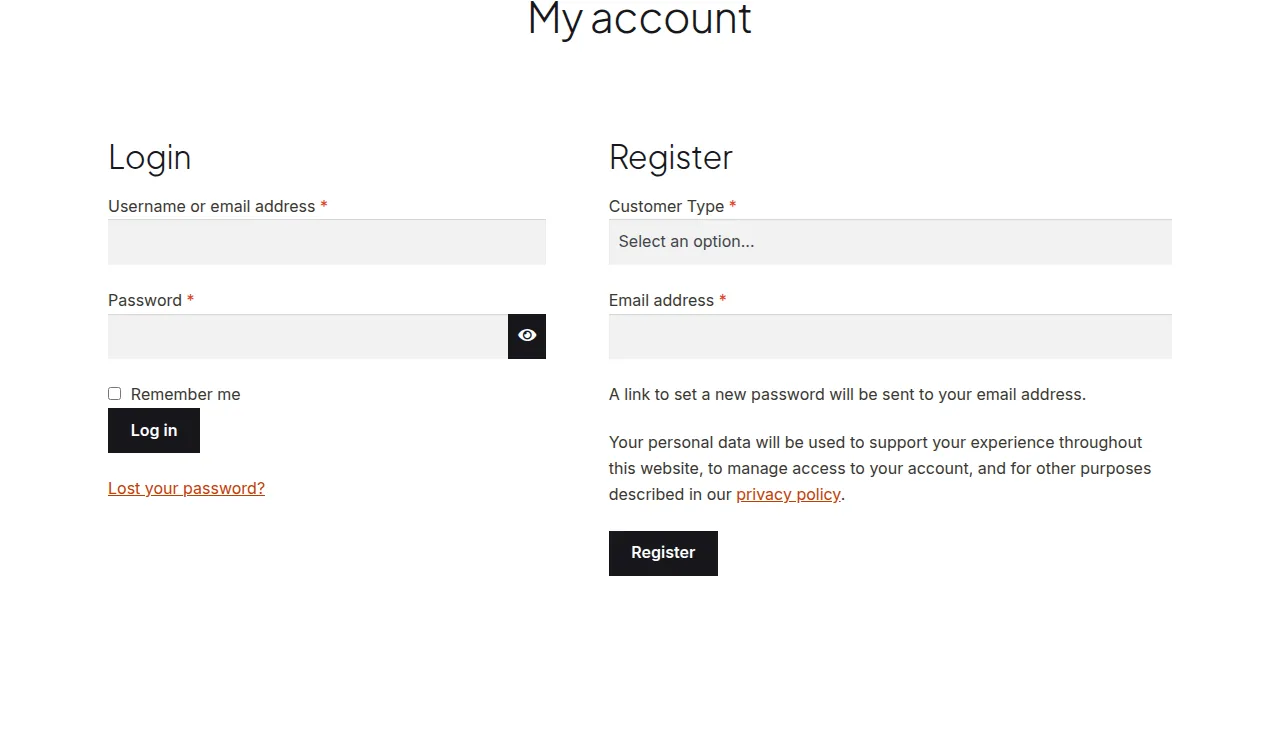
You can add a select field to the WooCommerce My Account registration form by printing a dropdown at the start of the registration form and saving the chosen value to user meta once the account is created, useful for capturing things like customer type, referral source, or preferred store location at signup.
Why Add a Dropdown to Registration
- Segment new customers by type (e.g. “Retail” vs. “Wholesale”) right at signup
- Capture how they heard about your store for marketing attribution
- Route new accounts to different pricing or content based on their selection
Step 1: Add the Select Field
/** Add a "Customer Type" dropdown to the registration form */
add_action( 'woocommerce_register_form_start', 'render_customer_type_select_field' );

function render_customer_type_select_field() { ?>
    <p class="form-row form-row-wide">
        <label for="reg_customer_type">Customer Type <span class="required">*</span></label>
        <select name="customer_type" id="reg_customer_type" class="input-text">
            <option value="">Select an option...</option>
            <option value="retail">Retail Shopper</option>
            <option value="wholesale">Wholesale Buyer</option>
            <option value="designer">Interior Designer / Trade</option>
        </select>
    </p>
<?php }
Step 2: Validate the Selection
add_filter( 'woocommerce_registration_errors', 'validate_customer_type_selection', 10, 3 );

function validate_customer_type_selection( $errors, $username, $email ) {
    if ( empty( $_POST['customer_type'] ) ) {
        $errors->add( 'customer_type_error', 'Please select a customer type.' );
    }
    return $errors;
}
Step 3: Save the Selected Value
add_action( 'woocommerce_created_customer', 'save_customer_type_selection' );

function save_customer_type_selection( $customer_id ) {
    if ( ! empty( $_POST['customer_type'] ) ) {
        update_user_meta( $customer_id, 'customer_type', sanitize_text_field( $_POST['customer_type'] ) );
    }
}
Troubleshooting
Dropdown Selection Isn’t Saved
Confirm the third step’s hook is present — displaying and validating the field doesn’t save it automatically; that requires the separate woocommerce_created_customer action.
Validation Error Shows Even After Selecting an Option
Check that the name attribute on the select element exactly matches what the validation function checks in $_POST — a mismatch causes it to always appear empty.
Want to Use the Saved Value for Conditional Pricing Later
Once saved as user meta, you can read it anywhere with get_user_meta( $user_id, 'customer_type', true ) to drive conditional logic elsewhere in your store.
Frequently Asked Questions
Can I use this pattern for a different kind of field, like a text input?
Yes — the same three-step structure (display, validate, save) applies to any custom registration field type.
Does this work on the checkout registration form too?
This specific example targets the standalone My Account registration form — checkout-based registration uses different hooks and would need adapting.
Can I make the field optional?
Yes — simply remove or adjust the validation step if a blank selection should be allowed.
Conclusion
Adding a select field to the WooCommerce My Account registration form takes the same three-step pattern as any custom registration field: display it, validate it, and save it to user meta so it’s available for future logic.
See also How to Add First and Last Name Fields to the WooCommerce Registration Form.
Prefer no code? All-in-One Utilities Woo Add-on handles this kind of change from a settings screen. Its Registration fields and login pages guide also shows how.