
To display a New badge on recent WooCommerce products, compare each product’s creation date against a chosen “newness window” (for example the last 30 days), and echo a badge on the shop page whenever a product falls within that range — no manual tagging required since it’s driven entirely by publish date.
Why an Automatic New Badge Beats Manual Tagging
- It updates itself as products age out of the “new” window, with zero ongoing maintenance
- It highlights fresh inventory, encouraging repeat visitors to check what’s changed
- It’s a small signal that can subtly help with perceived site freshness for both users and search engines
The Badge Snippet
/** Display a "New" badge on products published within the last 21 days */
add_action( 'woocommerce_before_shop_loop_item_title', 'display_new_product_badge', 3 );

function display_new_product_badge() {
    global $product;

    $newness_window_days = 21;
    $created_timestamp    = strtotime( $product->get_date_created() );
    $cutoff_timestamp     = time() - ( DAY_IN_SECONDS * $newness_window_days );

    if ( $created_timestamp > $cutoff_timestamp ) {
        echo '<span class="new-arrival-badge">New Arrival</span>';
    }
}
Adjust $newness_window_days to whatever window makes sense for how frequently your catalog adds products — a fast-moving fashion store might use 14 days, while a slower-moving catalog might use 60.
Showing It on the Single Product Page Too
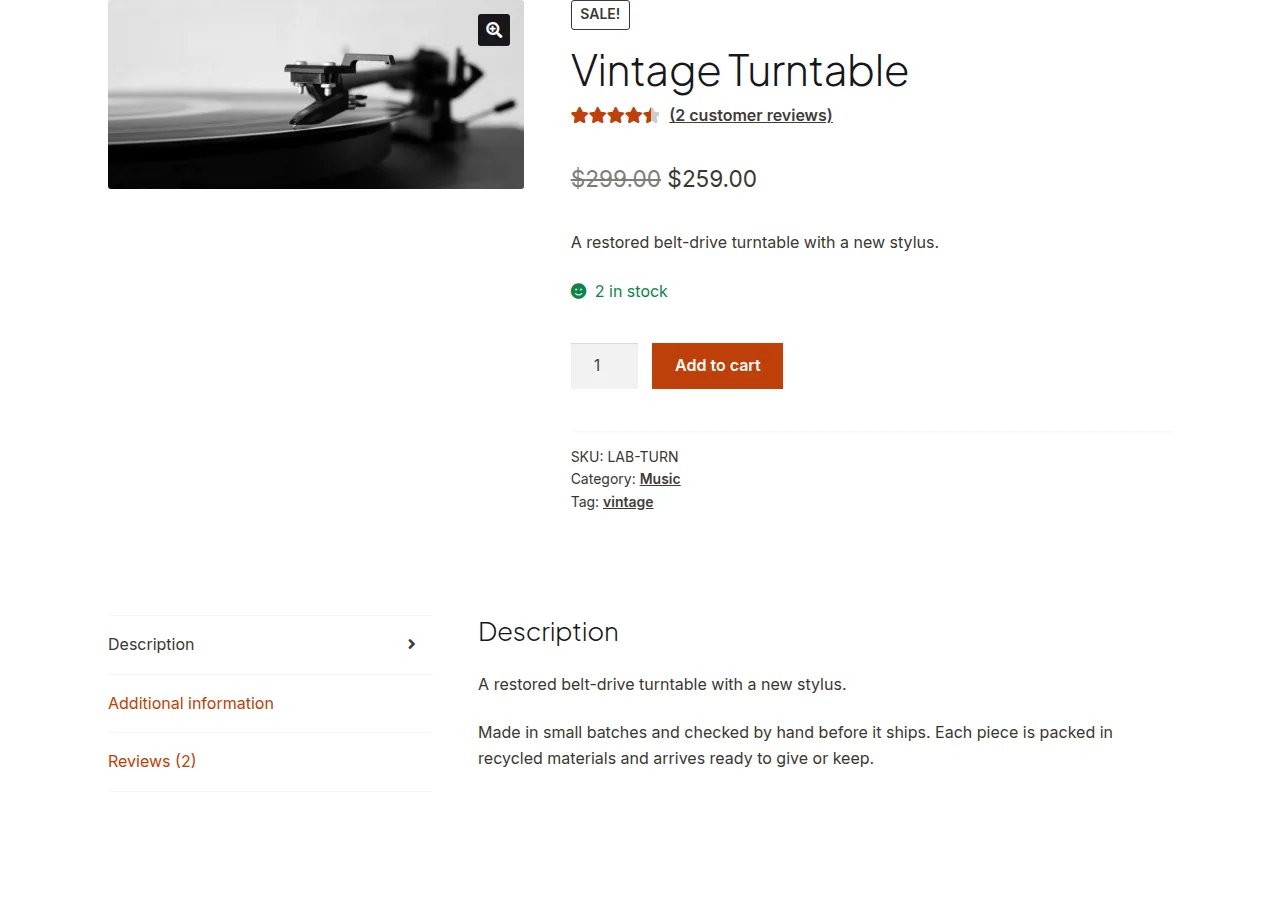
add_action( 'woocommerce_single_product_summary', 'display_new_product_badge_single', 6 );

function display_new_product_badge_single() {
    global $product;

    $newness_window_days = 21;
    $created_timestamp    = strtotime( $product->get_date_created() );
    $cutoff_timestamp     = time() - ( DAY_IN_SECONDS * $newness_window_days );

    if ( $created_timestamp > $cutoff_timestamp ) {
        echo '<span class="new-arrival-badge new-arrival-badge--single">New Arrival</span>';
    }
}

Troubleshooting
The Badge Shows on Products That Aren’t Actually New
If products were imported or migrated, their post_date may reflect the import date rather than their true original listing date — check and adjust the underlying dates if this throws off the badge for migrated catalogs.
Styling Looks Off Next to the Existing Sale Badge
Both badges tend to occupy similar visual space — add explicit positioning in your CSS (e.g. stacking them vertically) if a product is both on sale and newly added at the same time.
Frequently Asked Questions
Can I combine this with the “Sale” badge logic?
Yes — both badges can coexist since they’re independent conditions; just make sure your CSS positions them so they don’t visually overlap.
Does this affect how products are sorted?
No — this only adds a visual badge; it doesn’t change product order unless you separately combine it with a custom sort-by-date query.
Will the badge disappear automatically once a product ages out?
Yes — since the check runs live against the current time on every page load, there’s nothing to manually update or remove once the newness window passes.
Conclusion
Displaying a New badge on recent WooCommerce products is a simple date-comparison snippet that runs automatically — set your newness window once, and the badge takes care of itself as your catalog grows and ages.
See also How to Show a Sold Out Badge on the WooCommerce Shop Page. Then read How to Display One Product Per Row on the Shop Page.
Prefer no code? All-in-One Utilities Woo Add-on adds over 50 WooCommerce features, so you can switch them on without code.