
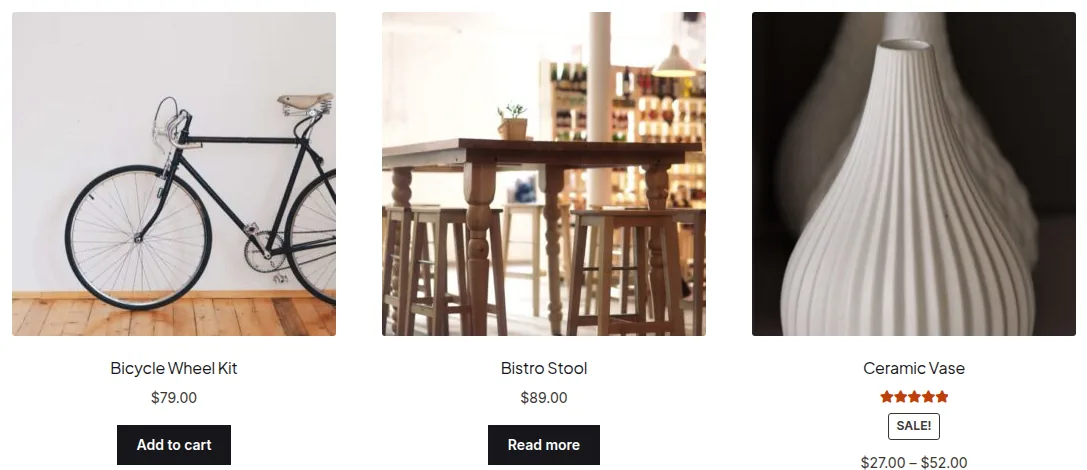
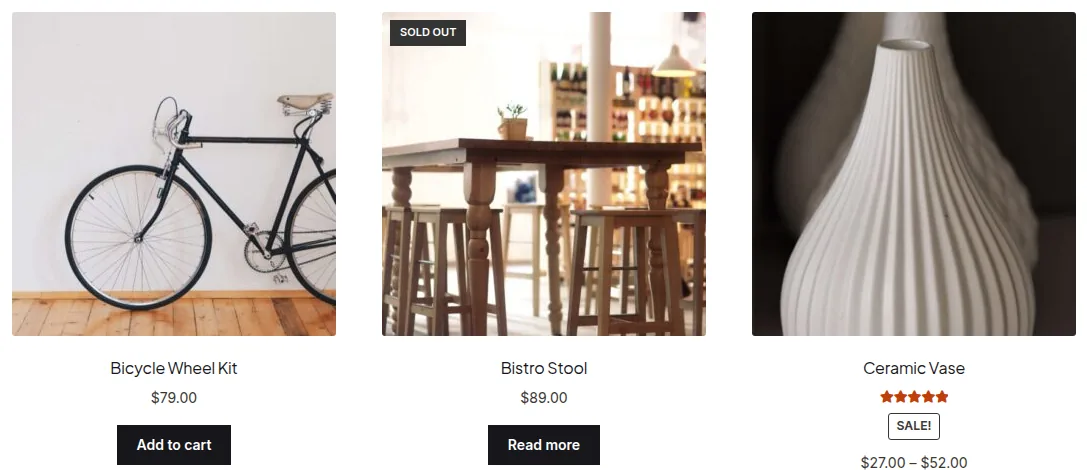
You can show a sold out badge on the WooCommerce shop page by hooking a small snippet before each product title in the shop loop, so out-of-stock items are clearly flagged without a plugin. If your theme already shows an “Out of Stock” label, you can also just rename it.
Why Flag Sold Out Products in the Shop Loop
- Shoppers waste less time clicking into products they can’t actually buy
- A visible badge builds trust — customers see your stock data is accurate and current
- Many themes don’t add this by default, especially on custom-built shop layouts
Step 1: Add a Sold Out Badge (If Your Theme Has None)
/**
 * Show a "Sold Out" badge on out-of-stock products in the shop loop
 * Add to your child theme's functions.php
 */
add_action( 'woocommerce_before_shop_loop_item_title', 'flag_out_of_stock_products_in_loop' );

function flag_out_of_stock_products_in_loop() {
    global $product;
    if ( ! $product->is_in_stock() ) {
        echo '<span class="stock-flag">Sold Out</span>';
    }
}/* CSS */
.stock-flag {
padding: 4px 10px;
background: #333;
color: #fff;
font-weight: 600;
position: absolute;
top: 8px;
left: 8px;
font-size: 11px;
text-transform: uppercase;
}
Variant: Rename an Existing “Out of Stock” Label
If your theme or another plugin already prints a badge, don’t add a second one — just translate the string it uses.
add_filter( 'gettext', 'rename_out_of_stock_label_in_loop', 20, 3 );

function rename_out_of_stock_label_in_loop( $translated, $original, $domain ) {
    if ( ! is_admin() && 'Out of stock' === $translated ) {
        $translated = 'Sold Out';
    }
    return $translated;
}
Troubleshooting
Two Badges Show Up Instead of One
This means both your theme’s built-in badge and the new snippet are firing. Use the “rename” variant instead of adding a second badge, or remove your theme’s existing badge action first.
Badge Position Looks Wrong on Mobile
Because the badge is positioned absolutely, it depends on the parent product wrapper having position: relative. If it drifts on smaller screens, check your theme’s mobile grid CSS for a missing relative positioning rule on the product card.
Frequently Asked Questions
Can I show a badge for “low stock” instead of only “sold out”?
Yes, use $product->get_stock_quantity() to check a threshold (like less than 5) and echo a different badge text and class for that state.
Does this hide the “Add to Cart” button for sold out products?
No, WooCommerce already replaces the “Add to Cart” button with a “Read More” link automatically for out-of-stock products — this snippet only adds the visual badge on top.
Will this badge also show on the single product page?
No, woocommerce_before_shop_loop_item_title only fires in loop contexts like the shop and category pages. Use woocommerce_before_single_product_summary for the same effect on individual product pages.
Conclusion
Whether you add a fresh badge or simply rename an existing label, learning to show a sold out badge on the WooCommerce shop page is a quick way to keep your catalog honest and reduce frustrated clicks. Test on both desktop and mobile to make sure the badge placement holds up across your theme’s grid.
See also How to Display a New Badge on Recent WooCommerce Products. Then read How to Add Text Under Each Product on the WooCommerce Shop Page.
Prefer no code? All-in-One Utilities Woo Add-on adds over 50 WooCommerce features, so you can switch them on without code.