
You can add a share on social media button to the WooCommerce Thank You page by hooking into woocommerce_thankyou to print a share link built from the order’s product data, letting customers publicize their purchase right after checkout completes. This works well as a lightweight, organic word-of-mouth channel for specific product lines.
Why Add Post-Purchase Social Sharing
- Turns a natural moment of excitement (just bought something) into free exposure
- Works well for limited editions, causes, or community-driven products
- No paid ad spend required — just an extra button on an existing page
Step 1: Add the Share Button Snippet
/** Show a "Share your purchase" prompt on the thank-you page for specific products */
add_action( 'woocommerce_thankyou', 'render_social_share_prompt', 5 );

function render_social_share_prompt( $order_id ) {

    $order = wc_get_order( $order_id );
    $shareable_product_ids = array( 145, 189, 212 );
    $matched_product_id = 0;
    $matched_product_name = '';

    foreach ( $order->get_items() as $item ) {
        if ( in_array( $item->get_product_id(), $shareable_product_ids, true ) ) {
            $matched_product_id = $item->get_product_id();
            $matched_product_name = $item->get_name();
            break;
        }
    }

    if ( ! $matched_product_id ) {
        return;
    }

    $share_text = rawurlencode( "I just picked up {$matched_product_name}! Check it out:" );
    $share_url = rawurlencode( get_permalink( $matched_product_id ) );

    echo '<div class="post-purchase-share">';
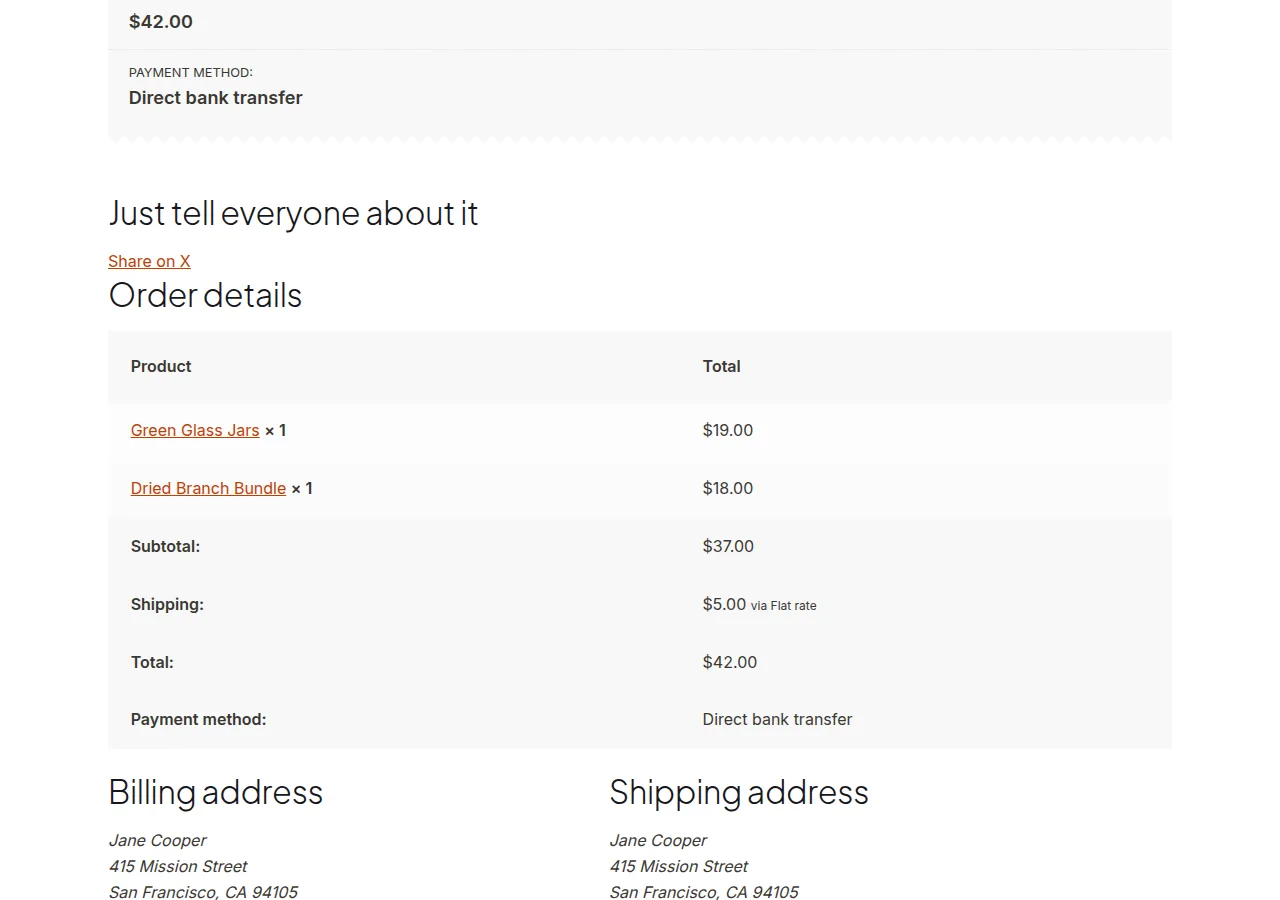
    echo '<h2>Just tell everyone about it</h2>';
    echo '<a target="_blank" rel="noopener" href="https://twitter.com/intent/tweet?text=' . $share_text . '&url=' . $share_url . '">Share on X</a>';
    echo '</div>';
}
Troubleshooting
Share Button Never Appears
Check the product IDs array — it only shows for orders containing one of the listed products, so confirm the IDs match products actually included in the test order.
Shared Link Preview Shows the Wrong Image or Title
Social platforms typically pull Open Graph meta tags from the linked page, not from the share intent URL itself — make sure the product page has proper OG tags set (many SEO plugins handle this automatically).
Multiple Matching Products in One Order
The snippet above only shares the first match found — extend the loop to build a share message covering every qualifying product if that fits your use case better.
Frequently Asked Questions
Can I use a different social platform instead of X/Twitter?
Yes — swap the share intent URL for Facebook’s, LinkedIn’s, or Pinterest’s equivalent sharer URL format.
Does this work for guest checkouts?
woocommerce_thankyou fires regardless of whether the customer is logged in, so yes, guest orders are included too.
Can I offer a discount for sharing?
That requires additional logic (like generating a one-time coupon on share-button click) beyond this basic display snippet, but it’s a common extension of this pattern.
Conclusion
Adding a share on social media button to the WooCommerce Thank You page is a simple hook into woocommerce_thankyou that targets specific products worth promoting. Keep the product list intentional rather than showing it on every single order.
See also How to Add a Tracking Script to the WooCommerce Thank You Page.
Prefer no code? All-in-One Utilities Woo Add-on handles this kind of change from a settings screen. Its Checkout and thank-you page content guide also shows how.