
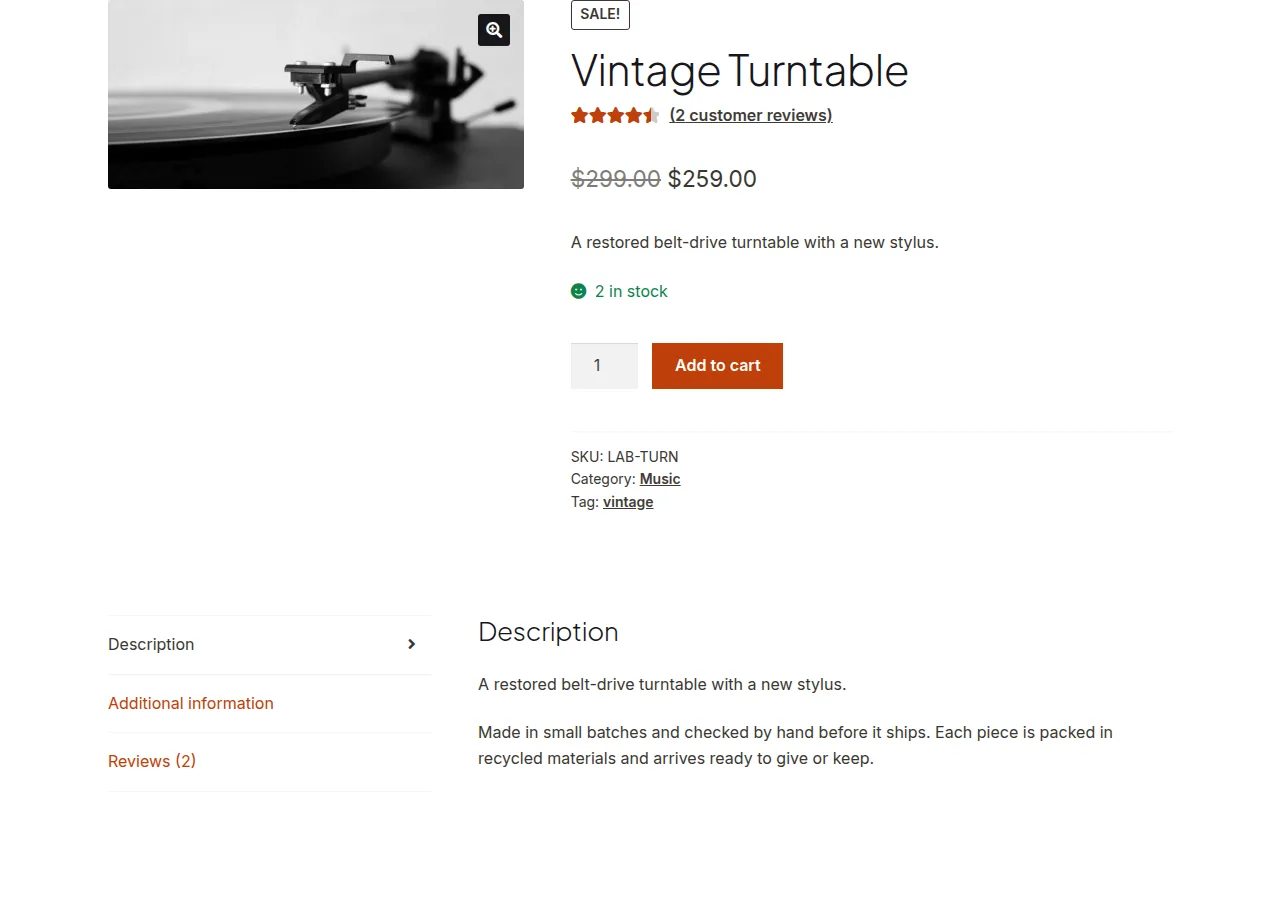
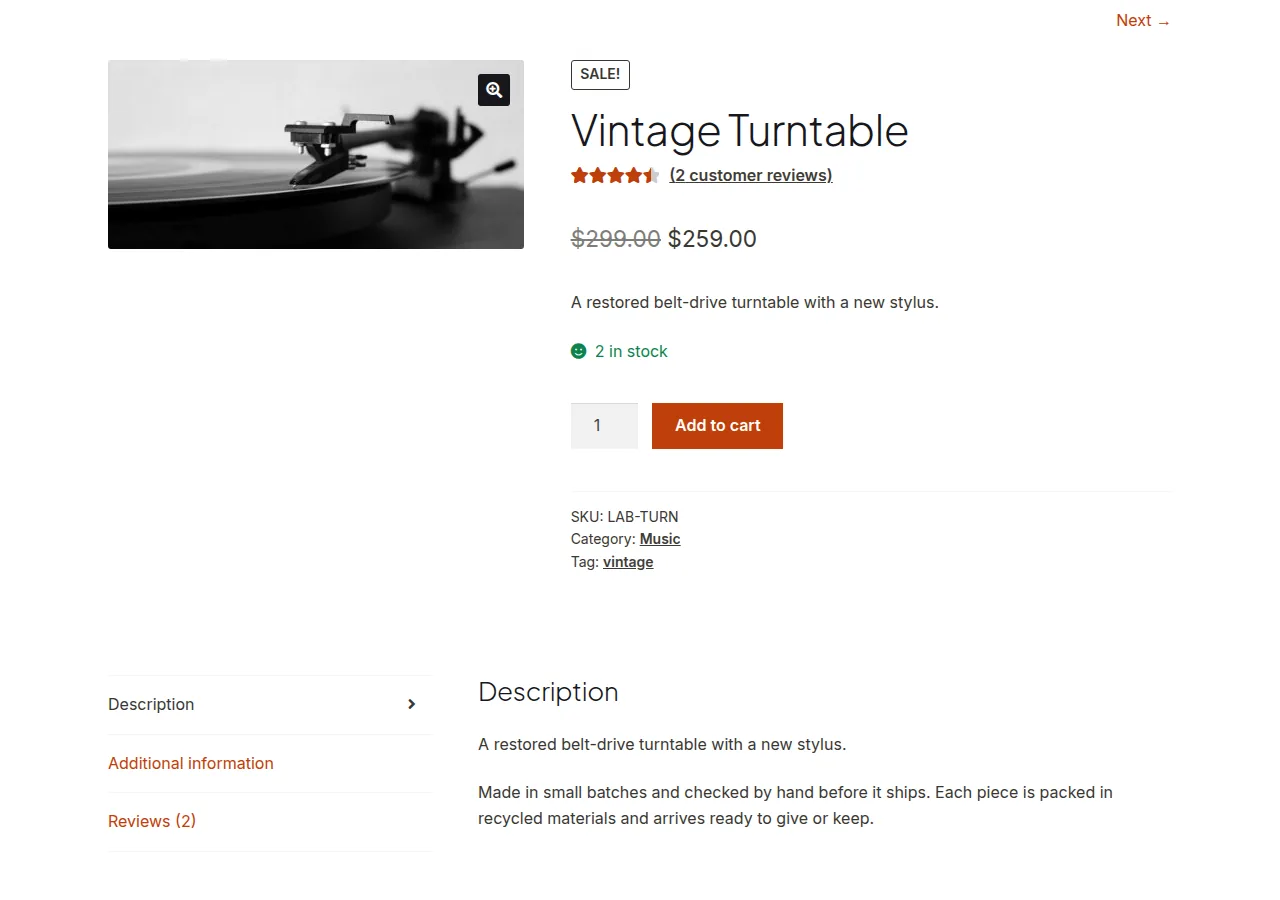
You can add next/previous product links to the WooCommerce product page using WordPress’s native post navigation functions, scoped to the product category so shoppers can browse between products in the same category without returning to the shop page.
Why Add Next/Previous Navigation
- Customers browsing a specific category can move between products without repeatedly returning to the archive page
- It encourages more product page views per session, especially for catalog-style browsing behavior
- It’s a small UX touch that many themes don’t include by default on WooCommerce product pages
Step 1: Add the Navigation Links
/**
 * Add next/previous product links, scoped to the current category
 * Add to your child theme's functions.php
 */
add_action( 'woocommerce_before_single_product', 'add_prev_next_product_links' );
add_action( 'woocommerce_after_single_product', 'add_prev_next_product_links' );

function add_prev_next_product_links() {
    echo '<div class="product-nav-links">';
    echo previous_post_link( '%link', '← Previous', true, '', 'product_cat' );
    echo next_post_link( '%link', 'Next →', true, '', 'product_cat' );
    echo '</div>';
}
Step 2: Add Matching CSS
.product-nav-links {
    line-height: 40px;
    margin-bottom: 20px;
    display: block;
}

.product-nav-links a[rel="prev"] {
    float: left;
}

.product-nav-links a[rel="next"] {
    float: right;
}

.product-nav-links::after {
    content: "";
    display: table;
    clear: both;
}
Troubleshooting
Links Show Products From the Wrong Category
If a product belongs to multiple categories, the navigation may jump across categories unpredictably, since WordPress picks the “current” category context based on available taxonomy data. For strict single-category navigation, you may need a more targeted custom query instead of the native post link functions.
Links Don’t Appear at the Bottom of the Page
Confirm you’ve hooked the function to both woocommerce_before_single_product and woocommerce_after_single_product if you want the navigation to appear in both places — adding only one hook will only show it once.
Frequently Asked Questions
Can I scope navigation to a product tag instead of a category?
Yes, change the taxonomy parameter passed to previous_post_link() and next_post_link() from product_cat to product_tag.
Will this work correctly with a large catalog?
Yes, these are native, lightweight WordPress functions that perform well regardless of catalog size, since they only query the immediate next/previous post rather than the full category list.
Can I show the next/previous product’s thumbnail instead of just text links?
Yes, you’d need a more custom implementation using get_adjacent_post() directly, pulling the featured image and title manually instead of relying on the simpler link functions shown here.
Conclusion
WordPress’s built-in post navigation functions make it straightforward to add next/previous product links to the WooCommerce product page, scoped to keep browsing within the same category. Test with products in multiple categories to confirm the navigation behaves the way you expect, since taxonomy-scoped navigation can behave differently depending on a product’s category assignments.
See also How to Disable a WooCommerce Attribute Select Until the Previous One Is Chosen. Then read How to Link the Featured Image to an External Product URL.
Prefer no code? All-in-One Utilities Woo Add-on adds over 50 WooCommerce features, so you can switch them on without code.