
You can display product brands on the WooCommerce shop page by hooking the brands plugin’s output function into the shop loop item template, since most brand plugins only print brand names on the single product page by default. A short PHP snippet moves that same output into the archive loop.
Why Show Brands on Archive Pages
- Shoppers browsing a category often filter mentally by brand before clicking into a product
- Multi-brand stores benefit from brand visibility as a trust signal in the loop
- Reduces bounce-backs from shoppers who only wanted a specific brand
Step 1: Add the Loop Brand Snippet
/** Print the product's brand terms inside the shop/category loop, under the title */
add_action( 'woocommerce_after_shop_loop_item_title', 'display_brand_in_shop_loop', 8 );

function display_brand_in_shop_loop() {
    global $product;

    $brand_terms = get_the_terms( $product->get_id(), 'product_brand' );

    if ( $brand_terms && ! is_wp_error( $brand_terms ) ) {
        $brand_names = wp_list_pluck( $brand_terms, 'name' );
        echo '<span class="loop-brand-label">' . esc_html( implode( ', ', $brand_names ) ) . '</span>';
    }
}
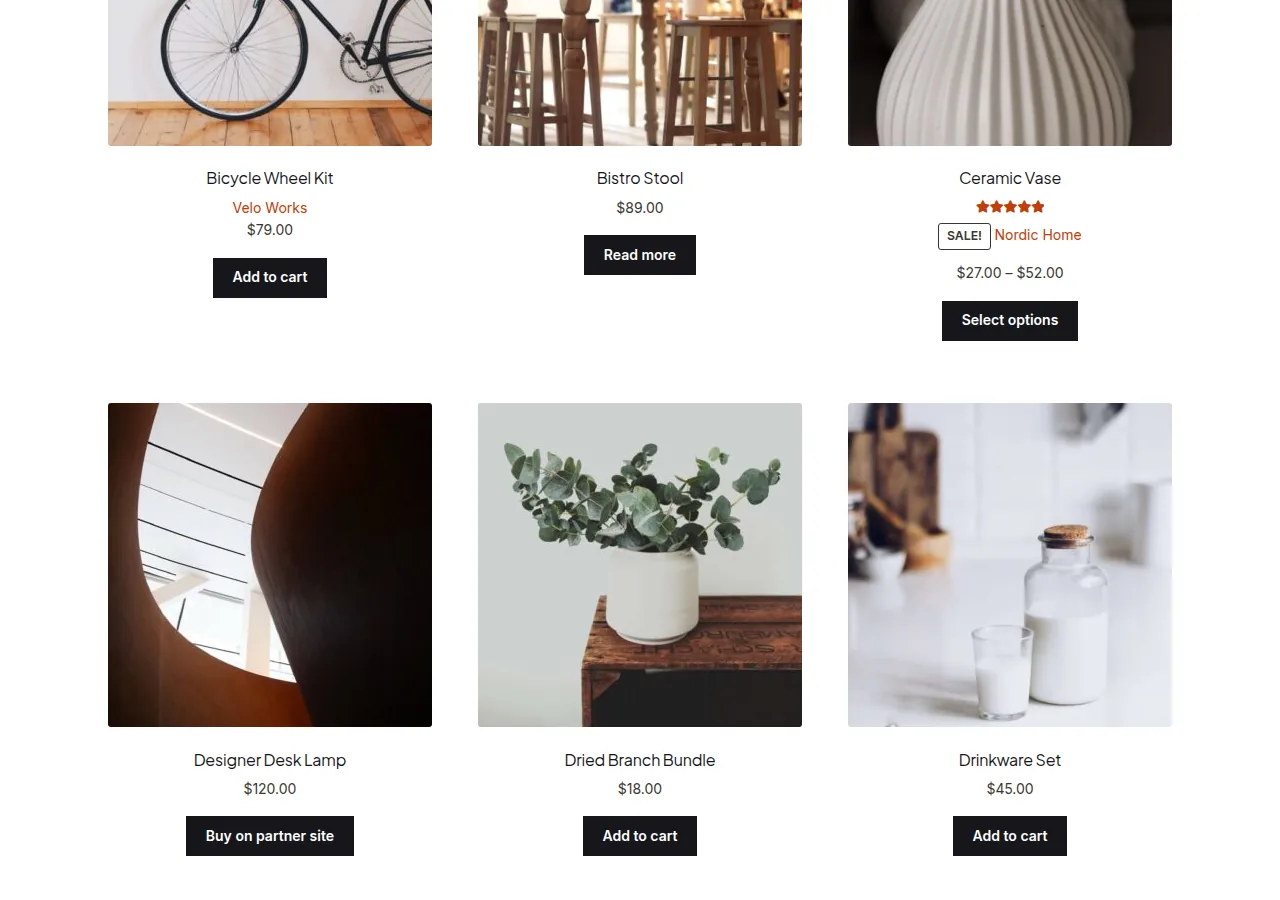
Adjust the taxonomy name (product_brand) if your brands plugin registers a different taxonomy slug.
Troubleshooting
Brand Text Doesn’t Appear
Confirm the taxonomy name matches your specific brands plugin exactly — different plugins register brands under different taxonomy slugs, and a mismatch here silently returns nothing.
Conflicts With Theme-Bundled Brand Displays
Some page-builder-driven themes already render their own brand/badge markup in the loop; if you see duplicate brand text, remove the theme’s version or adjust the hook priority so only one displays.
Want to Link the Brand Name to Its Archive
Wrap the output in an anchor using get_term_link() for each brand term instead of plain text, so shoppers can click straight into that brand’s own archive.
Frequently Asked Questions
Do I need a specific brands plugin for this to work?
Yes — this snippet reads from a brand taxonomy that a brands plugin registers; without one, there’s no brand data to pull from.
Can I show brand logos instead of text?
Yes — most brand taxonomies support a thumbnail/logo term meta field; swap the text output for an image tag pulling that logo instead.
Will this slow down the shop page?
The impact is negligible for typical catalog sizes since get_the_terms() is cached per request by WordPress.
Conclusion
Displaying product brands on the WooCommerce shop page just requires hooking your brands plugin’s term data into the loop item template. Confirm your plugin’s exact taxonomy name first, then style the output to match your catalog design.
See also How to Display Product Categories on the WooCommerce Shop Page. Then read How to Display One Product Per Row on the Shop Page.
Prefer no code? All-in-One Utilities Woo Add-on adds over 50 WooCommerce features, so you can switch them on without code.