
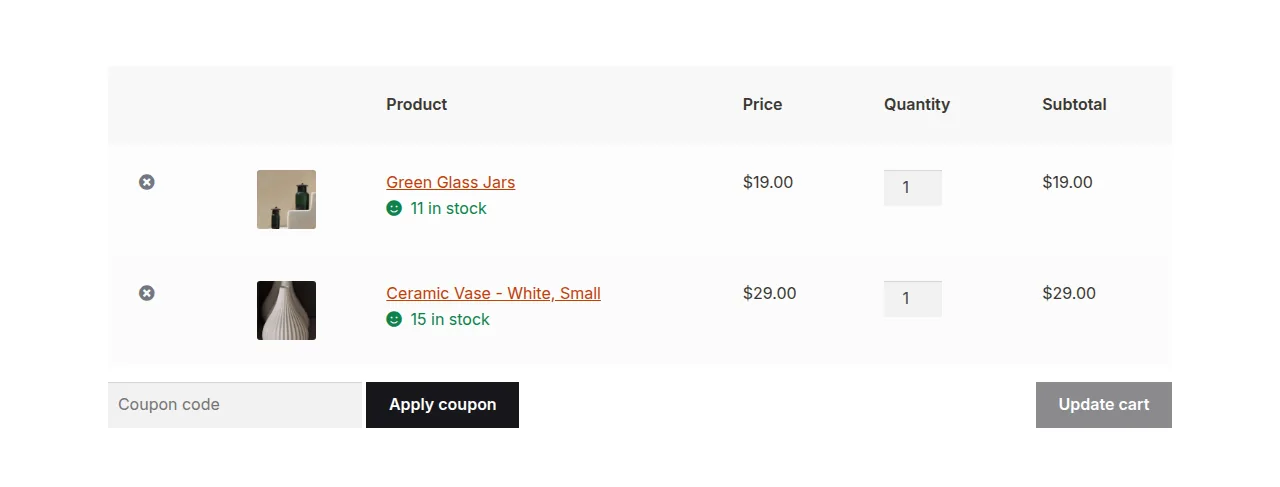
You can show product stock on the WooCommerce cart page by hooking into woocommerce_after_cart_item_name and printing each item’s stock status using the built-in wc_get_stock_html() function — the same markup WooCommerce already uses on the product page.
Why Show Stock at the Cart Stage
- Shoppers with low-stock items in their cart are more likely to complete checkout if they see urgency (“Only 2 left”)
- Backorder items benefit from a clear note so customers aren’t surprised by a delayed shipment
- It reduces support requests asking whether an item in the cart is actually still available
Step 1: Confirm Stock Management Is Enabled
This only works for products with “Track stock quantity” turned on in the product’s Inventory tab. Products without stock management enabled have nothing to display.
Step 2: Print Stock Status Under Each Cart Item Name
/** Show stock status and quantity under each cart item's name */
add_action( 'woocommerce_after_cart_item_name', 'display_stock_status_on_cart_item', 20, 2 );

function display_stock_status_on_cart_item( $cart_item, $cart_item_key ) {

    $product = $cart_item['data'];

    if ( $product->backorders_require_notification() && $product->is_on_backorder( $cart_item['quantity'] ) ) {
        return;
    }

    echo wc_get_stock_html( $product );
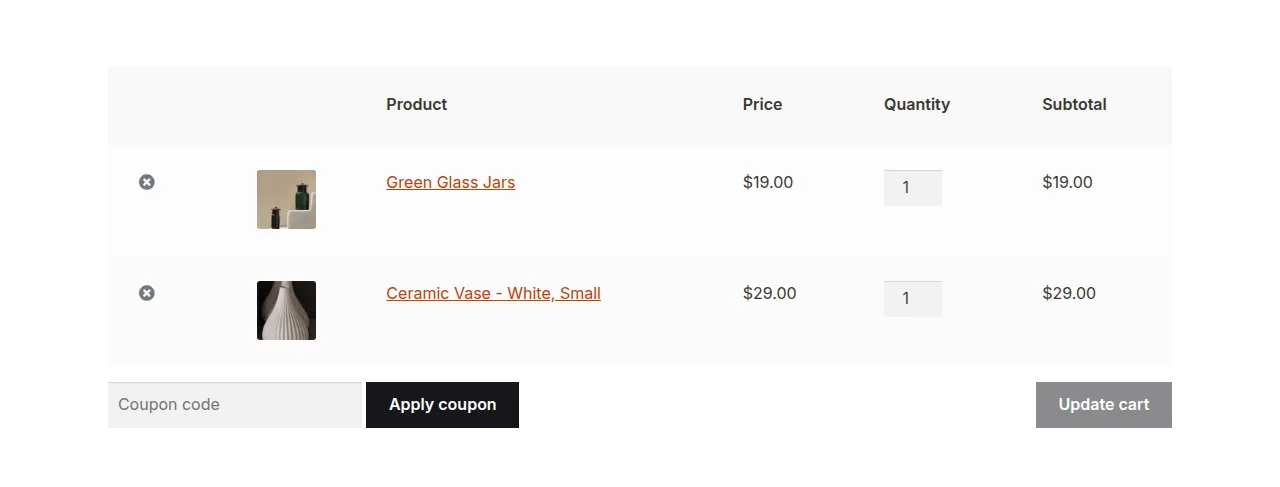
}
Troubleshooting
Nothing shows up for any product
Double-check that “Manage stock?” is checked at the product level (not just store-wide), since wc_get_stock_html() returns an empty string when stock management isn’t active for that specific product.
Backorder items show a confusing message
Set the product’s backorder setting to “Allow, but notify customer” if you want backorder-specific messaging to appear instead of a blank or misleading stock line.
Frequently Asked Questions
Does this also work on the mini-cart or checkout review?
The hook used here is specific to the cart page’s item table; the mini-cart and checkout order review use different templates and hooks for the same purpose.
Can I show stock as a number instead of “In stock” text?
Yes, wc_get_stock_html() already includes the quantity when “Hide out of stock quantity” is left unchecked in WooCommerce inventory settings.
Will this slow down the cart page?
No, it reuses WooCommerce’s existing stock calculation for each product already loaded into the cart, so there’s no extra database overhead.
This same wc_get_stock_html() function is worth remembering for other templates too — anywhere you want to show product stock on the WooCommerce cart page logic reused, such as a custom mini-cart or a quick-view modal, it renders identical, on-brand stock messaging without extra styling work. If you’d rather show a simple text label instead of the full HTML markup, swap the function for a plain conditional checking $product->is_in_stock() and $product->get_stock_quantity(), which gives you complete control over wording and styling without relying on WooCommerce’s default output at all.
Conclusion
A single action hook is enough to show product stock on the WooCommerce cart page, reusing WooCommerce’s own stock markup so it looks and behaves consistently with the rest of your store.
See also WooCommerce Cart Page Hooks: A Visual Guide. Then read How to Remove Product Links on the Cart Page in WooCommerce.
Prefer no code? All-in-One Utilities Woo Add-on adds over 50 WooCommerce features, so you can switch them on without code.