
You can override the out of stock visibility setting in WooCommerce for just one category or page using the pre_option_woocommerce_hide_out_of_stock_items filter, leaving the global setting untouched everywhere else.
Why You’d Need an Exception to a Global Setting
- You may want out-of-stock items hidden storewide but still visible on a specific category page for planning or pre-order purposes
- A dedicated landing page might intentionally showcase sold-out items alongside available ones
- It avoids maintaining two different WooCommerce settings or duplicate product catalogs for the same need
Step 1: Confirm the Global Setting Is Enabled
This technique assumes WooCommerce > Settings > Products > Inventory has “Out of stock visibility” set to hide out-of-stock items from the catalog — the filter below creates a targeted exception to that rule.
Step 2: Override for a Specific Product Category
/** Keep showing out-of-stock products on the "collectibles" category page */
add_filter( 'pre_option_woocommerce_hide_out_of_stock_items', 'show_out_of_stock_on_collectibles_category' );

function show_out_of_stock_on_collectibles_category( $hide ) {

    if ( is_product_category( 'collectibles' ) ) {
        $hide = 'no';
    }

    return $hide;
}
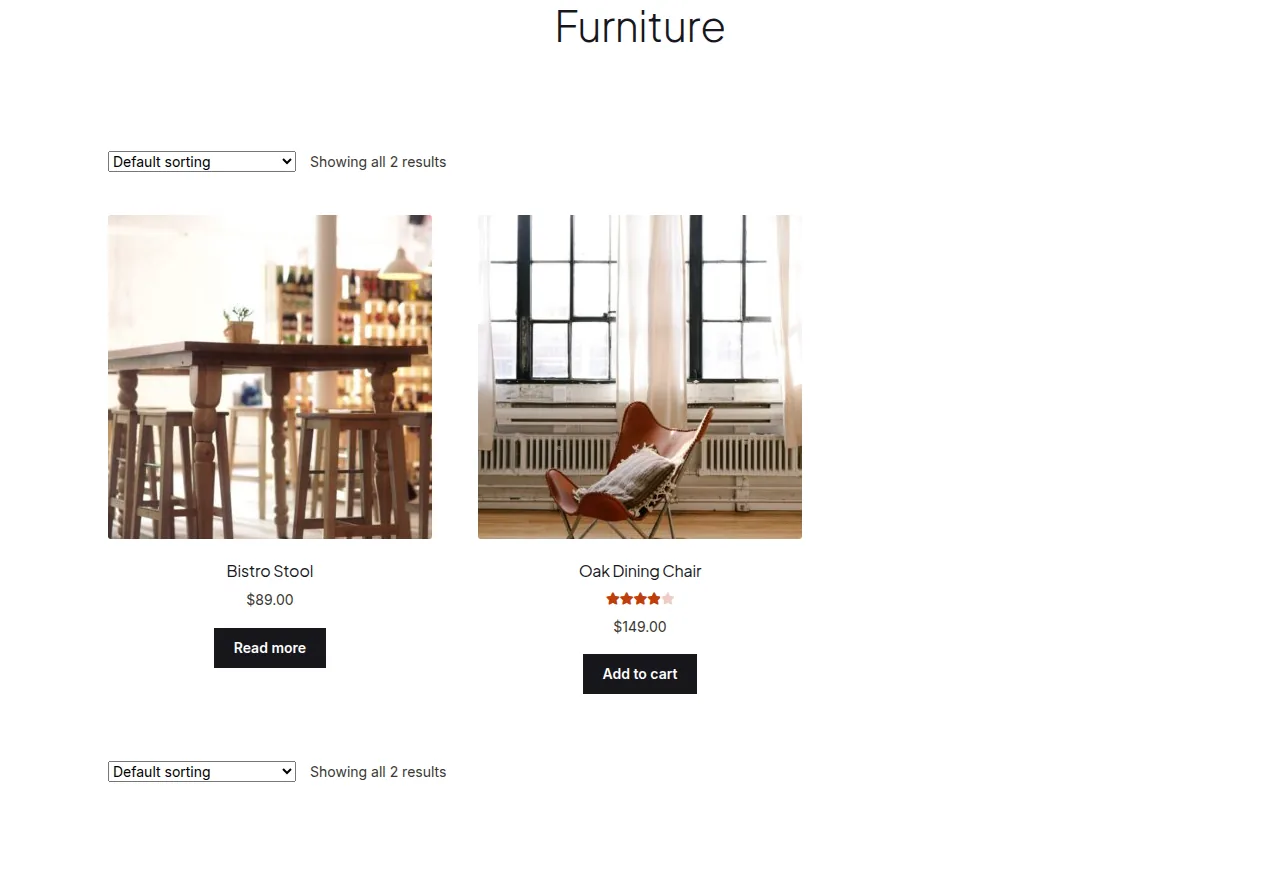
Overriding for a Specific WordPress Page
/** Show out-of-stock products on page ID 458 regardless of the global setting */
add_filter( 'pre_option_woocommerce_hide_out_of_stock_items', 'show_out_of_stock_on_specific_page' );

function show_out_of_stock_on_specific_page( $hide ) {

    if ( is_page( 458 ) ) {
        $hide = 'no';
    }

    return $hide;
}
Troubleshooting
The exception doesn’t apply on the category archive
Confirm the category slug passed to is_product_category() matches exactly — a display name mismatch (using the label instead of the slug) is a common cause of this not working.
The setting flips back after saving WooCommerce settings again
That’s expected — this filter overrides the option’s returned value at runtime without ever changing what’s actually saved in the database, so the underlying setting stays as configured in wp-admin.
Frequently Asked Questions
Does pre_option_ work for any WordPress option, not just this one?
Yes, pre_option_{option_name} is a generic WordPress pattern that lets you intercept and override virtually any stored option’s value before it’s returned.
Can I combine multiple exceptions in one function?
Yes, stack conditions with || inside the same callback, or use separate add_filter() calls for each exception you need.
Will this affect the product’s actual stock status or just visibility?
Only visibility — the product’s actual stock quantity and status remain unchanged; this filter only controls whether it’s shown in the catalog listing.
Keep a short list of every page or category where you’ve applied this override, since a store with several scattered exceptions can otherwise become confusing to audit later — a single comment block above each snippet listing the affected category or page ID makes it far easier for you or another developer to understand the full picture months down the line.
Conclusion
The pre_option_ filter pattern makes it simple to override the out of stock visibility setting in WooCommerce for specific categories or pages, without disturbing the global configuration everywhere else.
See also How to Override the Product Category Page Title in WooCommerce. Then read How to Display Out of Stock Products in WooCommerce With a Shortcode.
Prefer no code? All-in-One Utilities Woo Add-on adds over 50 WooCommerce features, so you can switch them on without code.