
You can disable related products on a per-product basis in WooCommerce by adding a checkbox to the product editor, saving its state as custom meta, and checking that value before the related products section renders on the front end.
Why Control Related Products Per Product
- Some products (custom orders, clearance items) don’t have a logical “related” match
- Avoids showing irrelevant or out-of-stock items right below a product a customer is considering
- Gives store managers a simple on/off toggle without touching code per product
- The same checkbox pattern can be reused to hide other sections too
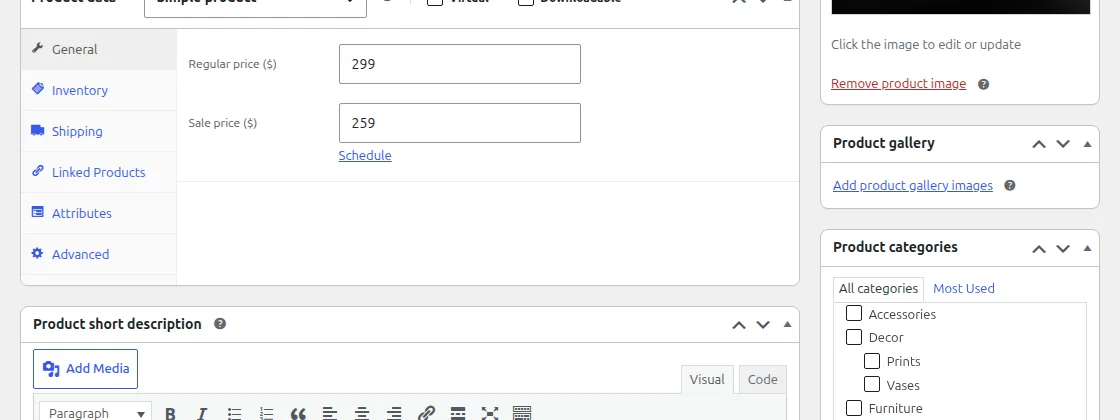
Step 1: Add the Checkbox to the Product Editor
/** Add a "Hide Related Products" checkbox to the product data panel */
add_action( 'woocommerce_product_options_general_product_data', 'render_hide_related_checkbox' );

function render_hide_related_checkbox() {
    woocommerce_wp_checkbox( array(
        'id'    => 'suppress_related_products',
        'label' => 'Hide Related Products',
    ) );
}
Step 2: Save the Checkbox State
/** Save the "Hide Related Products" checkbox value */
add_action( 'save_post_product', 'save_hide_related_checkbox' );

function save_hide_related_checkbox( $product_id ) {
    global $pagenow, $typenow;

    if ( 'post.php' !== $pagenow || 'product' !== $typenow ) {
        return;
    }
    if ( defined( 'DOING_AUTOSAVE' ) && DOING_AUTOSAVE ) {
        return;
    }

    if ( isset( $_POST['suppress_related_products'] ) ) {
        update_post_meta( $product_id, 'suppress_related_products', 'yes' );
    } else {
        delete_post_meta( $product_id, 'suppress_related_products' );
    }
}
Step 3: Hide Related Products on the Front End
/** Remove the Related Products section for flagged products only */
add_action( 'woocommerce_after_single_product_summary', 'conditionally_hide_related_products', 1 );

function conditionally_hide_related_products() {
    global $product;

    if ( 'yes' === get_post_meta( $product->get_id(), 'suppress_related_products', true ) ) {
        remove_action( 'woocommerce_after_single_product_summary', 'woocommerce_output_related_products', 20 );
    }
}

Troubleshooting
Checkbox doesn’t save
Make sure the checkbox is inside the General tab panel where woocommerce_product_options_general_product_data fires — placing it outside that container can prevent the form field from submitting correctly.
Related products still show even when checked
The removal hook must run at a lower priority than WooCommerce’s own woocommerce_output_related_products (priority 20) — priority 1 in this example ensures it runs first.
Frequently Asked Questions
Can I reuse this pattern to hide the upsells section instead?
Yes, swap the removed function for woocommerce_upsell_display and adjust the checkbox label and meta key accordingly.
Does this affect variable products differently?
No, the checkbox and meta key work the same way for simple and variable products since both use the parent product ID.
Can shop managers use this without touching code?
Yes, that’s the point — once the snippet is installed, any user with product-edit access can toggle the checkbox per product with no further code changes needed.
Conclusion
Three small hooks let you disable related products on a per-product basis with a simple checkbox any editor can use. The same display-toggle pattern extends easily to other single-product sections you want to control individually.
See also How to Disable the Related Products Shuffle in WooCommerce.
Prefer no code? All-in-One Utilities Woo Add-on handles this kind of change from a settings screen. Its Reviews and related products guide also shows how.