
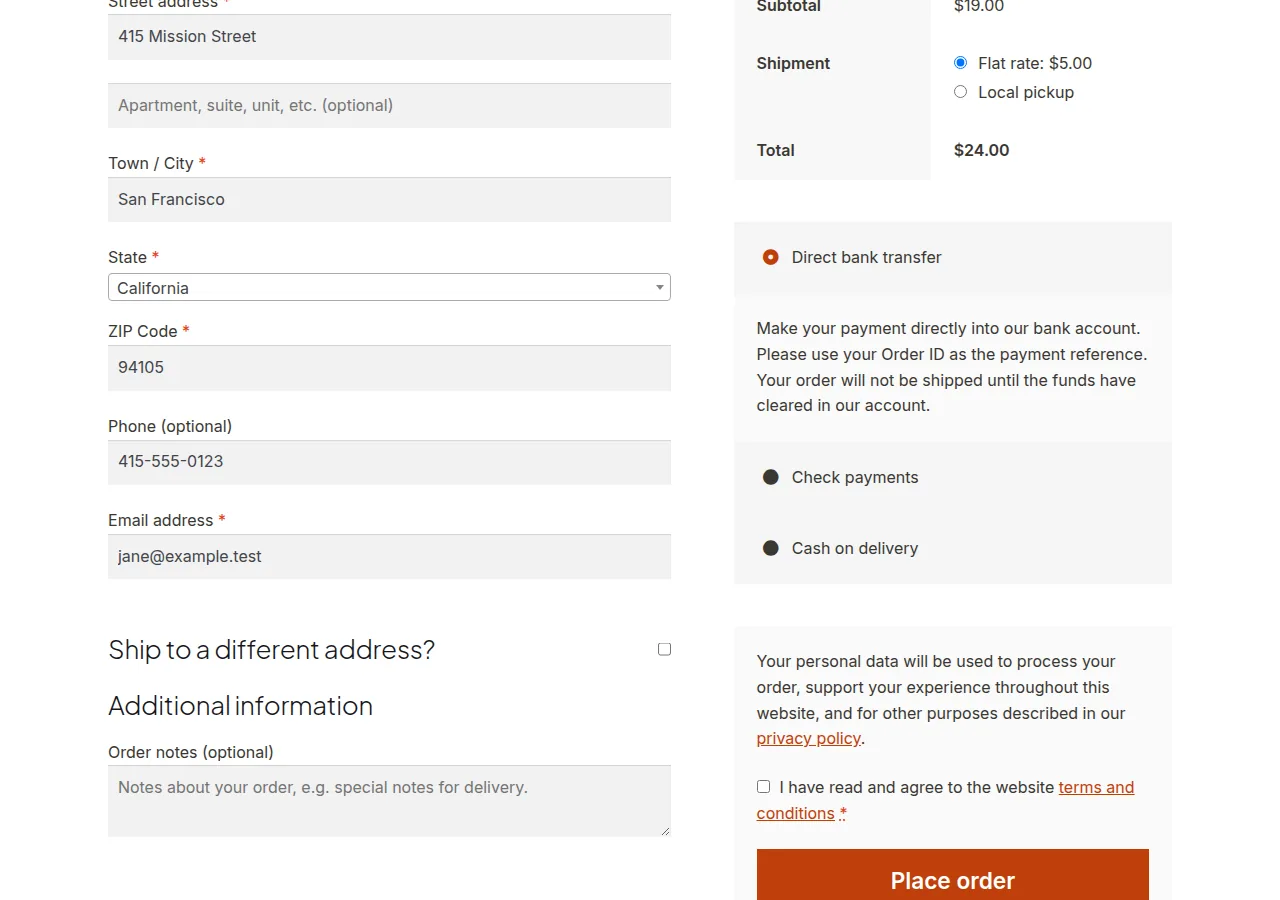
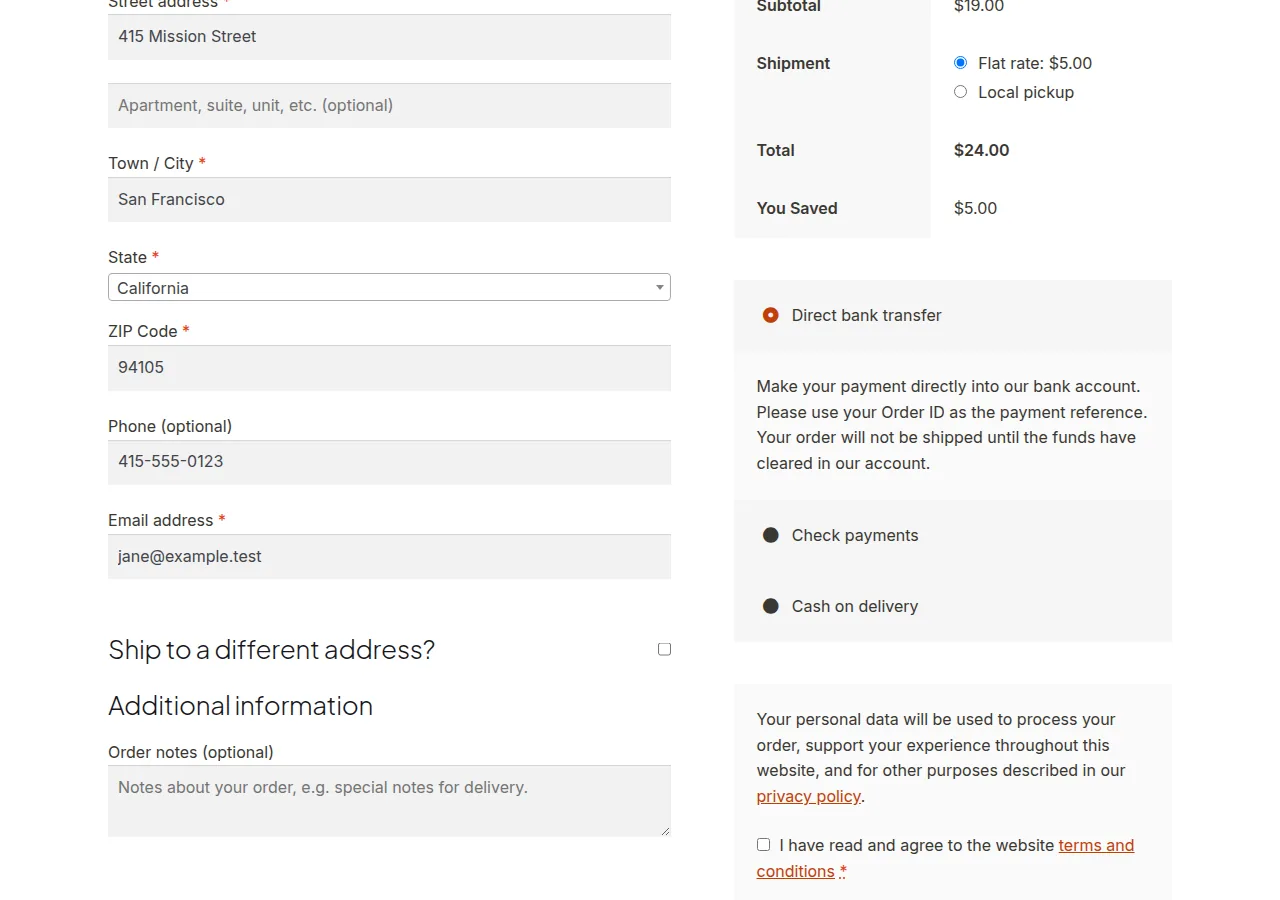
You can display total discount savings in the WooCommerce cart and checkout by looping through cart items to calculate the difference between regular and sale prices, adding any coupon discount, and echoing the combined total as a new row in the totals table.
Why Show Total Savings to Customers
- Seeing a concrete “You Saved $24.50” figure reinforces the value of a purchase decision
- It combines both sale-price discounts and coupon discounts into one clear, motivating number
- Highlighting savings at the point of checkout can help reduce cart abandonment
Step 1: Calculate and Display the Savings Row
/**
 * Show total savings from sale prices and coupons in cart/checkout totals
 * Add to your child theme's functions.php
 */
add_action( 'woocommerce_cart_totals_after_order_total', 'display_total_savings_row' );
add_action( 'woocommerce_review_order_after_order_total', 'display_total_savings_row' );

function display_total_savings_row() {
    $sale_savings = 0;

    foreach ( WC()->cart->get_cart() as $cart_item ) {
        $product = $cart_item['data'];
        if ( $product->is_on_sale() ) {
            $regular_price = (float) $product->get_regular_price();
            $sale_price    = (float) $product->get_sale_price();
            $sale_savings += ( $regular_price - $sale_price ) * (int) $cart_item['quantity'];
        }
    }

    $coupon_savings = WC()->cart->get_discount_total();
    $total_savings  = $sale_savings + $coupon_savings;

    if ( $total_savings > 0 ) {
        echo '<tr><th>You Saved</th><td>' . wc_price( $total_savings ) . '</td></tr>';
    }
}
Troubleshooting
The Savings Row Doesn’t Appear
Confirm at least one item in the cart is actually on sale or a coupon is applied — the function intentionally hides the row entirely when there’s nothing to show, to avoid an empty “$0.00 saved” message.
The Total Doesn’t Match What You Expect
This calculation combines sale-price savings with coupon discounts into a single number. If you want them shown separately, split the calculation into two variables and echo two distinct rows instead of combining them.
Frequently Asked Questions
Does this account for tax-inclusive pricing?
The calculation uses regular and sale prices as stored, which typically excludes tax — if your store displays tax-inclusive prices, you may need to adjust the calculation to match.
Will this show correctly on both cart and checkout?
Yes, the function is hooked to both the cart totals and the checkout order review totals, so it appears consistently in both places.
Can I style the “You Saved” row differently from other totals rows?
Yes, add a custom class to the table row markup and target it with CSS to make it stand out, such as bolding the text or using a highlight color.
Conclusion
A loop through cart items combined with the cart’s coupon discount total is enough to display total discount savings in the WooCommerce cart and checkout, giving shoppers a clear, motivating summary of what they’ve saved. Test with both sale-priced items and coupons applied together to confirm the combined total calculates correctly.
See also How to Display Cart Item Subtotal With a Coupon Discount Applied in WooCommerce. Then read How to Exclude a Product from Discount Coupons in WooCommerce.
Prefer no code? All-in-One Utilities Woo Add-on adds over 50 WooCommerce features, so you can switch them on without code.