
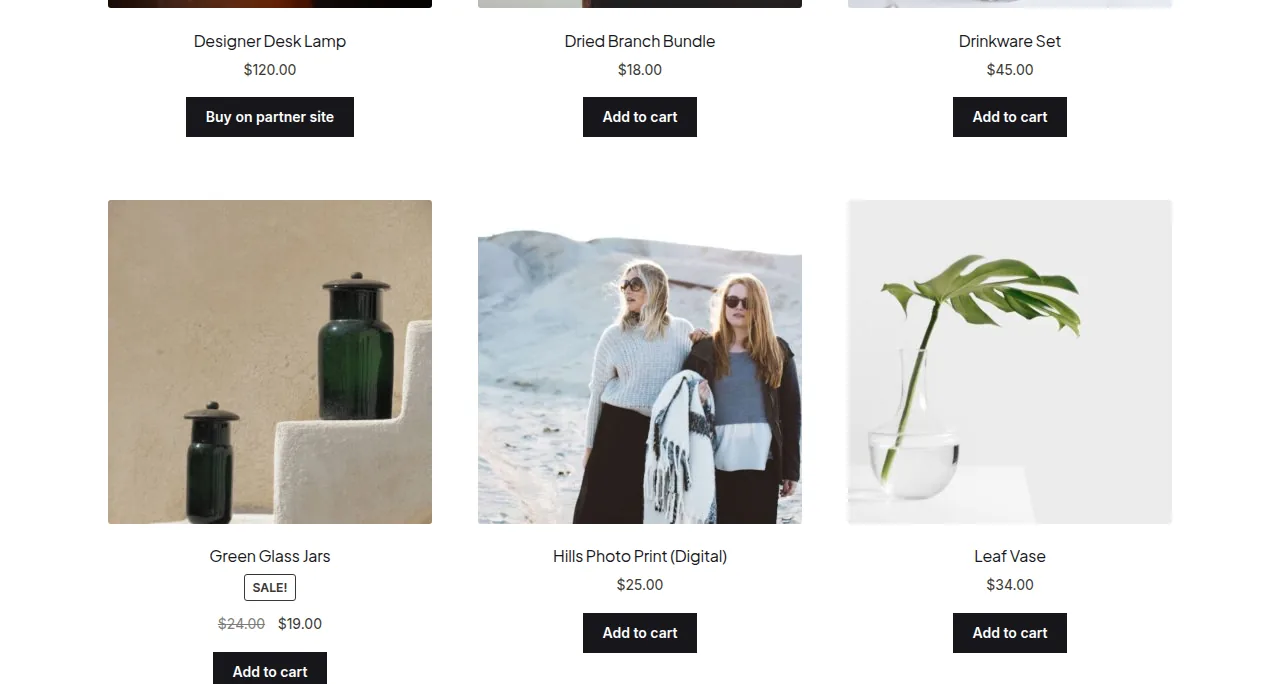
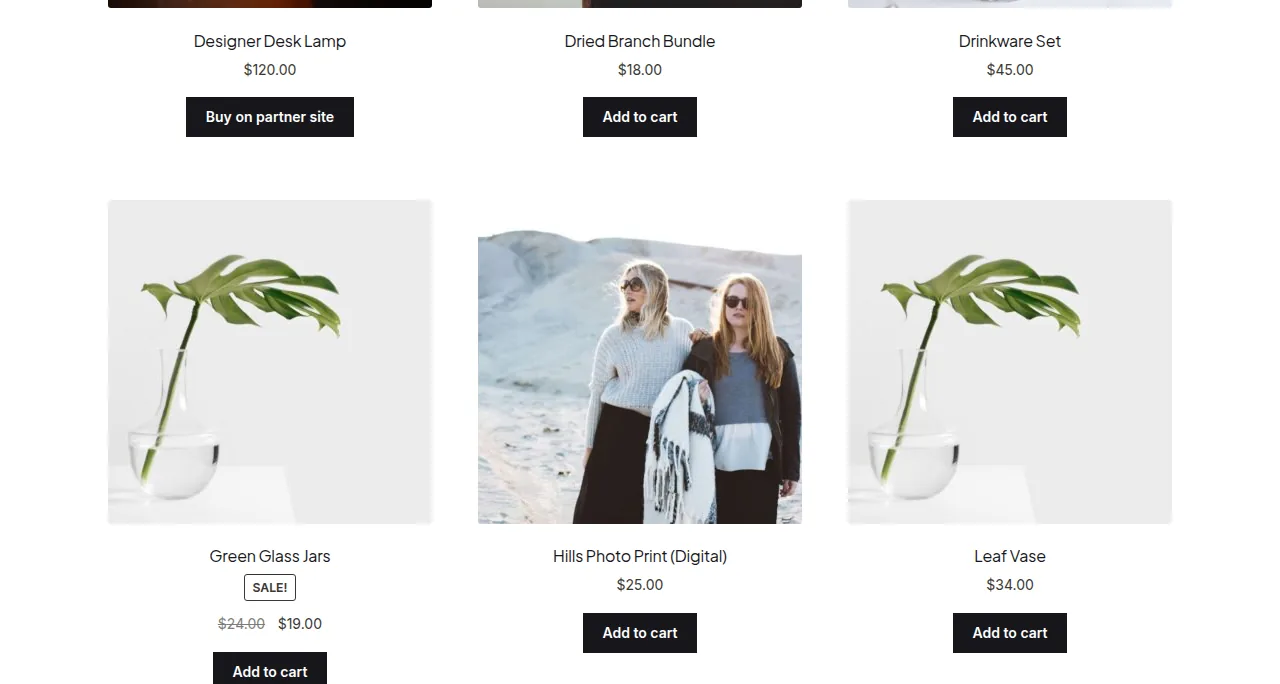
You can flip product images on hover in WooCommerce with a CSS-only technique that swaps the primary product image for the second gallery image when a shopper hovers over a product card — no JavaScript or plugin required for the shop and category loop.
Why an Image Hover Flip Helps Conversions
- Shows a second angle or lifestyle shot without the shopper leaving the category grid
- Gives customers more visual information before they commit to opening a product page
- A pure-CSS approach adds virtually no page weight compared to a JavaScript slider plugin
- Works well for fashion, footwear, and any catalog where a second angle adds real value
Step 1: Confirm Products Have a Second Gallery Image
This technique relies on WooCommerce already rendering a second product image in the loop when a gallery image exists — most default themes do this automatically for products with more than one image assigned.
Step 2: Add the Hover-Swap CSS
This targets the two images WooCommerce renders in the loop thumbnail and crossfades between them on hover, positioned absolutely so they stack rather than push layout around.
/* Add to your child theme's style.css — crossfade product images on hover */
.products .product a img.attachment-woocommerce_thumbnail {
    transition: opacity 0.35s ease-in-out;
    backface-visibility: hidden;
}

.products .product a:hover img.attachment-woocommerce_thumbnail:first-child {
    opacity: 0;
}

.products .product a img.attachment-woocommerce_thumbnail:nth-child(2) {
    position: absolute;
    top: 0;
    left: 0;
    opacity: 0;
    transition: opacity 0.35s ease-in-out;
}

.products .product a:hover img.attachment-woocommerce_thumbnail:nth-child(2) {
    opacity: 1;
}
Enabling the Second Image via PHP if Missing
If your theme only outputs a single loop image, add this filter so the second gallery image is included in the loop markup for the hover effect to work against.
/** Output the second gallery image in the shop loop for hover-flip support */
add_action( 'woocommerce_before_shop_loop_item_title', 'render_secondary_loop_thumbnail', 15 );

function render_secondary_loop_thumbnail() {
    global $product;
    $gallery_ids = $product->get_gallery_image_ids();
    if ( ! empty( $gallery_ids[0] ) ) {
        echo wp_get_attachment_image( $gallery_ids[0], 'woocommerce_thumbnail' );
    }
}
Troubleshooting
The Flip Effect Doesn’t Trigger
Inspect the loop markup in your browser’s dev tools — many themes wrap loop images in extra containers or use different classes than the WooCommerce default, so the CSS selectors above may need adjusting to match your theme’s actual output.
Layout Jumps When Hovering
Make sure the product card container has position: relative set so the absolutely positioned second image stacks correctly on top of the first, instead of pushing content down the page.
Frequently Asked Questions
Do I need a plugin for the image flip effect?
No — a CSS-only approach works for a simple two-image crossfade; plugins add more value when you need multi-image carousels or touch-friendly swipe support on mobile.
Does this work on mobile devices?
Hover states don’t exist on touch screens, so mobile visitors won’t see the flip effect with this CSS-only approach — a plugin with tap-to-cycle support is needed for a mobile equivalent.
Will this slow down my shop page?
Minimally — you’re loading one additional thumbnail-sized image per product with a gallery, which is a small trade-off for the added interactivity.
Conclusion
A lightweight CSS crossfade gets most of the benefit of an image-flip plugin without the extra JavaScript weight, as long as your theme’s loop markup cooperates. Test on a default theme first if the effect doesn’t show up, since class names vary between themes. Getting this right is really what flip product images on hover in woocommerce comes down to.
See also How to Hide Category Images on the WooCommerce Shop Page. Then read How to Hide Images From the WooCommerce Product Grid Block.
Prefer no code? All-in-One Utilities Woo Add-on adds over 50 WooCommerce features, so you can switch them on without code.