
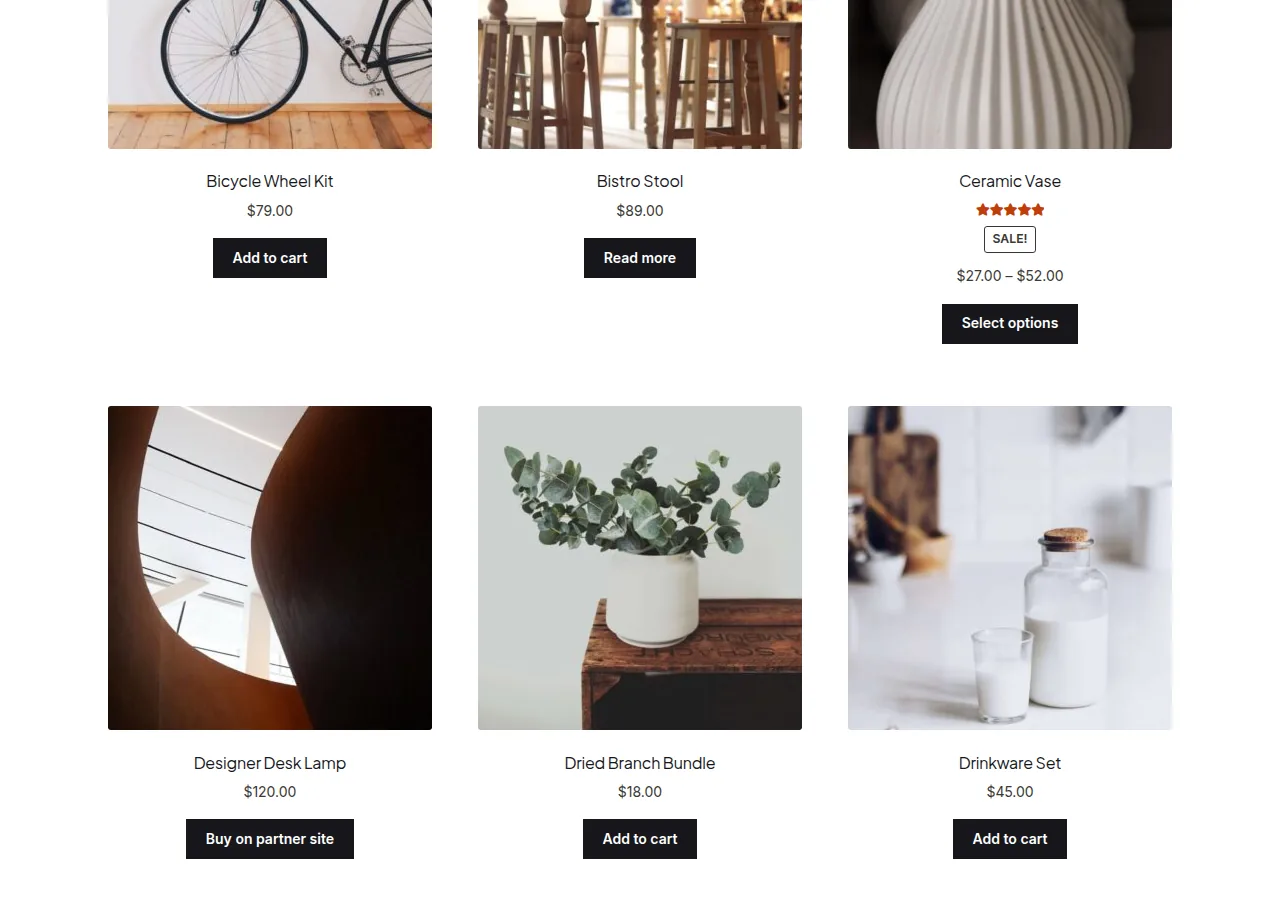
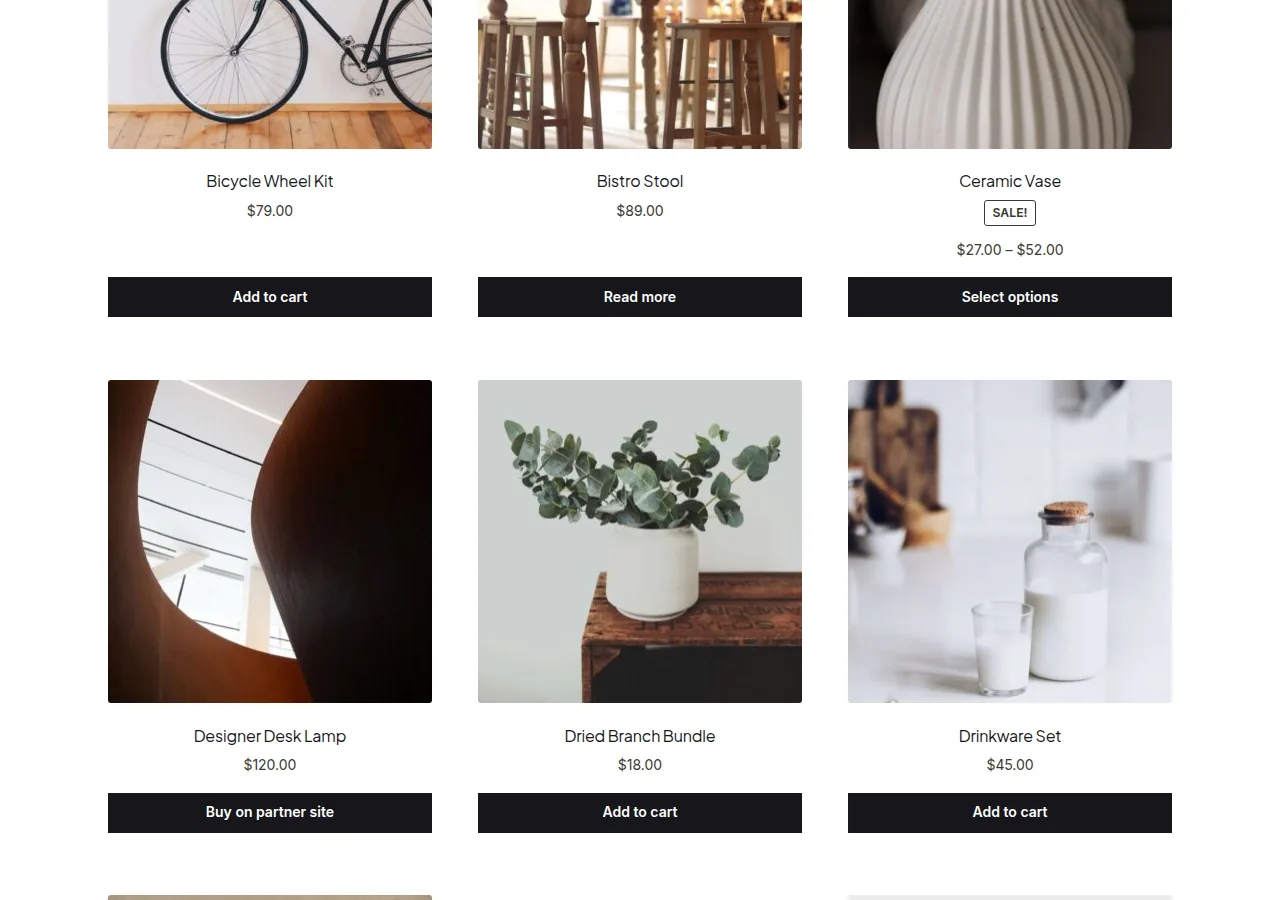
You can give WooCommerce shop page products equal height by standardizing image cropping in the Customizer, removing inconsistent elements like sale badges and star ratings, and switching the product grid to CSS flexbox so every column stretches to match its tallest neighbor.
Why Product Cards End Up Uneven
- Different image aspect ratios push some product cards taller than others
- Titles that wrap to two or three lines throw off vertical alignment
- Sale badges and star ratings only appear on some products, adding inconsistent extra height
Step 1: Standardize Image Cropping
Under Appearance > Customize > WooCommerce > Product Images, set images to crop into a square or a fixed custom aspect ratio so every thumbnail starts at the same height.
Step 2: Remove Inconsistent Loop Elements
Sale badges and review stars don’t appear on every product, which throws off alignment between cards. Removing both keeps every card down to image, title, price, and button.
/** Strip the sale badge and star rating from the shop loop for consistent card height */
add_action( 'woocommerce_before_shop_loop', 'simplify_shop_loop_card_elements' );

function simplify_shop_loop_card_elements() {
    remove_action( 'woocommerce_before_shop_loop_item_title', 'woocommerce_show_product_loop_sale_flash', 10 );
    remove_action( 'woocommerce_after_shop_loop_item_title', 'woocommerce_template_loop_rating', 5 );
}
Step 3: Force Equal Columns With Flexbox
Even with consistent images and text, WooCommerce’s float-based grid can leave buttons at different heights. Flexbox fixes this by stretching every column and pinning the button to the bottom.
@media (min-width: 768px) {
    ul.products {
        display: flex;
        flex-wrap: wrap;
    }
    ul.products li.product {
        display: flex;
        flex-direction: column;
    }
    ul.products li.product .button {
        margin-top: auto;
    }
}
Troubleshooting
Columns still look uneven after adding the flexbox CSS
Check for a theme-specific wrapper class around the product grid that might need the same display: flex treatment, since some themes nest an extra container around ul.products.
Removing the sale badge breaks a themed layout
Some themes position the sale flash absolutely over the image rather than inline — removing it via this hook is safe either way, but check the visual result since positioning can vary by theme.
Frequently Asked Questions
Do I need to remove the sale badge entirely, or can I reposition it instead?
You can reposition it with CSS instead of removing it — the flexbox fix alone often solves most of the height inconsistency without needing to hide sale flashes.
Will this work with block-based product grids?
The classic shop loop hooks and this CSS target the traditional shop template; block-based product grids use their own block settings and require different CSS selectors.
Does limiting title length also help?
Yes, capping product titles to a consistent character count (via CSS truncation or shorter titles) reduces height variance even further, especially on mobile.
Conclusion
Combining consistent image cropping, fewer inconsistent loop elements, and a flexbox grid is the most reliable way to give WooCommerce shop page products equal height without a full theme rebuild.
See also How to Display Product Dimensions on the WooCommerce Shop Page. Then read How to Display One Product Per Row on the Shop Page.
Prefer no code? All-in-One Utilities Woo Add-on adds over 50 WooCommerce features, so you can switch them on without code.