
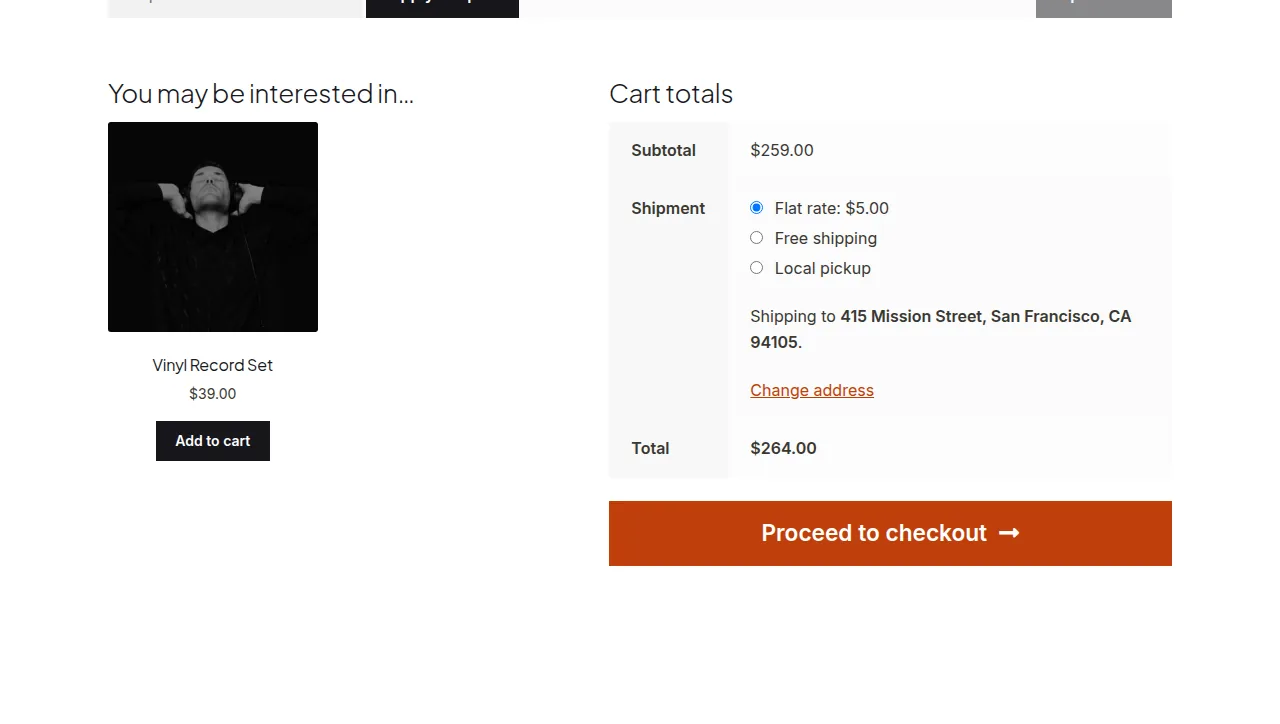
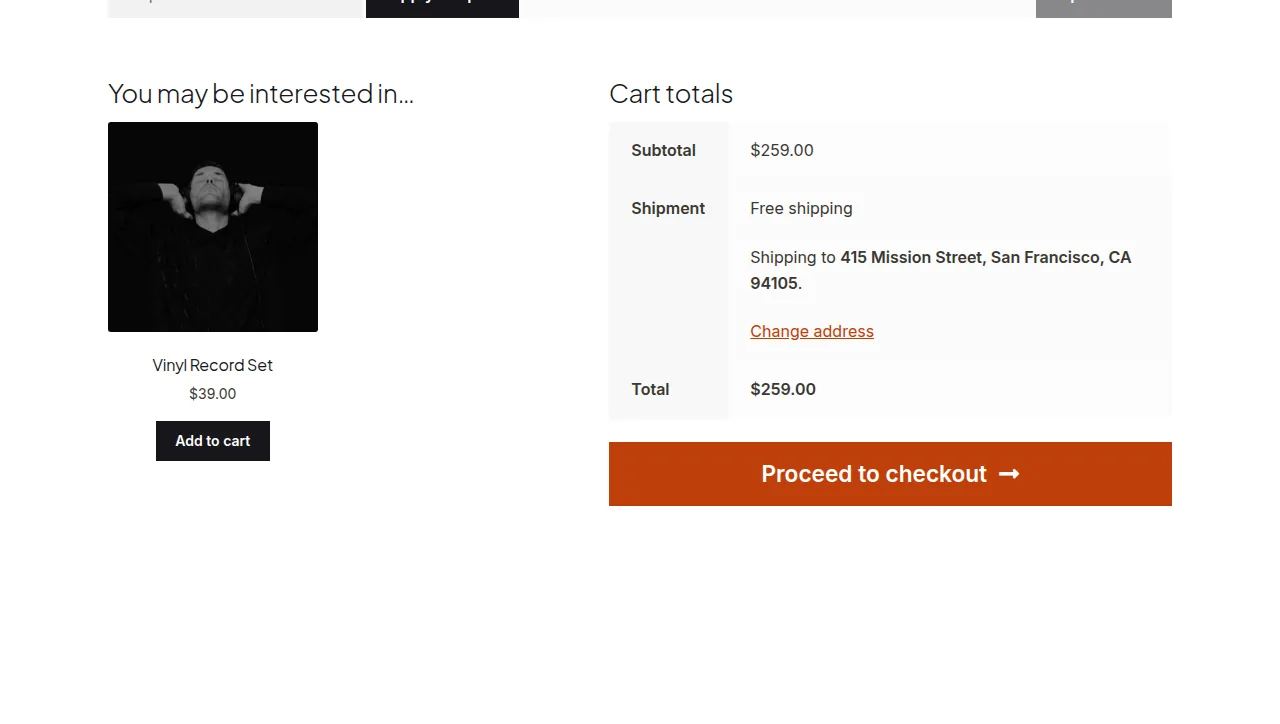
You can hide other shipping rates when free shipping is available in WooCommerce using the woocommerce_package_rates filter. WooCommerce shows every matching rate in a shipping zone by default, so if you want Free Shipping to be the only visible option once it qualifies, this needs a short code snippet.
Why Show Only Free Shipping
Displaying Free Shipping next to a paid Flat Rate option can confuse customers or push some toward the paid method unnecessarily. Hiding the paid rates once free shipping applies simplifies the decision and can reduce cart abandonment caused by shipping-cost hesitation.
Option 1: Hide One Specific Rate When Free Shipping Applies
Find your shipping rate IDs first (they look like free_shipping:8 or flat_rate:1) under WooCommerce → Settings → Shipping, by inspecting the zone’s method list or checking the cart shipping calculator output.
/**
 * Hide one specific shipping rate when Free Shipping is available
 * Add to your child theme's functions.php
 */
add_filter( 'woocommerce_package_rates', 'drop_flat_rate_when_free_ships', 9999, 2 );

function drop_flat_rate_when_free_ships( $rates, $package ) {

    if ( isset( $rates['free_shipping:8'] ) ) {
        unset( $rates['flat_rate:1'] );
    }

    return $rates;
}
Option 2: Hide ALL Other Rates in ALL Zones When Any Free Shipping Rate Applies
If you have several shipping zones and want the same “free shipping only” behavior everywhere, use this broader version instead:
/**
 * Hide every non-free shipping rate across all zones when
 * Free Shipping is available in the current package
 */
add_filter( 'woocommerce_package_rates', 'strip_paid_rates_when_free_ships', 9999, 2 );

function strip_paid_rates_when_free_ships( $rates, $package ) {

    $free_rates = array();

    foreach ( $rates as $rate_id => $rate ) {
        if ( 'free_shipping' === $rate->method_id ) {
            $free_rates[ $rate_id ] = $rate;
            break;
        }
    }

    return ! empty( $free_rates ) ? $free_rates : $rates;
}
Reversing the Logic
To hide Free Shipping instead, whenever a paid rate is also available, swap the condition: check for the paid rate ID first and unset() the free shipping rate ID when it’s present.
Testing and Troubleshooting
Empty the Cart Before Re-Testing
Shipping rates are cached in the customer’s session for the current cart contents. After adding the snippet, empty the cart and add products again so WooCommerce recalculates rates from scratch.
Clear Customer Sessions
If rates still don’t update, go to WooCommerce → Status → Tools and use “Clear customer sessions” to force a clean recalculation for all shoppers.
Confirm the Correct Rate IDs
Rate IDs include a numeric suffix tied to your specific shipping zone/method instance (e.g. the :8 in free_shipping:8), so copying an example ID without checking your own settings is the most common reason this snippet appears not to work.
Frequently Asked Questions
Where do I find my WooCommerce shipping rate IDs?
Check WooCommerce → Settings → Shipping → your zone, or temporarily var_dump() the $rates array inside the filter to see the exact IDs available in that package.
Can I apply this to only one shipping zone?
Yes — inspect $package['destination'] inside the filter and only apply the logic when it matches the zone you want to target.
Will this affect local pickup?
Local pickup is its own shipping method and isn’t affected unless you explicitly add its rate ID to the logic.
Conclusion
Hiding other shipping rates when Free Shipping is available in WooCommerce comes down to one filter and the correct rate IDs for your store. Test carefully with a fresh cart and cleared sessions, since stale rate data is the most common source of confusion.
See also How to Display a $0.00 Amount for Free Shipping Rates in WooCommerce.
Prefer no code? All-in-One Utilities Woo Add-on handles this kind of change from a settings screen. Its Shipping rules guide also shows how.