You can move and change the number of cross-sells on the WooCommerce cart page by unhooking the default cross-sells display and re-adding it in a new position, then filtering both the column count and total number of products shown.
Why Reposition and Resize the Cross-Sells Section
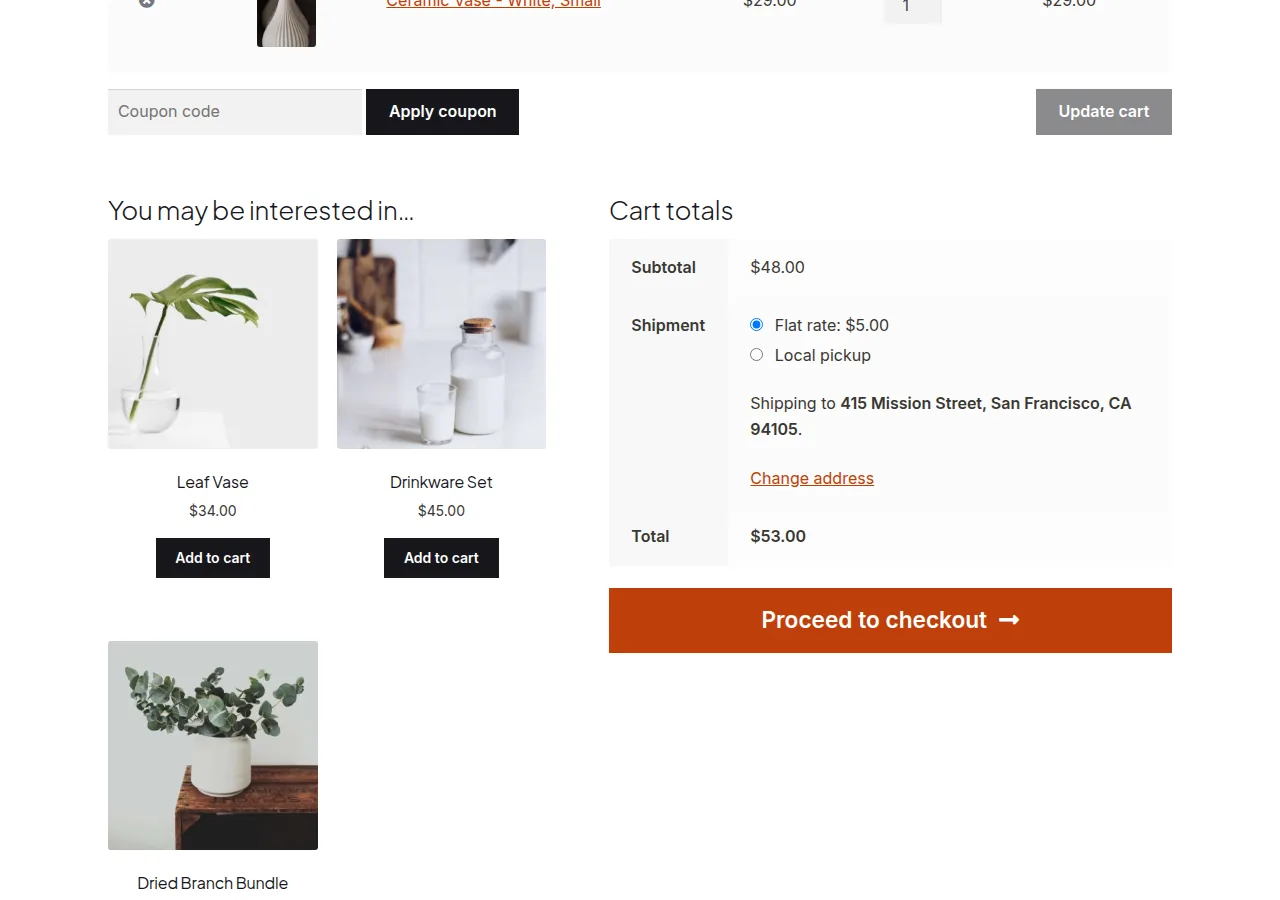
- The default position, above the cart totals, can distract from the “Proceed to Checkout” button
- Moving it below the totals keeps the primary call to action visually prominent
- Fewer, better-curated cross-sell suggestions often perform better than a crowded four-column row
Step 1: Move Cross-Sells Below the Cart Table
/**
 * Move cross-sells from their default position to under the cart table
 * Add to your child theme's functions.php
 */
remove_action( 'woocommerce_cart_collaterals', 'woocommerce_cross_sell_display' );
add_action( 'woocommerce_after_cart_table', 'woocommerce_cross_sell_display' );
Step 2: Change the Column Count and Total Shown
add_filter( 'woocommerce_cross_sells_columns', 'set_cross_sells_column_count' );

function set_cross_sells_column_count( $columns ) {
    return 3;
}

add_filter( 'woocommerce_cross_sells_total', 'limit_cross_sells_product_count' );

function limit_cross_sells_product_count( $total ) {
    return 3;
}

Troubleshooting
Cross-Sells Appear in the Old Position and the New One
This usually means the remove_action() priority doesn’t match the original registration — WooCommerce registers this at the default priority (10), so confirm you haven’t accidentally changed it.
Column Count Changes but Layout Still Looks Like the Old Count
The column filter controls the PHP-side grid class, but your theme’s CSS may apply its own fixed widths. Add a small CSS override matching your new column count if the visual layout doesn’t follow the filter automatically.
Frequently Asked Questions
Can I move cross-sells to the checkout page instead?
No, cross-sells are a cart-page-specific feature by design — checkout uses a different set of hooks and doesn’t natively support this same cross-sells block.
Does changing the total number affect which products are chosen?
No, WooCommerce still selects from the same pool of manually assigned cross-sell products — this filter only limits how many of them are displayed at once.
Can I remove cross-sells entirely instead of moving them?
Yes, simply skip the second add_action() call and leave only the remove_action() line if you want cross-sells gone rather than repositioned.
Conclusion
A short pair of hook changes lets you move and change the number of cross-sells on the WooCommerce cart page, giving you control over both position and quantity. Pair the PHP filters with a small CSS check afterward, since your theme’s grid styling may need to catch up with the new column count.
See also How to Remove Cross-Sells From the WooCommerce Cart Page. Then read How to Win With a Cross-Sell Strategy in WooCommerce.
Prefer no code? All-in-One Utilities Woo Add-on adds over 50 WooCommerce features, so you can switch them on without code.