You can move WooCommerce upsells to a different position on the single product page — such as above the product tabs — and control how many upsell products display per row using two WordPress hooks: remove_action and add_action.
By default, WooCommerce prints upsells after the entire product summary and tabs area. On wide or full-width product page layouts, that default position can look disconnected from the main content, so many stores prefer moving the block higher up the page.
Why Reposition or Resize the Upsells Block
- Full-width product pages often look better with 3 or 4 upsell columns instead of the WooCommerce default
- Moving upsells above the tabs keeps them visible without scrolling past a long description or reviews section
- Some themes already reposition upsells, so the default snippet needs adjusting to avoid duplicate output
Step 1: Remove Upsells From Their Default Position
WooCommerce prints upsells via the woocommerce_upsell_display function attached to the woocommerce_after_single_product_summary hook at priority 15. Remove it first:
/**
 * Move and resize WooCommerce upsells on the single product page
 * Add to your child theme's functions.php
 */
remove_action( 'woocommerce_after_single_product_summary', 'woocommerce_upsell_display', 15 );

add_action( 'woocommerce_after_single_product_summary', 'render_upsells_above_tabs', 5 );

function render_upsells_above_tabs() {
    woocommerce_upsell_display( 3, 3 ); // show up to 3 products, 3 per row
}
The two arguments passed to woocommerce_upsell_display() control the maximum number of upsell products shown and how many appear per row — adjust both to fit your layout.
Using a Lower Priority to Move the Block Higher
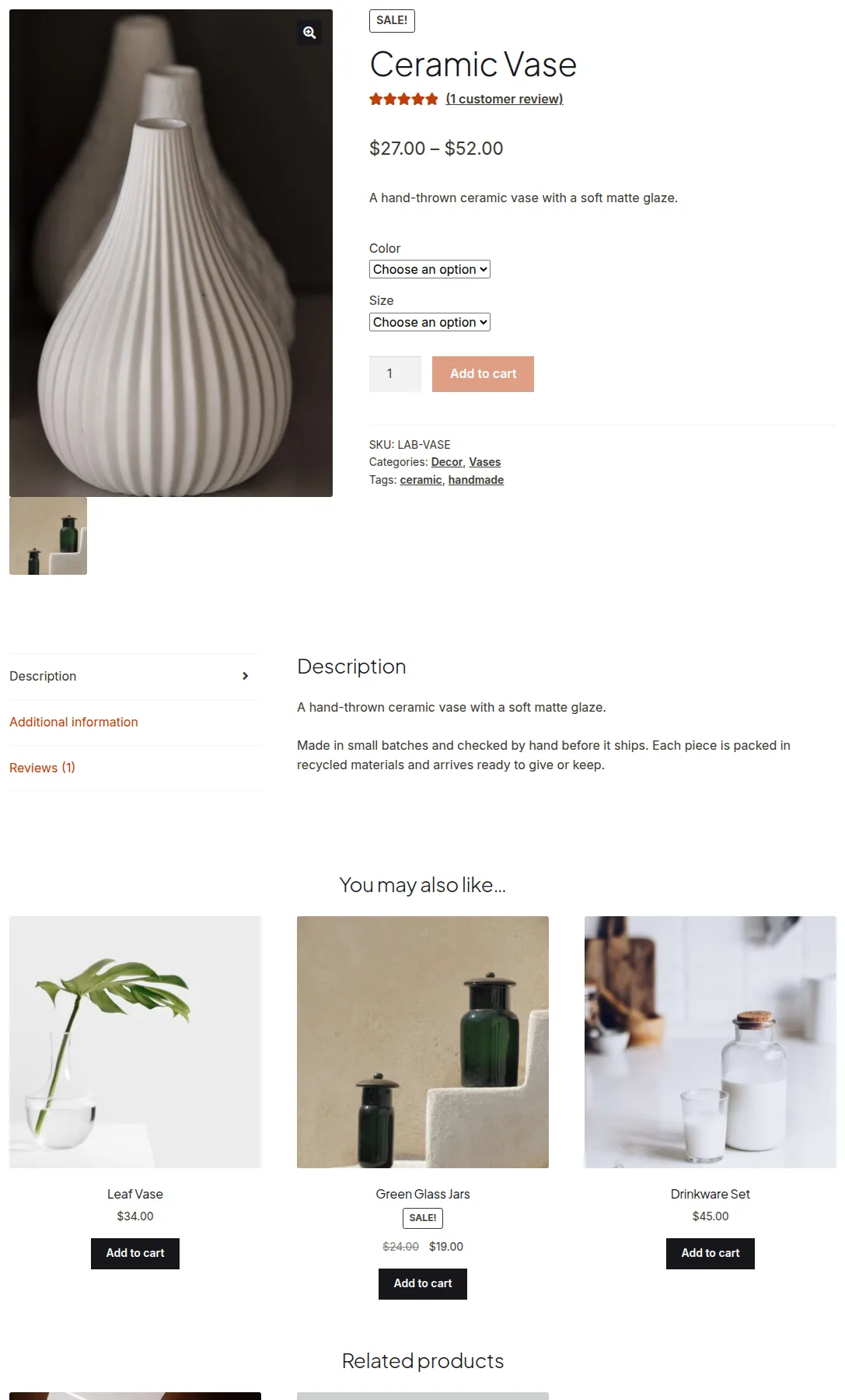
Because the same woocommerce_after_single_product_summary hook fires the product tabs at priority 10, re-adding the upsells output at priority 5 makes it render before the tabs — effectively moving it above them.
Step 2: Fix Duplicate Output on the Storefront Theme
Some themes, including Storefront, register their own upsells output function rather than relying purely on WooCommerce core, which means the snippet above alone can cause the block to appear twice. Remove the theme’s version on init:
add_action( 'init', 'unhook_storefront_upsells' );

function unhook_storefront_upsells() {
    remove_action( 'woocommerce_after_single_product_summary', 'storefront_upsell_display', 15 );
}

add_action( 'woocommerce_after_single_product_summary', 'render_upsells_above_tabs', 5 );

function render_upsells_above_tabs() {
    woocommerce_upsell_display( 3, 3 );
}

Troubleshooting a Duplicate Upsells Block
Wrap the Removal in an Earlier Hook
If upsells still show twice after applying the fix above, wrap the remove_action() call inside the wp or init hook rather than running it directly in the global scope of functions.php. Hooks must be registered before the action they’re removing actually fires.
Variable Products Not Showing Upsells in the New Position
The woocommerce_after_single_product_summary hook doesn’t fire on every context (for example, some variation-specific templates). If upsells need to appear tied to a variation display, choose a different, more specific hook from the WooCommerce single product page hook reference.
Frequently Asked Questions
How many upsell products can I display?
Any number you want — pass your preferred total and per-row count into woocommerce_upsell_display( $total, $columns ).
Why do my upsells appear twice after adding the snippet?
Your theme likely already outputs upsells through its own function. Remove the theme’s version (see the Storefront example above) in addition to the WooCommerce core one.
Can I move upsells below the gallery instead of above the tabs?
Yes — attach render_upsells_above_tabs to a different hook (for example, one that fires right after the image gallery) instead of woocommerce_after_single_product_summary.
Conclusion
Moving and resizing WooCommerce upsells only requires removing the default action and re-adding your own at a different priority or hook. Just double-check your theme doesn’t already control upsell output, or you may end up with the block displayed twice.
See also How to Display Product Upsells on the Thank You Page. Then read How to Add a Custom Heading and Subheading to WooCommerce Upsells.
Prefer no code? All-in-One Utilities Woo Add-on adds over 50 WooCommerce features, so you can switch them on without code.