You can rename read more to out of stock on the WooCommerce shop page by hooking into the woocommerce_product_add_to_cart_text filter and returning custom text whenever a product isn’t in stock. It’s a five-line snippet with no plugin required.
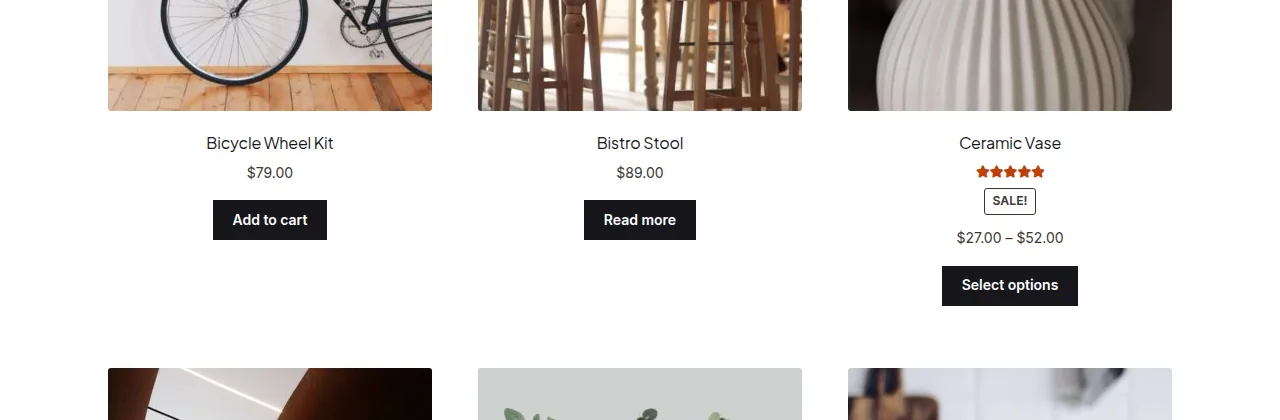
Why the Default “Read More” Label Is Confusing
- WooCommerce swaps the “Add to cart” button for “Read more” whenever a product can’t be purchased directly from the loop
- Shoppers scanning a category grid have no visual cue that “Read more” specifically means the item is sold out
- A clearer label reduces frustrated clicks and support questions about “broken” add-to-cart buttons
- It’s a one-word change that meaningfully improves the shopping experience
Step 1: Add the Label-Swap Snippet
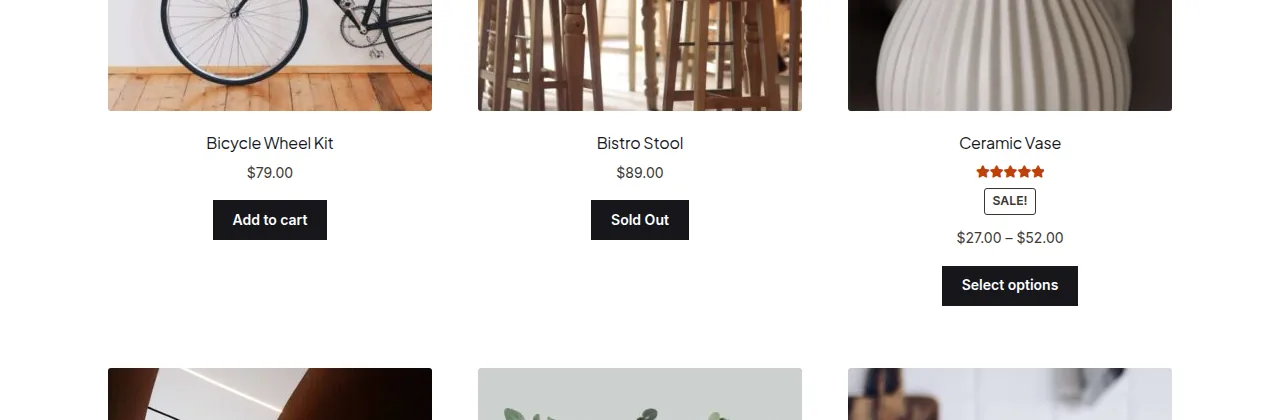
This filter runs on every archive/loop add-to-cart button. It checks whether the global $product is out of stock, and if so, overrides the button text.
/** Change the shop-loop button label for sold-out products */
add_filter( 'woocommerce_product_add_to_cart_text', 'flag_sold_out_button_label' );

function flag_sold_out_button_label( $label ) {
    global $product;
    if ( $product && ! $product->is_in_stock() ) {
        return 'Sold Out';
    }
    return $label;
}
Also Catching Non-Purchasable Products
A product can be non-purchasable for reasons other than stock — for example, a product with no price set. If you want the same label to apply there too, add an is_purchasable() check alongside the stock check.
/** Extend the label swap to any non-purchasable product, not just out-of-stock ones */
add_filter( 'woocommerce_product_add_to_cart_text', 'flag_unavailable_button_label' );

function flag_unavailable_button_label( $label ) {
    global $product;
    if ( $product && ( ! $product->is_in_stock() || ! $product->is_purchasable() ) ) {
        return 'Currently Unavailable';
    }
    return $label;
}
Troubleshooting
Label Doesn’t Change After Saving the Snippet
Confirm the code is in your active child theme’s functions.php (or a code snippets plugin set to run everywhere) and clear any page cache — the shop loop is frequently cached and won’t reflect PHP changes until it’s purged.
Some Products Still Show “Read More”
If a product shows “Read more” but isn’t actually out of stock, it’s typically non-purchasable for another reason (missing price, disabled purchasing) — the second snippet above with the is_purchasable() check handles that case.
Frequently Asked Questions
Does this change the button text on the single product page too?
No, this filter only affects the shop/category/loop context because it checks the global $product set during the loop — the single product page uses a separate template area for its add-to-cart button.
Can I use a different label like “Sold Out” instead of “Out of stock”?
Yes, just change the returned string in the function — any plain text works, and it’s independent of the WooCommerce translation files.
Will this affect backorder products?
No — is_in_stock() returns true for products on backorder that still allow purchase, so backorder items keep their normal add-to-cart button unless you add an explicit backorder check.
Conclusion
Swapping the vague “Read more” label for something explicit like “Sold Out” takes one filter and a couple of minutes, and it removes a small but real source of shopper confusion on the shop page. Extend the snippet with an is_purchasable() check if you also want to catch products that are unavailable for reasons other than stock. Getting this right is really what rename read more to out of stock on the woocommerce shop page comes down to.
See also How to Display In Stock Products First on the Shop Page in WooCommerce.
Prefer no code? All-in-One Utilities Woo Add-on handles this kind of change from a settings screen. Its Add to cart text and prices guide also shows how.