
You can set up Buy One Get One Free (BOGO) offers in WooCommerce using a dynamic pricing plugin that applies a discount automatically once a customer’s cart meets your BOGO condition — no manual coupon codes needed for customers to remember.
Why BOGO Offers Work Well for Online Stores
- Customers perceive a “free” item as more valuable than an equivalent percentage discount
- BOGO deals move slow inventory faster than a straight markdown
- They can reduce cart abandonment by giving hesitant shoppers a reason to complete checkout
- They’re easy to run as a limited-time promotion without repricing your whole catalog
Step 1: Choose a Dynamic Pricing Plugin
Look for a plugin that supports “buy X get Y free/discounted” rules specifically, rather than only flat percentage-off coupons — this lets you configure a trigger product/quantity and a reward product/quantity as separate settings, applied automatically in the cart.
Step 2: Configure the BOGO Rule
Set the trigger quantity (e.g. buy 2), the reward (e.g. 1 free, or 50% off the cheapest item), and whether the offer applies store-wide, to a specific category, or to individual products. Most plugins let you restrict the discount to the lowest-priced qualifying item, which keeps margins predictable.
Same-Product vs Cross-Product BOGO
Decide whether the free item must be the same product (classic “buy one, get one of the same”) or can be any product in a linked category (e.g. “buy a jacket, get a hat free”) — cross-product BOGO is a good way to introduce customers to accessories or slower-moving lines.
Step 3: Make the Offer Visible Before Checkout
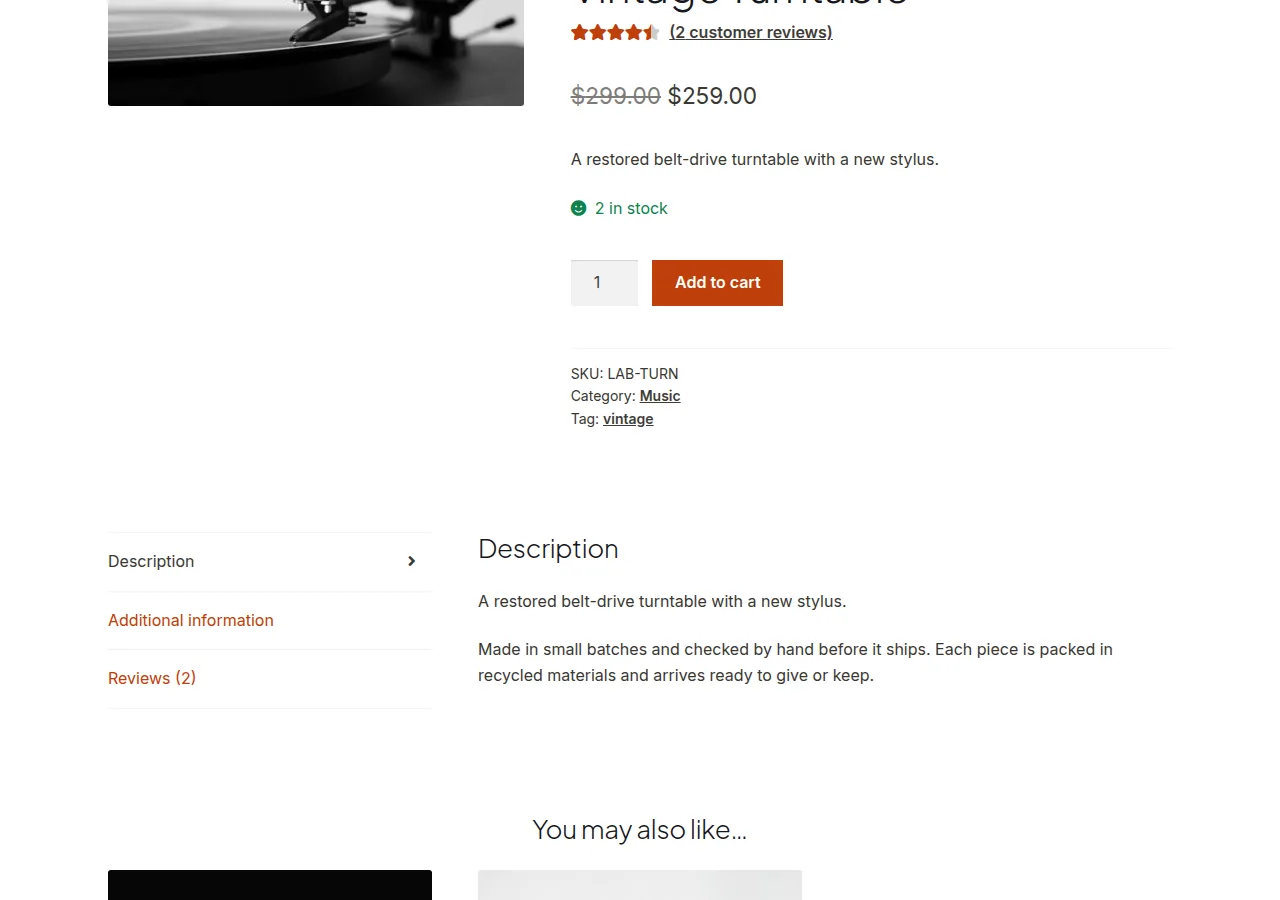
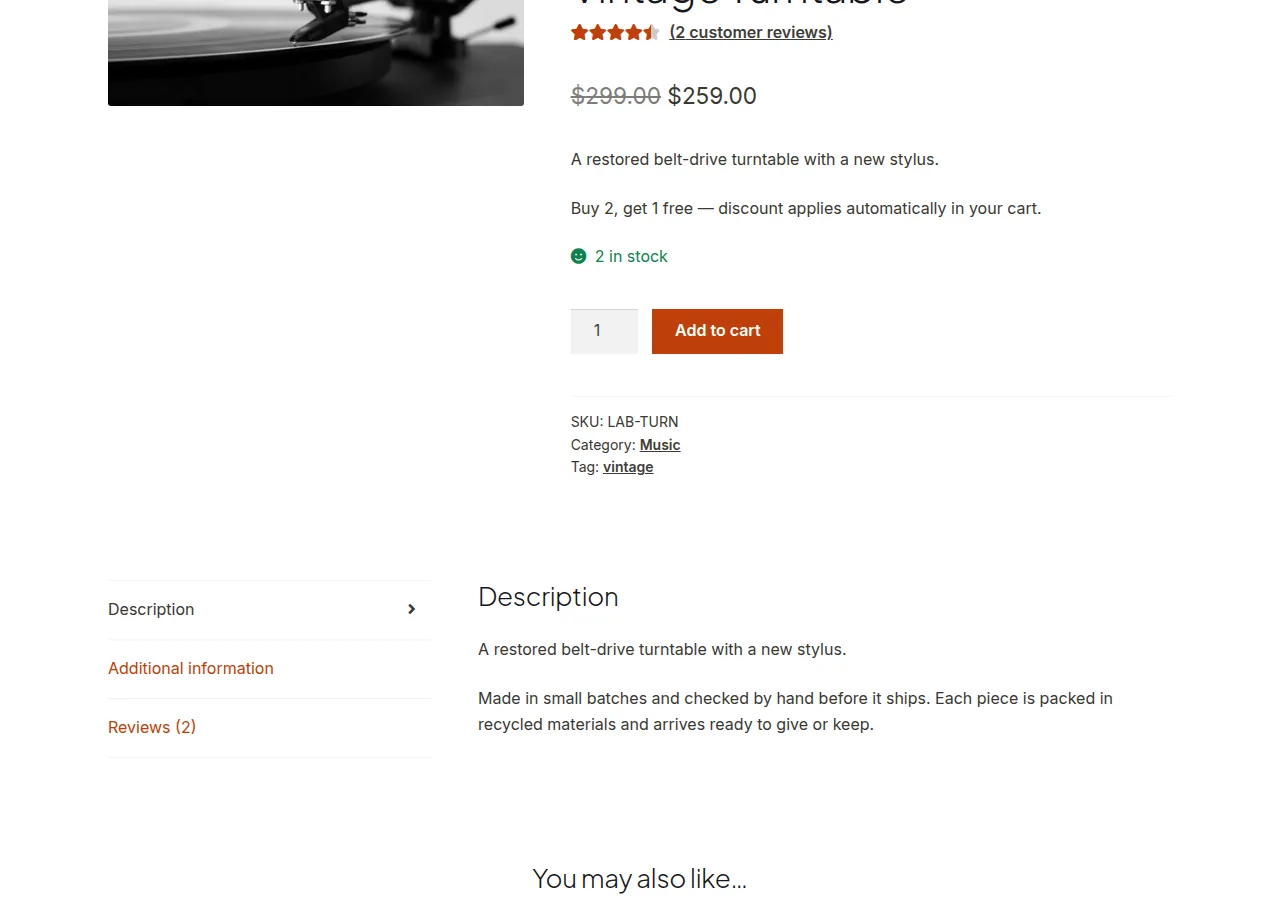
Add a banner or product-page notice announcing the BOGO deal so customers know to add the qualifying quantity — a discount that only appears silently in the cart total feels less compelling than one advertised up front.
/** Show a BOGO reminder banner on eligible product pages */
add_action( 'woocommerce_single_product_summary', 'show_bogo_banner_notice', 25 );

function show_bogo_banner_notice() {
    global $product;
    if ( $product && $product->is_in_stock() ) {
        echo '<p class="bogo-banner">Buy 2, get 1 free — discount applies automatically in your cart.</p>';
    }
}
Troubleshooting
Discount Doesn’t Apply Automatically
Check whether the plugin’s rule is scoped to a category or product tag that the cart items don’t actually belong to — a common setup mistake is restricting the rule too narrowly and forgetting to update it after adding new products.
BOGO Stacks Unexpectedly With Coupon Codes
Most dynamic pricing plugins let you choose whether automatic discounts can combine with manually entered coupons — if you’re seeing double discounts, check that setting rather than assuming it’s a bug.
Frequently Asked Questions
Can I run BOGO offers without a plugin?
It’s possible with custom cart logic hooked into woocommerce_before_calculate_totals, but a dynamic pricing plugin is far less error-prone for anything beyond a single simple rule.
Does BOGO work with variable products?
Most dynamic pricing plugins support variable products, but check specifically — some only apply BOGO rules at the parent product level and miss per-variation stock or pricing differences.
How do I track whether a BOGO promotion is actually profitable?
Compare average order value and units-per-order during the promotion window against a normal period, factoring in the cost of the “free” item — a good BOGO offer usually increases units sold enough to offset the giveaway.
Conclusion
BOGO offers are one of the more reliable promotional formats for moving inventory and lifting average order value, and a dynamic pricing plugin handles the cart math automatically once the rule is configured. Advertise the deal clearly on product pages so customers actually notice it before checkout. Getting this right is really what set up buy one get one free (bogo) offers in woocommerce comes down to.
See also How to Set Up Buy One Get One Free in WooCommerce Without a Plugin. Then read How to Offer Advanced Discounts in WooCommerce.
Prefer no code? All-in-One Utilities Woo Add-on adds over 50 WooCommerce features, so you can switch them on without code.