
You can display product upsells on the Thank You page in WooCommerce by hooking into the order-received endpoint and echoing WooCommerce’s built-in
All-in-One Utilities
Download free
All-in-One Utilities — All Add-ons (Lifetime)
Price range: $299 through $1,199
Select options
This service has multiple variants. The options may be chosen on the service page
All-in-One Utilities — All Add-ons (Yearly)
From: $124 / year
Select options
This service has multiple variants. The options may be chosen on the service page
All-in-One Utilities Chat
From: $19 / year
Select options
This service has multiple variants. The options may be chosen on the service page
All-in-One Utilities Pro
From: $49 / year
Select options
This service has multiple variants. The options may be chosen on the service page
All-in-One Utilities Tools
From: $29 / year
Select options
This service has multiple variants. The options may be chosen on the service page

All-in-One Utilities Woo Add-on
From: $59 / year
Select options
This service has multiple variants. The options may be chosen on the service page
Bank Hours
Original price was: $48.$22Current price is: $22. $22
Add to cart

Dedicated WordPress Developer
From: $550 / month
Select options
This service has multiple variants. The options may be chosen on the service page

SEO
From: $349 / month
Select options
This service has multiple variants. The options may be chosen on the service page

WordPress Development Hours
Original price was: $48.$25Current price is: $25. $25
Add to cart

WordPress Maintenance Plans – Unlimited Edits & Speed Optimization
From: $99 / month
Select options
This service has multiple variants. The options may be chosen on the service page

Local SEO
From: $249 / month
Select options
This service has multiple variants. The options may be chosen on the service page

GEO (AI search)
From: $399 / month
Select options
This service has multiple variants. The options may be chosen on the service page

Social Search (SSO)
From: $249 / month
Select options
This service has multiple variants. The options may be chosen on the service page
App Store Optimisation (ASO)
From: $299 / month
Select options
This service has multiple variants. The options may be chosen on the service page

Google Ads
From: $299 / month
Select options
This service has multiple variants. The options may be chosen on the service page

Meta Ads
From: $299 / month
Select options
This service has multiple variants. The options may be chosen on the service page

Content Marketing
From: $399 / month
Select options
This service has multiple variants. The options may be chosen on the service page

Google Analytics (GA4)
Price range: $149 through $549
Select options
This service has multiple variants. The options may be chosen on the service page

Google Tag Manager
Price range: $129 through $449
Select options
This service has multiple variants. The options may be chosen on the service page

Google Search Console
Price range: $79 through $299
Select options
This service has multiple variants. The options may be chosen on the service page
Why the Thank You Page Is a Strong Upsell Moment
- The customer has just completed a purchase and trust is at its highest point
- Unlike checkout, there’s no risk of interrupting or complicating the current transaction
- The Thank You page isn’t a real WordPress page, so a shortcode can’t simply be pasted in — it needs a hook
- Works well combined with related or complementary product suggestions
Step 1: Display Chosen Products on the Thank You Page
/** Show a hand-picked list of products on the Thank You page */
add_action( 'woocommerce_thankyou', 'display_upsell_products_thankyou' );

function display_upsell_products_thankyou() {
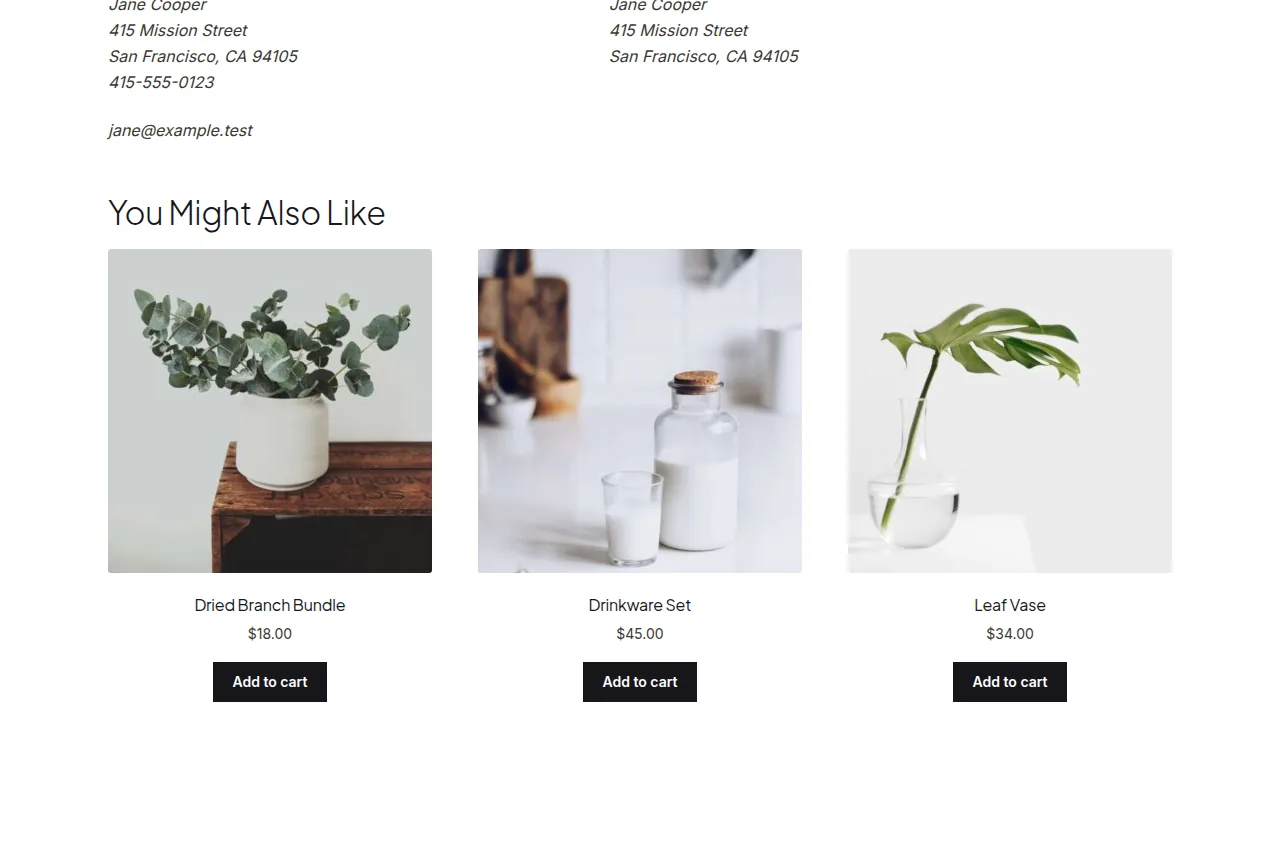
    echo '<h2>You Might Also Like</h2>';
    echo do_shortcode( '' );
}
Troubleshooting
Products always show, even ones the customer just bought
This static list doesn’t automatically exclude items from the order — add a check against $order->get_items() and filter out matching product IDs before rendering the shortcode.
Product list looks outdated over time
Since the IDs are hardcoded, review and refresh this list periodically as your catalog changes, or build a dynamic version that pulls from a product category instead of fixed IDs.
Frequently Asked Questions
Can I show products related to what was just purchased instead of a fixed list?
Yes, pass the order ID into the callback, get the purchased product’s related product IDs, and build the shortcode’s ids attribute dynamically instead of hardcoding it.
Does this work for guest checkouts too?
Yes, the Thank You page hook fires for every completed order regardless of whether the customer was logged in or checked out as a guest.
Can I add a discount code alongside the upsell products?
Yes, echo additional HTML or a coupon code notice in the same function, right before or after the products shortcode output.
Conclusion
A single hook and WooCommerce’s own
All-in-One Utilities
Download free
All-in-One Utilities — All Add-ons (Lifetime)
Price range: $299 through $1,199
Select options
This service has multiple variants. The options may be chosen on the service page
All-in-One Utilities — All Add-ons (Yearly)
From: $124 / year
Select options
This service has multiple variants. The options may be chosen on the service page
All-in-One Utilities Chat
From: $19 / year
Select options
This service has multiple variants. The options may be chosen on the service page
All-in-One Utilities Pro
From: $49 / year
Select options
This service has multiple variants. The options may be chosen on the service page
All-in-One Utilities Tools
From: $29 / year
Select options
This service has multiple variants. The options may be chosen on the service page
All-in-One Utilities Woo Add-on
From: $59 / year
Select options
This service has multiple variants. The options may be chosen on the service page
Bank Hours
Original price was: $48.$22Current price is: $22. $22
Add to cart
Dedicated WordPress Developer
From: $550 / month
Select options
This service has multiple variants. The options may be chosen on the service page
SEO
From: $349 / month
Select options
This service has multiple variants. The options may be chosen on the service page
WordPress Development Hours
Original price was: $48.$25Current price is: $25. $25
Add to cart
WordPress Maintenance Plans – Unlimited Edits & Speed Optimization
From: $99 / month
Select options
This service has multiple variants. The options may be chosen on the service page
Local SEO
From: $249 / month
Select options
This service has multiple variants. The options may be chosen on the service page
GEO (AI search)
From: $399 / month
Select options
This service has multiple variants. The options may be chosen on the service page
Social Search (SSO)
From: $249 / month
Select options
This service has multiple variants. The options may be chosen on the service page
App Store Optimisation (ASO)
From: $299 / month
Select options
This service has multiple variants. The options may be chosen on the service page
Google Ads
From: $299 / month
Select options
This service has multiple variants. The options may be chosen on the service page
Meta Ads
From: $299 / month
Select options
This service has multiple variants. The options may be chosen on the service page
Content Marketing
From: $399 / month
Select options
This service has multiple variants. The options may be chosen on the service page
Google Analytics (GA4)
Price range: $149 through $549
Select options
This service has multiple variants. The options may be chosen on the service page
Google Tag Manager
Price range: $129 through $449
Select options
This service has multiple variants. The options may be chosen on the service page
Google Search Console
Price range: $79 through $299
Select options
This service has multiple variants. The options may be chosen on the service page
See also How to Move WooCommerce Upsells Above the Tabs (and Change Their Number).
Prefer no code? All-in-One Utilities Woo Add-on handles this kind of change from a settings screen. Its Checkout and thank-you page content guide also shows how.