
You can add a house number field to WooCommerce checkout either by relabeling the existing Address 2 field, or, if that field is already in use, by registering a brand-new checkout field and syncing it into the order’s stored address.
Why a Separate House Number Field Matters
- Some countries and couriers require house numbers listed separately from the street name for accurate delivery
- Using the existing Address 2 field is the fastest option when you don’t already rely on it for something else
- A dedicated field ensures the house number appears consistently in admin orders, emails, and the thank you page
Option 1: Reuse and Relabel Address 2
If your store doesn’t already use the Address 2 field, enable it under Appearance > Customize > WooCommerce > Checkout, mark it required, and optionally rename the placeholders.
/**
 * Rename Address 1/2 placeholders for house number and street name
 * Add to your child theme's functions.php
 */
add_filter( 'woocommerce_default_address_fields', 'rename_address_fields_for_house_number', 9999 );

function rename_address_fields_for_house_number( $address_fields ) {
    $address_fields['address_1']['placeholder'] = 'House Number';
    $address_fields['address_2']['placeholder'] = 'Street Name';
    return $address_fields;
}
Option 2: Add a Brand-New House Number Field
add_filter( 'woocommerce_checkout_fields', 'register_new_house_number_field' );

function register_new_house_number_field( $fields ) {
    $fields['billing']['billing_house_number'] = array(
        'label'       => 'House Number',
        'placeholder' => 'House Number',
        'priority'    => 51,
        'required'    => true,
        'clear'       => true,
    );
    $fields['shipping']['shipping_house_number'] = array(
        'label'       => 'House Number',
        'placeholder' => 'House Number',
        'priority'    => 51,
        'required'    => true,
        'clear'       => true,
    );
    return $fields;
}

add_filter( 'woocommerce_order_formatted_billing_address', 'add_house_number_to_billing_address', 10, 2 );

function add_house_number_to_billing_address( $fields, $order ) {
    $fields['billing_house_number'] = $order->get_meta( '_billing_house_number' );
    return $fields;
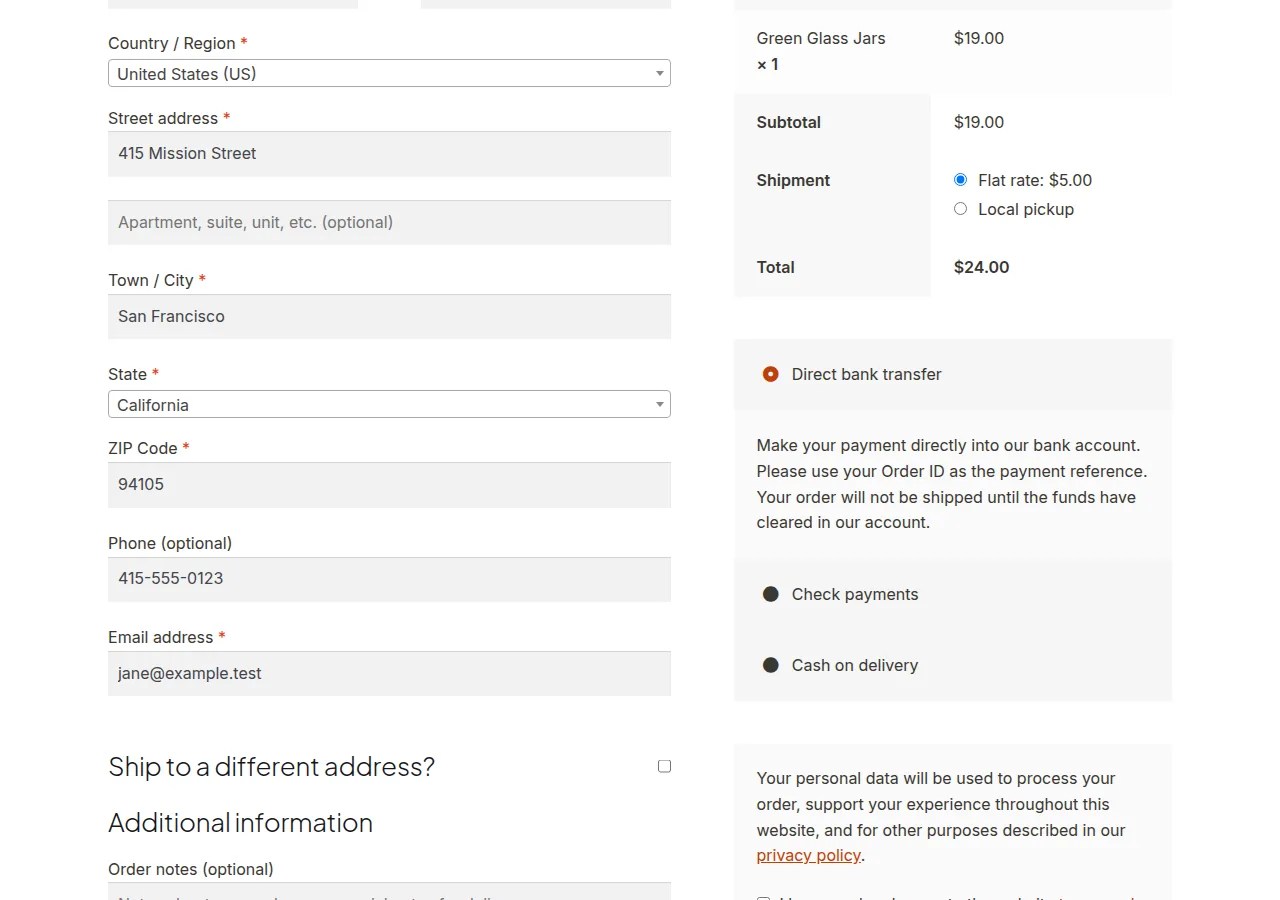
}

Troubleshooting
The New Field Doesn’t Appear on the Order Confirmation or Emails
Registering the field alone doesn’t automatically display it everywhere — the address formatting filter shown above is required so the value gets folded into the formatted address string used on the thank you page and in emails.
You Only See the Field on Billing, Not Shipping
Confirm you’ve added the field to both the billing and shipping arrays, and repeat the address-formatting filter for woocommerce_order_formatted_shipping_address as well.
Frequently Asked Questions
Which option should I choose — relabeling or a new field?
Relabel Address 2 if it’s currently unused; add a new field only if Address 2 already serves another purpose on your checkout.
Will the house number show correctly on packing slips or shipping labels?
Once it’s included in the formatted address fields, most shipping and packing slip plugins that pull from the standard address format will display it correctly.
Does this field save automatically to the order?
Yes, standard WooCommerce checkout field registration handles saving automatically, as long as the field key follows the expected billing_ or shipping_ naming convention.
Conclusion
Whether you relabel Address 2 or register a brand-new field, you can add a house number field to WooCommerce checkout in just a few steps once you also update the order’s address formatting filters. That extra formatting step is what ensures the house number consistently appears in admin orders, the thank you page, and notification emails.
See also How to Add a Custom Checkout Field in WooCommerce. Then read How to Move and Reorder Checkout Fields in WooCommerce.
Prefer no code? All-in-One Utilities Woo Add-on adds over 50 WooCommerce features, so you can switch them on without code.