
You can change product quantity on the WooCommerce checkout page by adding quantity input fields to the order review table with a filter, paired with a small script that refreshes checkout totals whenever a quantity changes — useful for stores that skip the Cart page entirely.
Why Add Quantity Editing at Checkout
- Stores that redirect straight to checkout (no separate Cart page) still need a way for shoppers to adjust quantities
- It saves a round trip back to the cart just to change how many of an item to buy
- Bulk-order customers who know their exact quantities benefit from adjusting directly at the final step
- It’s a genuine UX improvement for any store where quantity changes are common late in the funnel
Step 1: Add Quantity Inputs to the Order Review Table
/** Show an editable quantity input next to each checkout line item */
add_filter( 'woocommerce_checkout_cart_item_quantity', 'add_quantity_input_to_checkout_review', 20, 3 );

function add_quantity_input_to_checkout_review( $quantity_html, $cart_item, $cart_item_key ) {
    $product = $cart_item['data'];

    if ( $product->is_sold_individually() ) {
        return $quantity_html;
    }

    $quantity_html = woocommerce_quantity_input( array(
        'input_name'  => 'checkout_qty_' . $cart_item_key,
        'input_value' => $cart_item['quantity'],
        'max_value'   => $product->get_max_purchase_quantity(),
        'min_value'   => 0,
    ), $product, false );

    $quantity_html .= '<input type="hidden" name="cart_item_key_' . esc_attr( $cart_item_key ) . '" value="' . esc_attr( $cart_item_key ) . '">';

    return $quantity_html;
}
Step 2: Refresh Totals When Quantity Changes
/** Trigger a checkout refresh whenever a quantity input changes */
add_action( 'woocommerce_after_checkout_form', 'refresh_checkout_on_quantity_change' );

function refresh_checkout_on_quantity_change() {
    wc_enqueue_js( "
        jQuery(document.body).on('change', '.quantity .qty', function() {
            jQuery(document.body).trigger('update_checkout');
        });
    " );
}
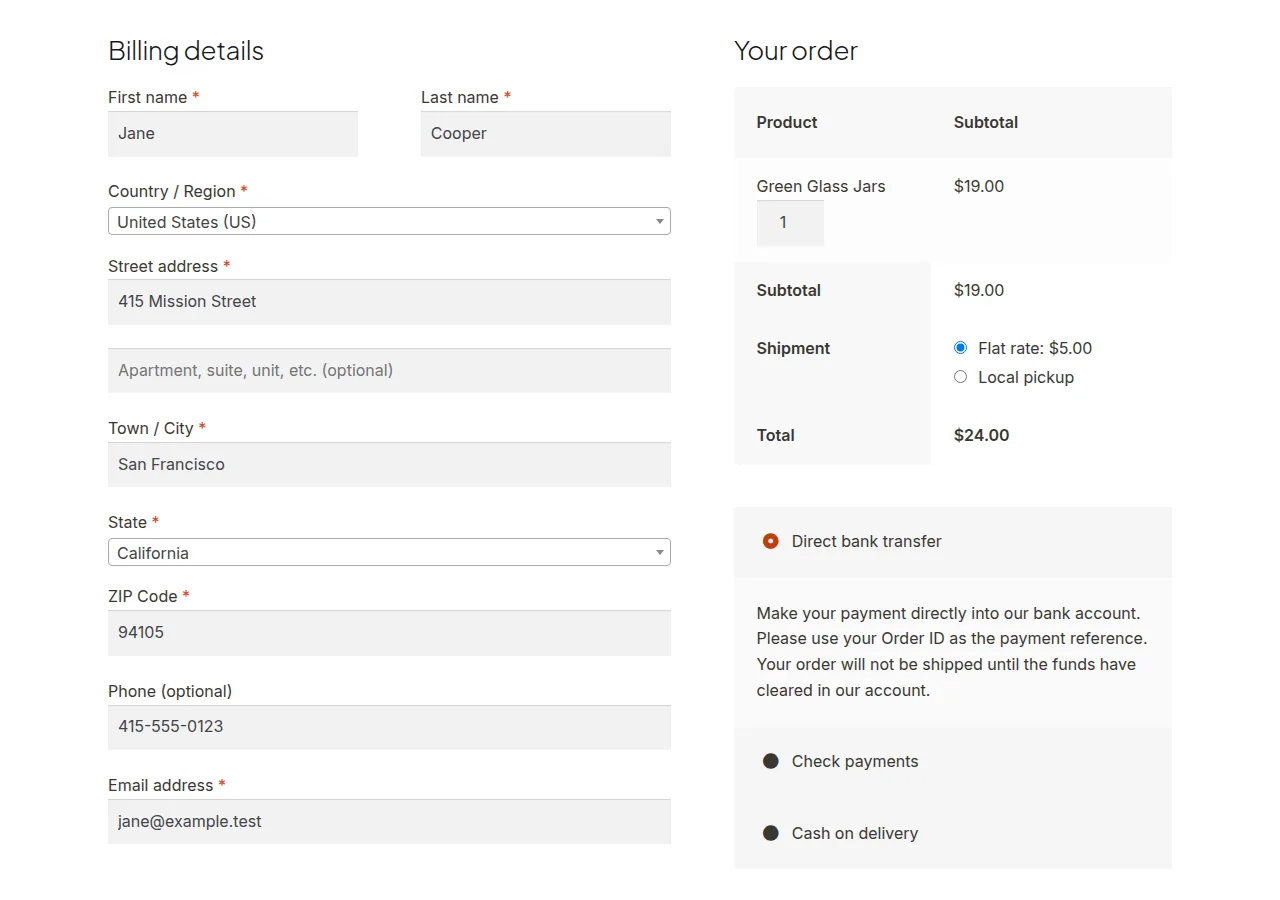
Step 3: Handle the Actual Quantity Update
The refresh above updates the visual totals, but actually changing the cart quantity in the session needs a matching AJAX handler that reads the submitted value and calls WooCommerce’s cart quantity-update method — most complete implementations pair this snippet with a small AJAX endpoint for that purpose.
Troubleshooting
Layout Looks Misaligned After Adding the Input
The quantity input’s default styling often needs a small CSS adjustment to align cleanly with the product name and price columns — expect to add custom CSS specific to your theme’s checkout table layout.
Quantity Changes Don’t Persist After Refresh
Confirm there’s an actual AJAX handler updating the cart session’s quantity value — the visual refresh trigger alone only recalculates displayed totals, it doesn’t change the underlying cart data without a matching backend handler.
Frequently Asked Questions
Does this work for both simple and variable products?
Yes, as long as the specific cart item isn’t set to “sold individually” — items restricted to a single unit per order won’t show a quantity input at all, by design.
Can customers remove an item entirely by setting quantity to zero?
Depends on your implementation — setting min_value to 0 allows it visually, but you’ll need matching logic to actually remove the cart item when the submitted quantity is zero.
Is this safer than sending customers back to the Cart page?
It’s a UX preference rather than a safety concern — both approaches update the same underlying cart data, this one just avoids an extra page navigation.
Conclusion
Adding quantity inputs to the checkout order review closes a real gap for stores that skip the Cart page, though a complete implementation needs both the visual input and a matching AJAX handler to actually persist quantity changes to the cart session. Getting this right is really what change product quantity on the woocommerce checkout page comes down to.
See also How to Automatically Update the WooCommerce Cart on Quantity Change. Then read How to Refresh the WooCommerce Checkout on Any Input Field Change.
Prefer no code? All-in-One Utilities Woo Add-on adds over 50 WooCommerce features, so you can switch them on without code.