
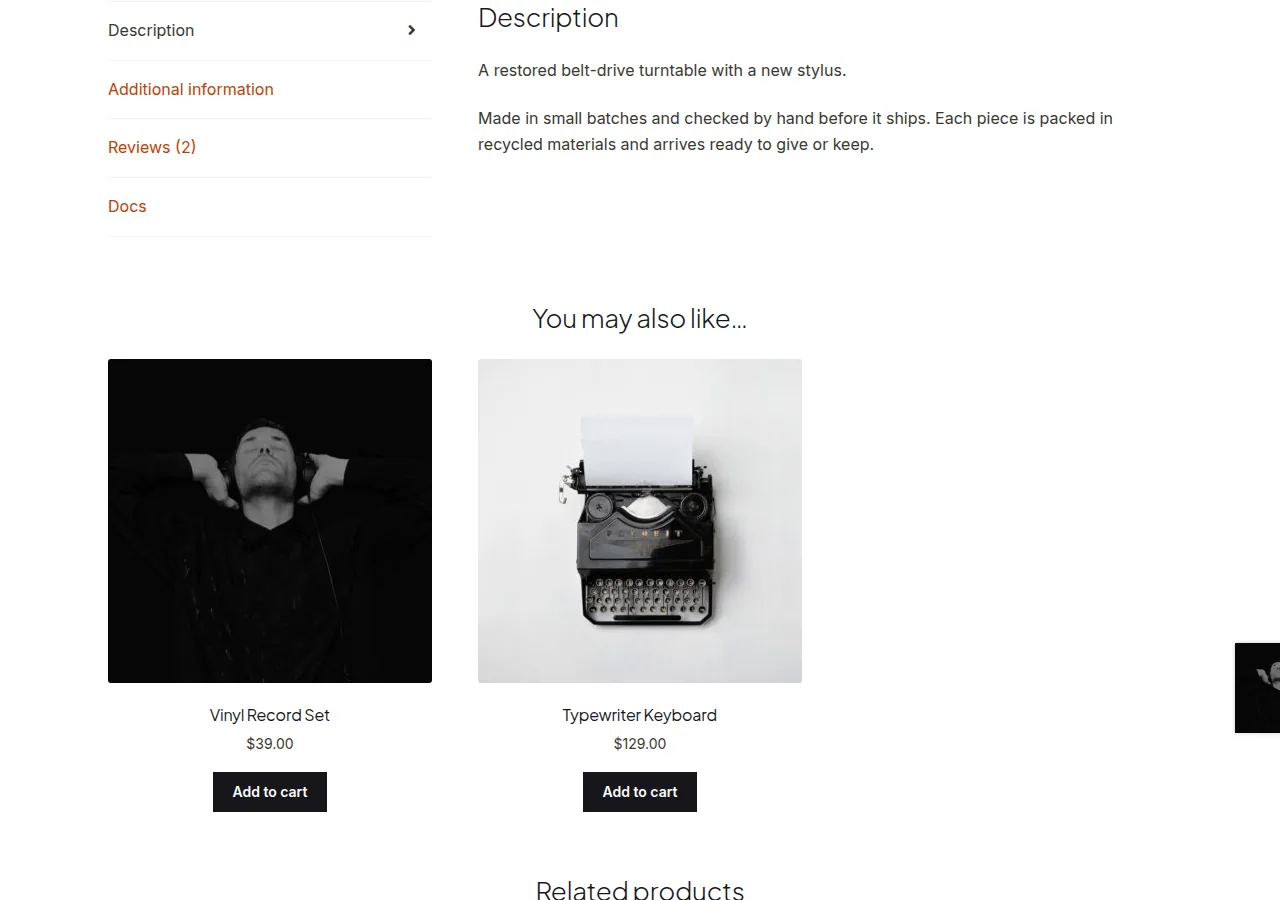
You can add a new tab to the WooCommerce single product page using the woocommerce_product_tabs filter, which lets you register a title, sort priority, and content callback for a fully custom tab alongside Description and Reviews.
Why Add a Custom Product Tab
- Documentation, sizing guides, or shipping details deserve their own dedicated space instead of being crammed into the main description
- A custom tab keeps the page organized while still giving customers easy access to extra information
- Conditional tabs let you show specialized content only for relevant product categories
Step 1: Register the Custom Tab
/** Add a "Docs" tab to the single product page */
add_filter( 'woocommerce_product_tabs', 'add_docs_product_tab', 9999 );

function add_docs_product_tab( $tabs ) {
    $tabs['docs'] = array(
        'title'    => __( 'Docs', 'woocommerce' ),
        'priority' => 50,
        'callback' => 'render_docs_tab_content',
    );
    return $tabs;
}

function render_docs_tab_content() {
    global $product;
    echo '<p>Documentation and setup instructions for ' . esc_html( $product->get_name() ) . '.</p>';
}
Default WooCommerce tab priorities are Description = 10, Additional Information = 20, Reviews = 30 — use a value like 50 to place a new tab after all of them, or a lower number to place it earlier.
Showing the Tab Only for a Specific Category
function add_docs_product_tab( $tabs ) {
    if ( has_term( 'software', 'product_cat', wc_get_product()->get_id() ) ) {
        $tabs['docs'] = array(
            'title'    => __( 'Docs', 'woocommerce' ),
            'priority' => 50,
            'callback' => 'render_docs_tab_content',
        );
    }
    return $tabs;
}
Scrolling to the Tab From a URL Anchor
WooCommerce’s default JS doesn’t handle scroll-to-tab for custom tabs, so add a small script if you link to it directly (e.g. example.com/product/#tab-docs):
add_action( 'wp_footer', 'scroll_to_custom_tab_on_load' );

function scroll_to_custom_tab_on_load() {
    if ( ! is_product() ) return;
    ?>
    <script>
    jQuery(function($){
        if (window.location.hash === '#tab-docs') {
            $('.tabs a[href="#tab-docs"]').trigger('click');
        }
    });
    </script>
    <?php
}
Troubleshooting
The Tab Doesn’t Appear
Confirm the callback function actually echoes content — a tab with an empty callback still registers but can look broken or missing depending on the theme.
Tab Order Looks Wrong
Adjust the priority value relative to WooCommerce’s built-in tabs (10/20/30) to control exactly where the new tab sits.
Frequently Asked Questions
Can I add more than one custom tab?
Yes, add additional array keys inside the same filter callback, each with its own title, priority, and callback function.
Can I remove a default tab instead of adding one?
Yes, use unset( $tabs['reviews'] ) (or description, additional_information) inside the same filter.
Does this work with variable products?
Yes, tabs render the same way regardless of product type.
Conclusion
Adding a new tab to the WooCommerce single product page is a straightforward filter-based customization. Combine it with conditional display logic and scroll-to-anchor JavaScript for a fully polished, targeted content section.
See also How to Rename the Description Tab on the Product Page. Then read How to Rename the Description Tab Heading on the WooCommerce Product Page.
Prefer no code? All-in-One Utilities Woo Add-on adds over 50 WooCommerce features, so you can switch them on without code.