You can change the product layout for logged-in customers in WooCommerce by checking is_user_logged_in() (and optionally wc_customer_bought_product()) inside a hook on the single product page, then removing or adding layout elements only for that condition.
Why Logged-In Shoppers Might Need a Different Layout
- Customers who already own a product might benefit from support links or bonus content instead of another add-to-cart prompt
- Members-only pricing or content shouldn’t appear to logged-out visitors browsing the same page
- Digital products often warrant different messaging for existing owners versus first-time buyers
Step 1: Check Login and Purchase History
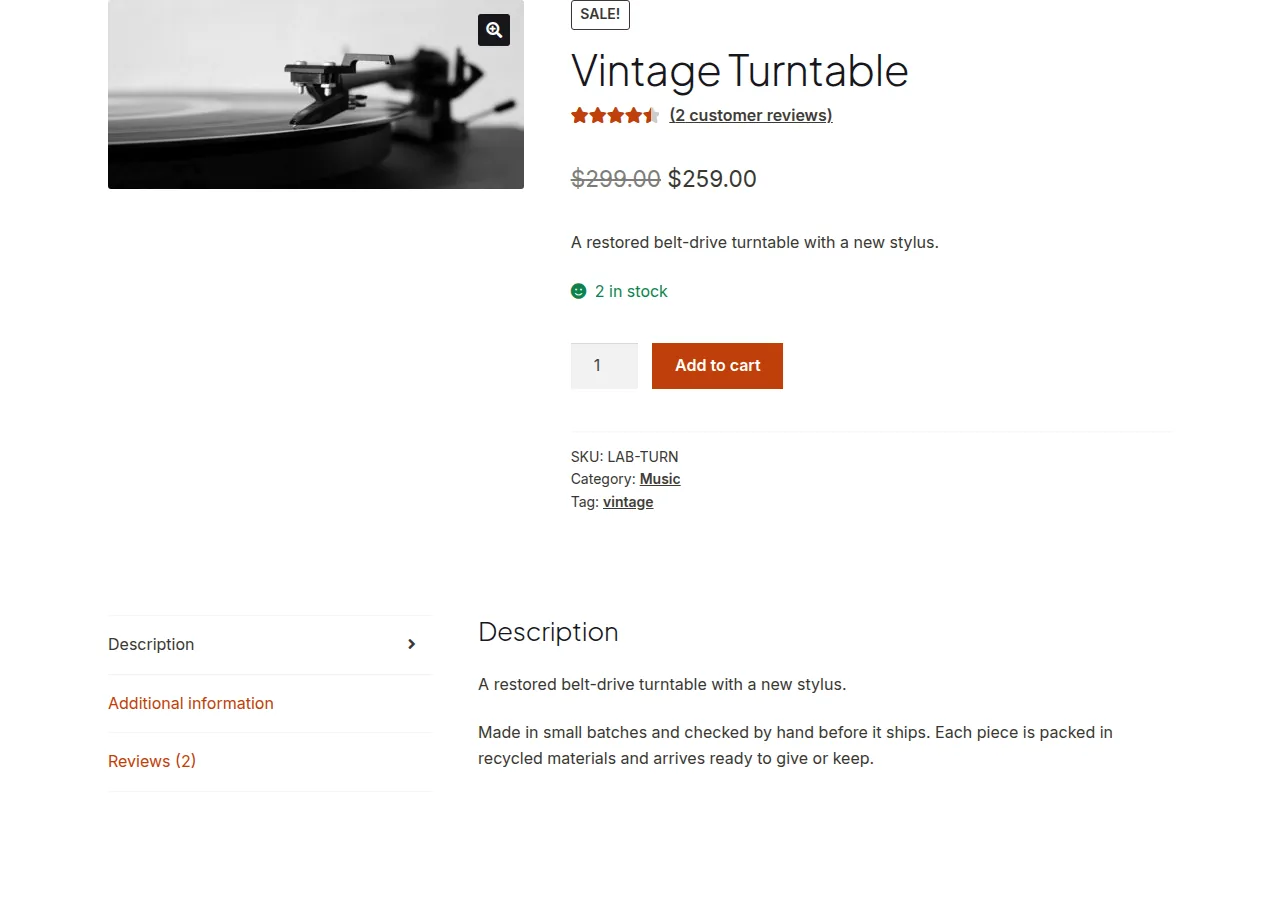
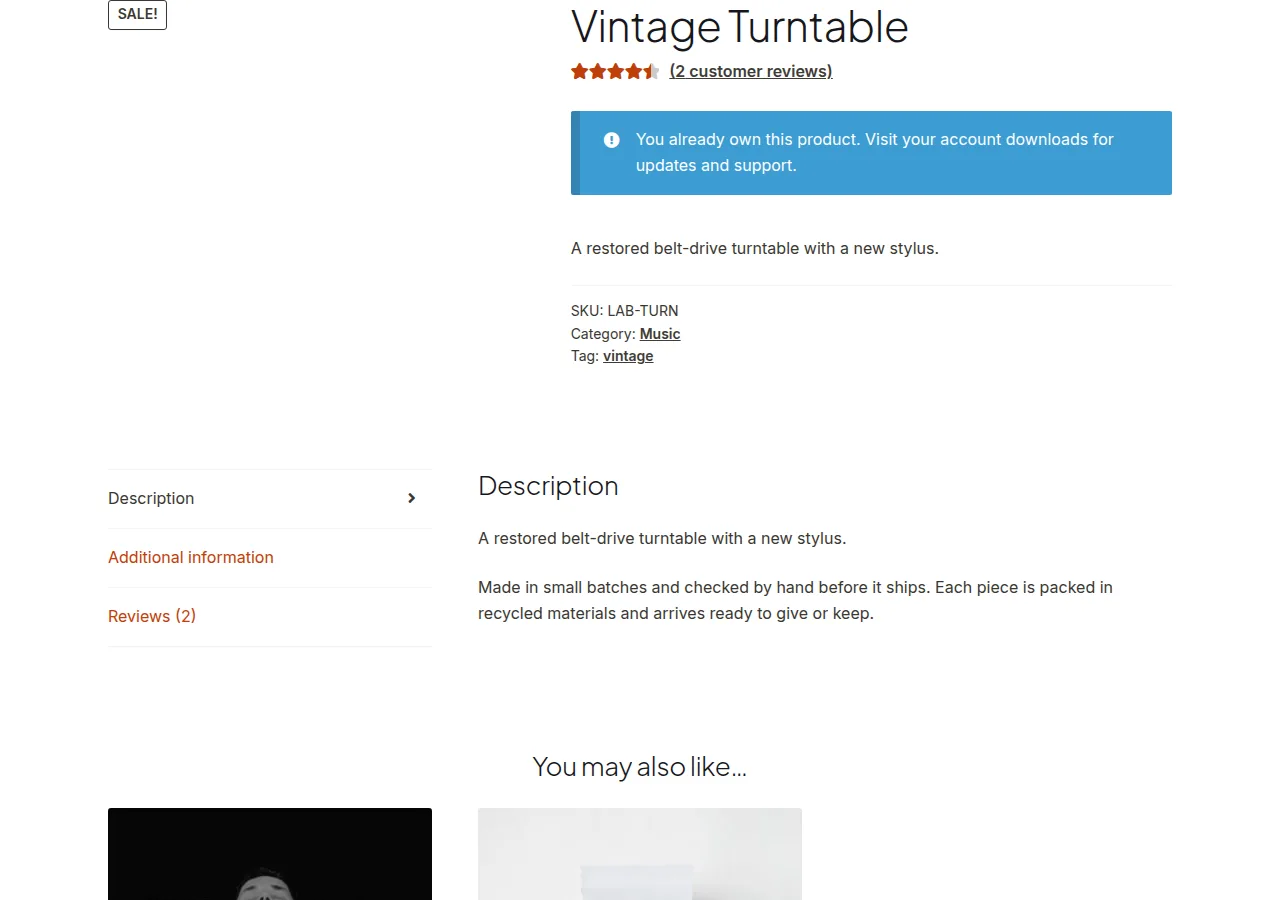
The example below removes the featured image, price, and add-to-cart button for a customer who’s already bought the current product, then inserts a custom message in their place.
/** Simplify the layout for customers who already purchased this exact product */
add_action( 'woocommerce_before_single_product', 'adjust_layout_for_existing_owners' );

function adjust_layout_for_existing_owners() {

    global $product;

    if ( ! is_user_logged_in() ) {
        return;
    }

    $current_user = wp_get_current_user();

    if ( ! wc_customer_bought_product( $current_user->user_email, $current_user->ID, $product->get_id() ) ) {
        return;
    }

    remove_action( 'woocommerce_single_product_summary', 'woocommerce_template_single_add_to_cart', 30 );
    remove_action( 'woocommerce_single_product_summary', 'woocommerce_template_single_price', 10 );
    remove_action( 'woocommerce_before_single_product_summary', 'woocommerce_show_product_images', 20 );

    add_action( 'woocommerce_single_product_summary', 'show_owner_only_support_notice', 10 );
}

function show_owner_only_support_notice() {
    echo '<div class="woocommerce-info">You already own this product. Visit your account downloads for updates and support.</div>';
}
Troubleshooting
The layout changes for every logged-in user, not just owners
Confirm the wc_customer_bought_product() check is actually being reached — a typo in the product ID variable or an early return elsewhere in the theme can cause it to apply too broadly.
Removed elements reappear after a theme update
If a theme changes the priority of its own hooked functions, your remove_action() calls need to match that new priority exactly, or they’ll silently fail to remove anything.
Frequently Asked Questions
Can I change the layout based on user role instead of purchase history?
Yes, swap the wc_customer_bought_product() check for current_user_can( 'your_role' ) if role, not ownership, should drive the layout change.
Does this work for variable products too?
wc_customer_bought_product() checks against the parent product ID by default, so it correctly detects a purchase of any variation of the same product.
Is there a full list of elements I can remove this way?
Yes, the WooCommerce single product page visual hook reference lists every default action and its priority, which is what you need to target each one accurately.
Keep a record of exactly which template elements you remove, since it’s easy to forget the full list months later — if you ever need to change the product layout for logged-in customers in WooCommerce again for a different condition, that documentation saves you from re-deriving the hook priorities from scratch.
Conclusion
A login and purchase-history check is all it takes to change the product layout for logged-in customers in WooCommerce, letting you tailor the page for returning owners without affecting first-time visitors.
See also How to Let a Customer Purchase a WooCommerce Product Only Once. Then read How to Change the Number of Related Products in WooCommerce.
Prefer no code? All-in-One Utilities Woo Add-on adds over 50 WooCommerce features, so you can switch them on without code.