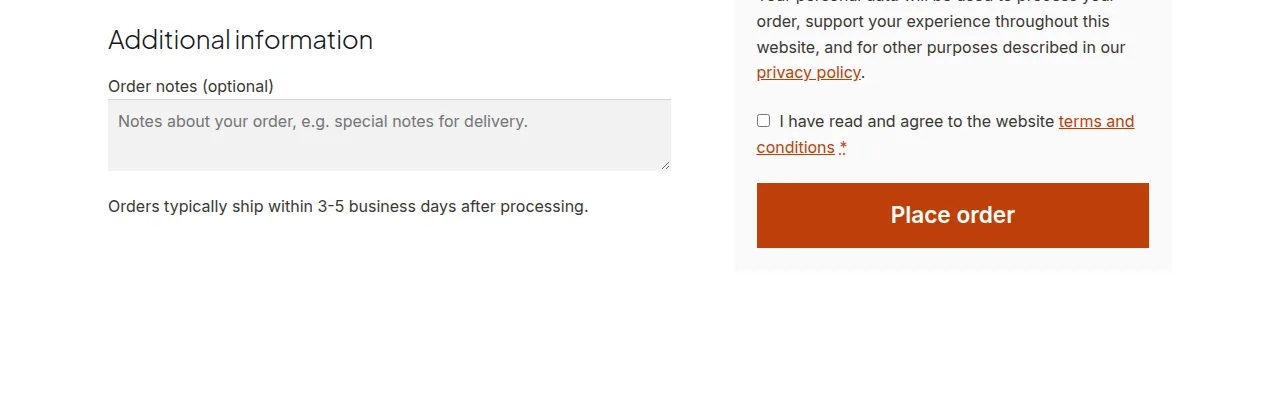
To add a shipping notice on the WooCommerce checkout page, hook a short function into woocommerce_after_order_notes and echo your message — this places a delivery-timeline note right after the Order Notes field, where customers are likely to see it before completing their purchase.
Why Add a Delivery Notice at Checkout
- Sets clear expectations about delivery timelines, especially during peak or holiday season
- Reduces “where is my order” support tickets after the sale
- Builds trust by being upfront about handling times before the customer commits to buying
Step 1: Add the Notice Snippet
/** Show a delivery timeline notice on checkout — add to functions.php */
add_action( 'woocommerce_after_order_notes', 'print_delivery_timeline_notice' );

function print_delivery_timeline_notice() {
    echo '<p class="delivery-notice">Orders typically ship within 3-5 business days after processing.</p>';
}
Repositioning the Notice
To show the notice above the Order Notes field instead of below it, switch to woocommerce_before_order_notes. For a notice that spans the whole checkout column rather than sitting near Order Notes specifically, hook into woocommerce_checkout_before_customer_details or woocommerce_checkout_after_customer_details instead.
Troubleshooting
A Security Plugin Flags functions.php After Editing It
Some security scanners (Wordfence is a common example) flag any recently modified functions.php file as “suspicious,” purely because the file’s contents changed — this is often a generic heuristic, not proof of an actual compromise. Before assuming you’ve been hacked, review exactly what you added and confirm it matches this snippet rather than panicking over the alert alone.
Notice Doesn’t Appear on Checkout
Confirm the checkout page is using the default WooCommerce checkout shortcode/block rather than a fully custom checkout template, since a heavily customized checkout may not fire this specific hook.
Frequently Asked Questions
Can I show this notice only for certain shipping methods?
Yes — check the chosen shipping method inside the function (via WC()->session or the cart’s chosen shipping methods) and only echo the notice when a specific method is selected.
Will this notice show on the Cart page too?
No, this hook is checkout-specific. Add a separate snippet hooked to woocommerce_before_cart if you want a similar message on the Cart page.
Can I style the notice to stand out more?
Yes — add a CSS rule targeting the delivery-notice class used in the example to add background color, borders, or an icon.
Conclusion
A short hook is all it takes to add a shipping notice on the WooCommerce checkout page and set clear delivery expectations before the sale is complete. If a security scanner flags the file change afterward, that’s a routine alert to verify, not a sign the snippet itself did anything wrong.
See also How to Hide Other Shipping Rates When Free Shipping Is Available in WooCommerce. Then read How to Hide a Shipping Rate by Shipping Class in WooCommerce.
Prefer no code? All-in-One Utilities Woo Add-on adds over 50 WooCommerce features, so you can switch them on without code.