
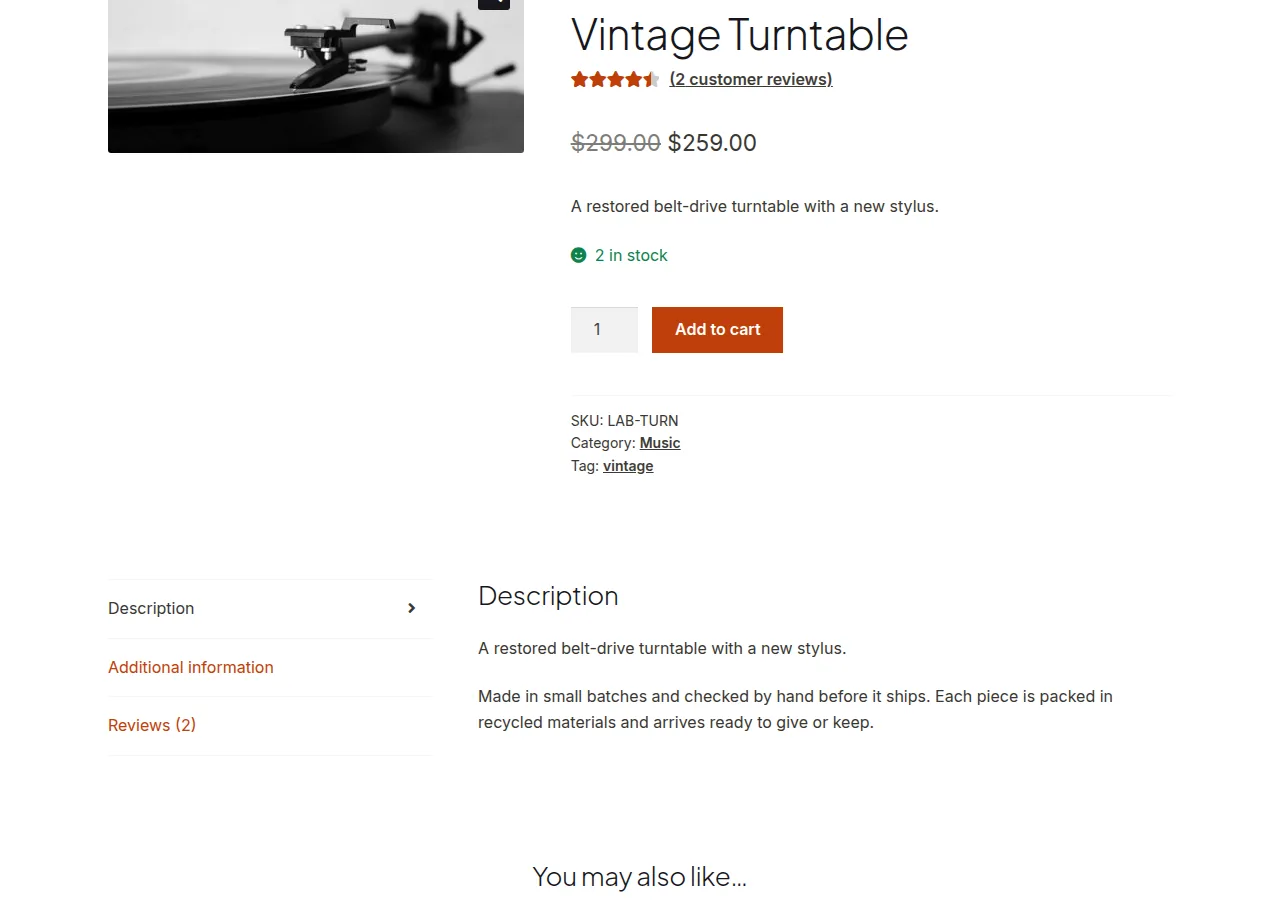
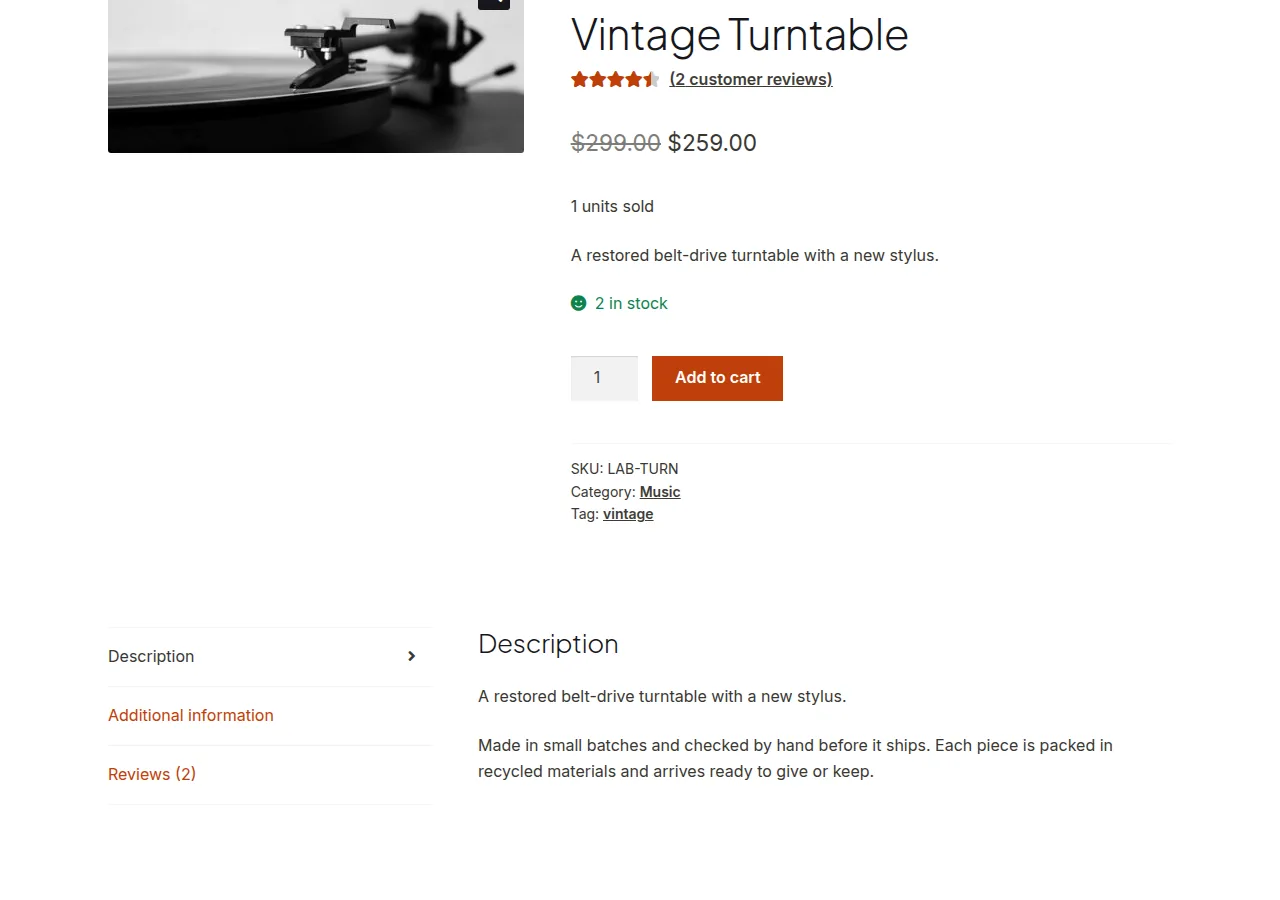
To show number of products sold on WooCommerce product page, hook into woocommerce_single_product_summary and print the value returned by $product->get_total_sales() — WooCommerce already tracks this figure in the database for every product, so no extra tracking code is needed.
Why Display Units Sold
- Social proof (“500 sold”) reassures hesitant buyers and can lift conversion rate
- Highlights genuinely popular products without needing a separate “bestseller” tagging system
- Zero setup cost — the sales count already exists in WooCommerce’s product meta
Step 1: Add the Sales Counter Snippet
/** Print total units sold below the product summary — add to functions.php */
add_action( 'woocommerce_single_product_summary', 'print_units_sold_counter', 11 );

function print_units_sold_counter() {

    global $product;

    $units_sold = $product->get_total_sales();

    if ( $units_sold > 0 ) {
        echo '<p class="units-sold-count">' . sprintf( esc_html__( '%s units sold', 'woocommerce' ), esc_html( $units_sold ) ) . '</p>';
    }
}
Handling Singular vs Plural Text
The snippet above always says “units sold,” which reads a little awkwardly for a single sale. Swap the sprintf() line for WordPress’s built-in plural handling if that matters to you:
$label = ( 1 === $units_sold ) ? '1 sale' : $units_sold . ' sales';
echo '<p class="units-sold-count">' . esc_html( $label ) . '</p>';
Troubleshooting
Nothing Shows Up on the Product Page
If the single product page is built entirely with a page builder’s own product template (Elementor’s Theme Builder, for example), the builder often bypasses standard WooCommerce action hooks like woocommerce_single_product_summary in favor of its own widgets. In that case, look for a “shortcode” or “HTML” widget where you can trigger the same PHP logic manually, or check whether the builder has a native “custom field” widget you can point at total sales.
The Count Seems Too Low or Wrong
get_total_sales() only increments on completed/processing orders — it excludes cancelled, refunded, and failed orders, and it counts quantity, not number of orders. A product ordered twice at quantity 3 shows 6, not 2.
Frequently Asked Questions
Does this slow down the product page?
No — get_total_sales() just reads a value already stored as post meta, so there’s no extra database query overhead beyond loading the product itself.
Can I only show this for bestsellers?
Yes — wrap the echo statement in a conditional like if ( $units_sold >= 50 ) so the badge only appears once a product crosses a meaningful sales threshold.
Can I reset the sales counter for a product?
Yes, via update_post_meta( $product_id, 'total_sales', 0 ), though this is rarely needed outside of testing or correcting a data import.
Conclusion
A single action hook is all it takes to show number of products sold on WooCommerce product page without a dedicated analytics plugin. If your theme uses a page builder for the product layout, just confirm the hook actually fires before assuming the snippet isn’t working.
See also How to Change the Number of Related Products in WooCommerce. Then read WooCommerce Single Product Page Hooks: A Visual Guide.
Prefer no code? All-in-One Utilities Woo Add-on adds over 50 WooCommerce features, so you can switch them on without code.