
To add content under the Place Order button in WooCommerce, hook into woocommerce_review_order_after_submit on the classic checkout and echo your HTML — trust badges, a privacy note, or a guarantee message all work well here. On the block-based checkout, you don’t need code at all; you can insert a paragraph block directly in the editor.
Why Add Content Near the Place Order Button
- It’s the last thing a customer sees before committing to a purchase, so reassurance text reduces last-second hesitation
- Security badges or a returns policy link here can measurably reduce checkout abandonment
- It keeps important legal or trust information visible without cluttering earlier checkout steps
Classic Checkout: Add Content With PHP
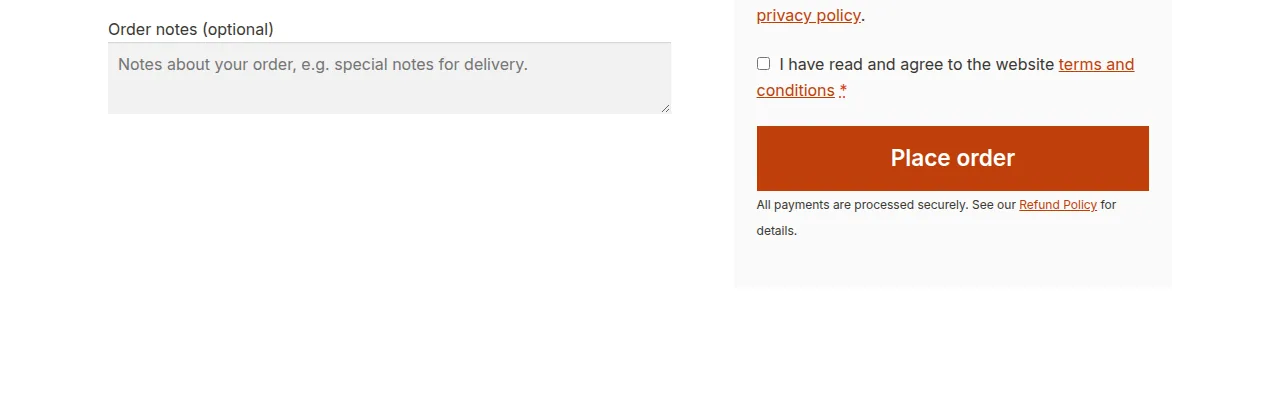
/** Add a short reassurance note below the classic checkout Place Order button */
add_action( 'woocommerce_review_order_after_submit', 'show_secure_checkout_note' );

function show_secure_checkout_note() {
    echo '<p class="checkout-note"><small>All payments are processed securely. See our <a href="/refund-policy" target="_blank" rel="noopener">Refund Policy</a> for details.</small></p>';
}
Adding an Icon Alongside the Text
You can extend the same function to include a small lock or badge image for extra visual trust:
add_action( 'woocommerce_review_order_after_submit', 'show_secure_checkout_badge' );

function show_secure_checkout_badge() {
    echo '<p class="checkout-badge"><img src="/wp-content/uploads/ssl-badge.png" alt="Secure checkout" width="120" /></p>';
}
Block Checkout: No Code Needed
If your store uses the newer Checkout block, open the checkout page in the block editor, select the Place Order block, click “Add after,” and insert a paragraph block with your text — no PHP required.
Troubleshooting
The Content Appears More Than Once
This usually means the hook fires multiple times because it’s being added inside another action or loop — make sure add_action is called once, at the top level of your functions.php, not inside a conditional that runs repeatedly.
Content Shows in the Wrong Position
If it appears above the button instead of below, check for a theme override of the checkout template that changes the order these hooks fire in — try a different priority number as the third argument to add_action.
Frequently Asked Questions
Can I show different content based on the cart total?
Yes — wrap the echo statement in a check against WC()->cart->get_cart_contents_total() to show different messaging for larger or smaller orders.
Will this content show on the Pay for Order page too?
The woocommerce_review_order_after_submit hook also fires on the order-pay page since it shares the same review-order template, so yes, it will appear there as well.
Is there a hook for content above the button instead?
Yes, use woocommerce_review_order_before_submit to place content immediately before the Place Order button rather than after it.
Conclusion
Whether you add content under the Place Order button with a one-line PHP snippet on the classic checkout or a paragraph block on the newer block-based checkout, it’s a quick way to add trust signals right where customers make their final decision.
See also How to Rename the Place Order Button in WooCommerce. Then read How to Rename Place Order Based on the Chosen Payment Gateway in WooCommerce.
Prefer no code? All-in-One Utilities Woo Add-on adds over 50 WooCommerce features, so you can switch them on without code.