
You can rename Place Order based on the chosen payment gateway in WooCommerce by filtering woocommerce_available_payment_gateways and setting each gateway’s order_button_text property, so the button label updates instantly as the customer switches payment methods.
Why a Dynamic Button Label Helps
- “Place Order” is vague for payment methods that don’t charge immediately, like bank transfer or cash on delivery
- A label like “View Bank Details” sets accurate expectations for what happens after clicking
- It reduces confused support questions from customers unsure whether their card was actually charged
- It’s a small trust-building detail that costs almost nothing to implement
Step 1: Find Your Gateway IDs
Each payment gateway has an internal ID (like bacs for bank transfer or cod for cash on delivery) — check WooCommerce > Settings > Payments, or inspect the checkout page’s radio input names, to confirm the exact ID for each gateway you want to customize.
Step 2: Add the Dynamic Label Filter
/** Change the "Place Order" button label based on the selected payment method */
add_filter( 'woocommerce_available_payment_gateways', 'customize_order_button_by_gateway' );

function customize_order_button_by_gateway( $gateways ) {
    if ( isset( $gateways['bacs'] ) ) {
        $gateways['bacs']->order_button_text = 'View Bank Transfer Details';
    }

    if ( isset( $gateways['cod'] ) ) {
        $gateways['cod']->order_button_text = 'Confirm Cash on Delivery Order';
    }

    if ( isset( $gateways['cheque'] ) ) {
        $gateways['cheque']->order_button_text = 'Confirm Order & Mail Payment';
    }

    return $gateways;
}
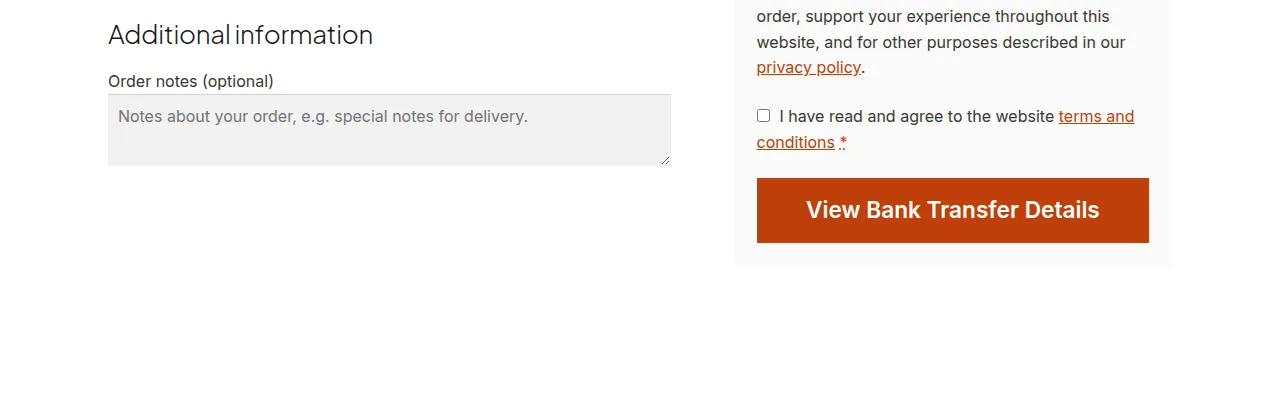
Step 3: Leave Card/Instant Gateways With Their Default Label
For gateways that charge immediately (Stripe, PayPal, credit card processors), “Place Order” or “Pay Now” is usually already accurate — this customization is most valuable specifically for delayed-payment methods where the default label misleads customers about what just happened.
Troubleshooting
Button Label Doesn’t Change When Switching Gateways
Confirm the exact gateway ID matches — a common mistake is guessing the ID instead of checking it directly, since some gateway plugins use non-obvious IDs that don’t match their display name.
Custom Label Reverts After a Plugin Update
If a gateway plugin update changes its internal ID or restructures its class, the filter check may silently stop matching — re-verify the gateway ID after major plugin updates if the customization stops appearing.
Frequently Asked Questions
Can I rename the button for every gateway, not just a few?
Yes — add an isset() check and label assignment for each gateway ID active in your store, following the same pattern shown above.
Does this affect the button on the Cart page too?
No — this specifically customizes the checkout page’s “Place Order” button; the Cart page’s “Proceed to Checkout” button is a separate, unrelated element.
Will this work with block-based checkout (Cart and Checkout blocks)?
The classic woocommerce_available_payment_gateways filter primarily affects the legacy shortcode checkout — block-based checkout may require a different customization approach specific to the block checkout’s payment method configuration.
Conclusion
A dynamic order button label is a small detail that meaningfully clarifies what happens next for delayed-payment methods like bank transfer or cash on delivery. Confirm your gateway IDs precisely, since a mismatched ID is the most common reason this customization silently doesn’t apply. Getting this right is really what rename place order based on the chosen payment gateway comes down to.
See also How to Rename the Place Order Button in WooCommerce. Then read How to Add Content Under the Place Order Button in WooCommerce.
Prefer no code? All-in-One Utilities Woo Add-on adds over 50 WooCommerce features, so you can switch them on without code.