
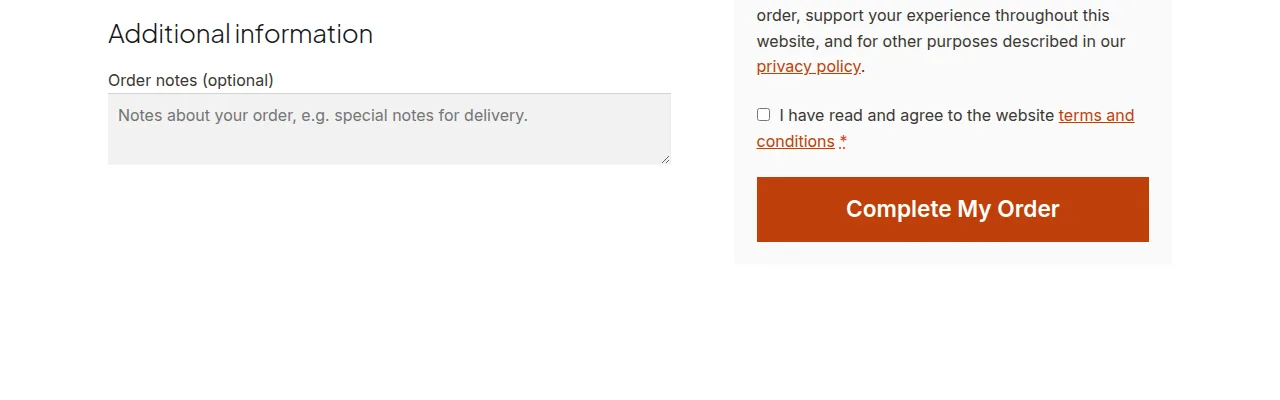
To rename the Place Order button in WooCommerce, filter woocommerce_order_button_text and return your custom label — a quick change that can make the final call-to-action feel more specific to your brand or offer than the generic default text.
Why Rename This Button
- A more specific label (“Complete Secure Order”) can reinforce trust right at the moment of commitment
- It’s an easy A/B test candidate for improving checkout conversion
- It takes only a few lines of code with no risk to the actual checkout functionality
Method 1: The Simple Text Filter
/** Rename the checkout Place Order button */
add_filter( 'woocommerce_order_button_text', 'rename_place_order_button_label', 9999 );

function rename_place_order_button_label() {
    return 'Complete My Order';
}
This works for the vast majority of themes and checkout setups.
Method 2: The Full HTML Override (If Method 1 Doesn’t Apply)
Some themes render the button through different markup that ignores the simple text filter. In that case, override the button’s full HTML instead:
add_filter( 'woocommerce_order_button_html', 'rename_place_order_button_html', 9999 );

function rename_place_order_button_html() {
    $label = 'Complete My Order';
    return '<button type="submit" class="button alt" name="woocommerce_checkout_place_order" id="place_order" value="' . esc_attr( $label ) . '" data-value="' . esc_attr( $label ) . '">' . esc_html( $label ) . '</button>';
}
Note the label needs to be entered in three places within the HTML — the button’s visible text, its value attribute, and its data-value attribute — since WooCommerce’s JavaScript references these during the AJAX checkout submission.
Troubleshooting
The Text Filter Has No Effect
This is the most common reason to fall back to Method 2 — some themes hardcode the button markup rather than relying on the standard text filter, so the HTML override becomes necessary.
The Button Text Reverts to “Place Order” Mid-Checkout
WooCommerce sometimes resets button state during the AJAX order-review refresh — confirm you’re using a high priority number (like 9999) on your filter so it applies consistently after other plugins.
Frequently Asked Questions
Can I rename it differently for different payment gateways?
Yes — check the currently selected gateway inside your filter function and return a different label depending on which one is active.
Does renaming the button affect order processing at all?
No — this only changes the visible label and button text; the underlying form submission and order creation logic remain completely unchanged.
Will this work with the WooCommerce Checkout Block?
No — the block-based checkout renders its own button through a different system, requiring a block-specific customization rather than these classic checkout filters.
Conclusion
Renaming the Place Order button in WooCommerce is usually as simple as one text filter, with a full HTML override as a fallback for themes that don’t respect the standard filter — either way, it’s a low-risk change worth testing for checkout conversion.
See also How to Add Content Under the Place Order Button in WooCommerce. Then read How to Rename Place Order Based on the Chosen Payment Gateway in WooCommerce.
Prefer no code? All-in-One Utilities Woo Add-on adds over 50 WooCommerce features, so you can switch them on without code.